🛏️ Add Room Type – Room & Inventory
Module: Room & Inventory
Section: Add Room Type
Location: Operations > Room & Inventory > Add Room Type
Version: 1.0.0
Last Updated: June 2025
🧭 Overview
The Add Room Type page allows hotel administrators to define new room types by specifying detailed information such as room capacity, amenities, pricing structure, and associated media.
This form is essential for expanding or updating inventory listings within the PMS system.
🖼️ Interface Preview
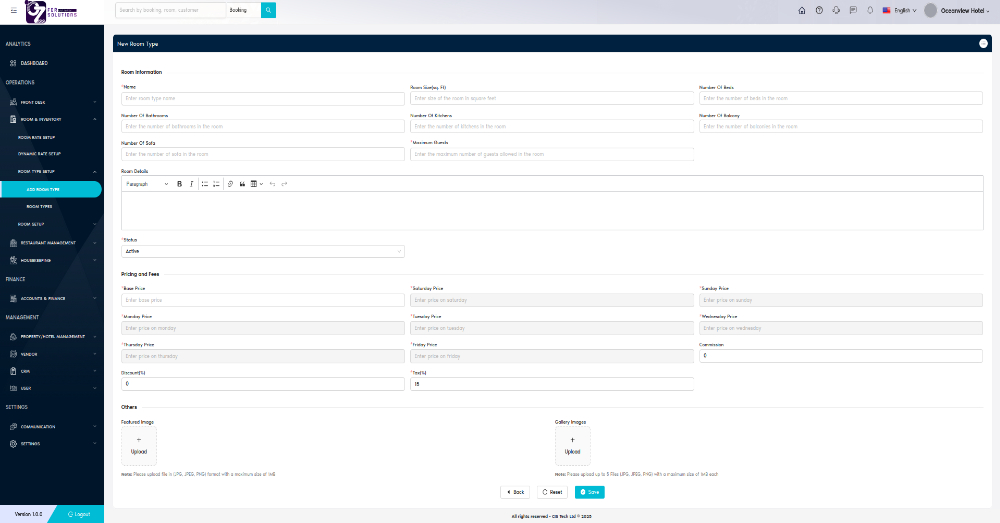
Image: Form layout to create or configure a new room type with weekly pricing and tax setup.
👤 Who Can Access
| Role | Access Level |
|---|---|
| Admin | Full access |
| Manager | Add/Edit |
| Staff | View only |
🏨 Room Information Fields
| Field | Description |
|---|---|
| Name | Name of the room type (e.g., Deluxe King) |
| Room Size (Sq. Ft) | Area in square feet |
| Number of Beds | Total beds available |
| Number of Bathrooms | Count of attached bathrooms |
| Number of Kitchens | Count of kitchens included |
| Number of Balconies | Total number of balconies (if any) |
| Number of Sofas | Optional sofa count |
| Maximum Guests | Guest capacity allowed |
| Description | Rich text field to describe room features |
💵 Pricing and Fees
| Field | Description |
|---|---|
| Base Price | Standard base rate for the room |
| Saturday–Friday | Daily custom rates for each day of the week |
| Discount (%) | Percentage discount (optional) |
| Tax (%) | Tax rate applicable (default: 15%) |
| Commission | Commission to be applied per booking (if any) |
📁 Media Uploads
| Field | Description |
|---|---|
| Featured Image | Upload a main photo representing the room (JPG/PNG, max 1MB) |
| Gallery Images | Upload up to 6 additional images for the room type |
✅ How to Use
- Navigate to Room & Inventory > Add Room Type.
- Fill in Room Information fields such as name, capacity, and description.
- Enter the Pricing and Fee details for each day of the week.
- Add tax, commission, and discount (if applicable).
- Upload a featured image and optional gallery photos.
- Click Save to create the new room type.
❗ Troubleshooting
| Issue | Solution |
|---|---|
| Cannot save room type | Ensure all required fields (e.g., price, name) are filled |
| Image upload failed | Verify file size is under 1MB and correct format |
| Field reset on submit | Click Save, not Reset |
🔗 Related Pages
📞 Support
For help with adding or editing room types:
- Contact hotel system administrator
- Or email: support@yourcompany.com
Easily configure diverse room types with detailed pricing and specifications for improved reservation management.