🧾 Transaction History – Front Desk
Module: Operations
Section: Transaction History
Location: Front Desk > Transaction History
Version: 1.0.0
Last Updated: July 2025
🧭 Overview
The Transaction History module provides a detailed log of all payments received for reservations.
It helps the front desk and finance teams verify financial activity, reconcile totals, and filter data by booking number, payment method, and type.
👤 Who Can Access
| Role | Access Level |
|---|---|
| Admin | Full access |
| Finance | Full access |
| Front Desk | View Only |
| Housekeeping | No access |
| Guest | No access |
🖼️ Interface Preview
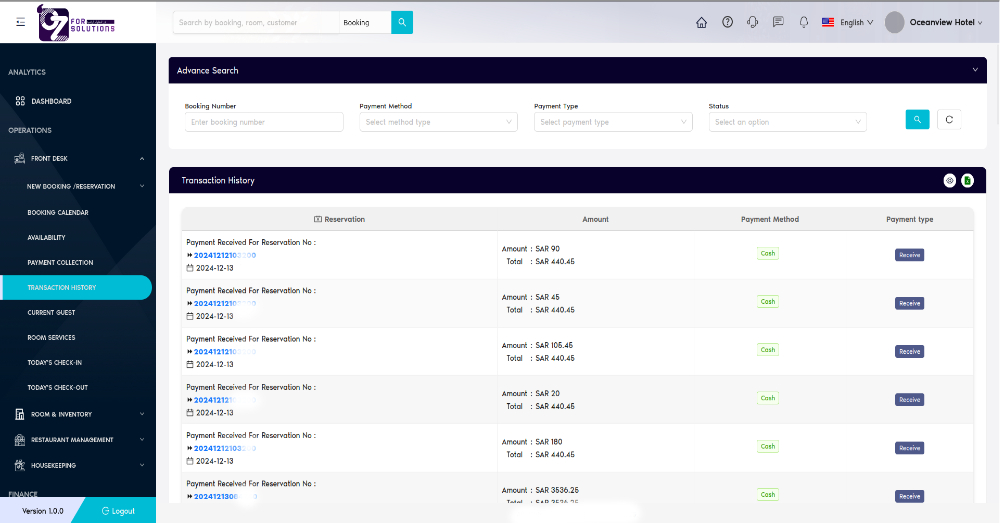 Image: UI showing payment transaction list with booking ID, amount, method, and status.
🧾 Key Columns & Descriptions
| Column | Description |
|---|---|
| Reservation | Booking number and date of transaction |
| Amount | Payment received (per entry) and the total invoice amount in SAR |
| Payment Method | Mode of payment (e.g., Cash, Card, Transfer) |
| Payment Type | Label indicating the transaction type (usually shown as “Receive”) |
🔍 Filters and Search Options
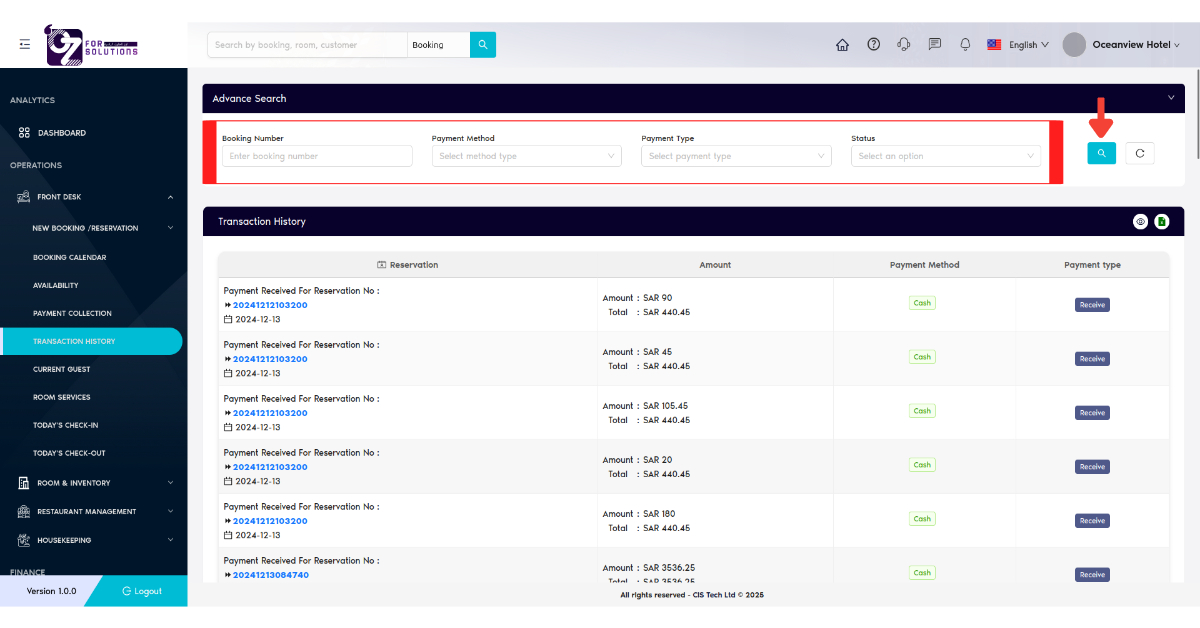
Use the Advance Search panel at the top of the page:
- Booking Number: Enter reservation number to filter specific transactions.
- Payment Method: Select method (e.g., Cash, Card, Bank Transfer).
- Payment Type: Choose type such as Receive, Refund, etc.
- Status: Filter based on transaction or reservation status.
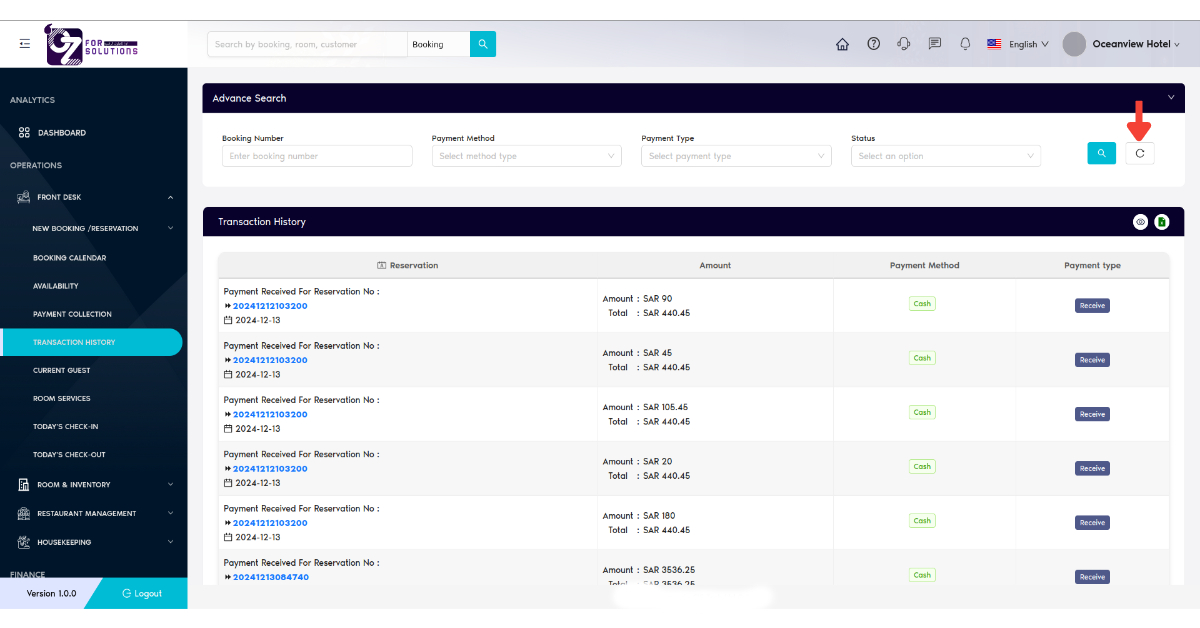
Click the Search (🔍) button to apply filters, or the Reset (⟳) button to clear them.
📋 How to Use Transaction History – Step by Step
-
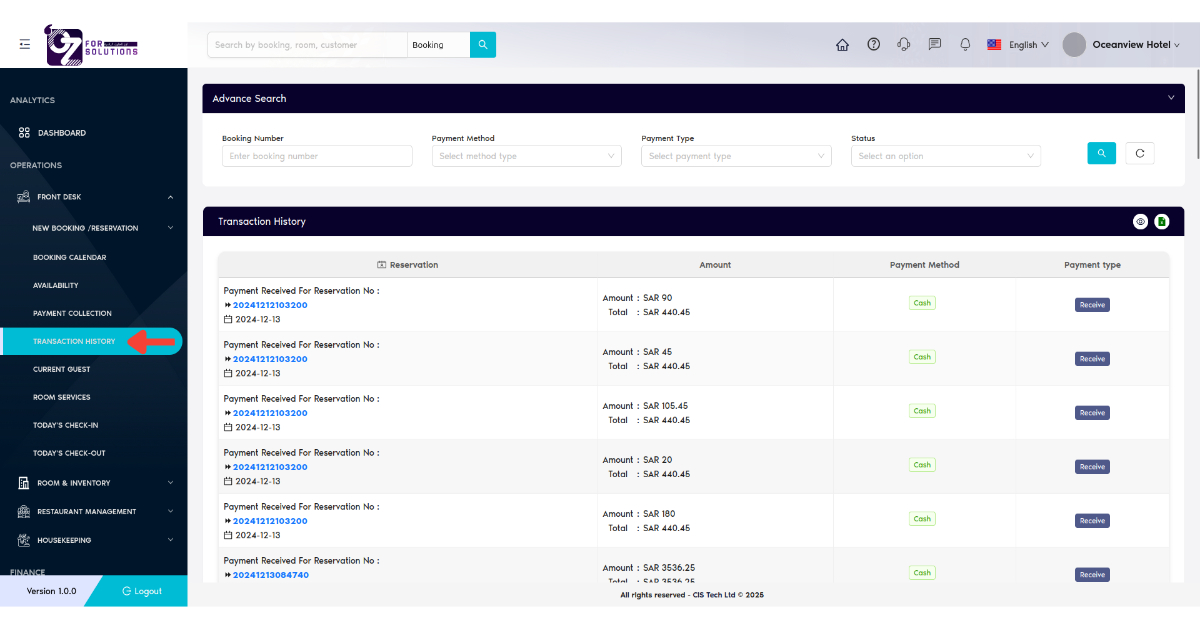
Navigate to Transaction History
- Go to
Front Desk > Transaction Historyfrom the left sidebar.
- Go to
-
Apply Filters via Advance Search
- Enter Booking number, Payment method, Payment type or status (Select any type of Filter or multiple Filters)
- Click the search icon to load relevant records.
-
Use Page Refresh Option:
- Click Refresh button to reload and reflect latest data
-
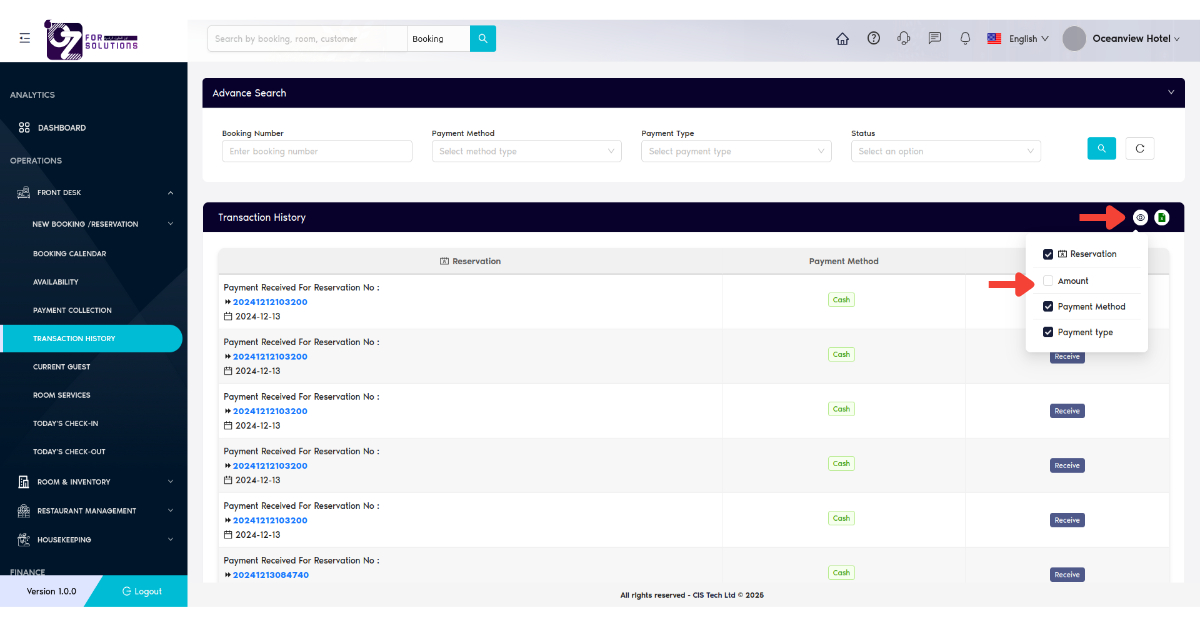
Use Column View Control:
- Click on the
View Column Control(👁️ icon) - Check or Uncheck columns to view necessary column (only for your current view)
- Click on the
-
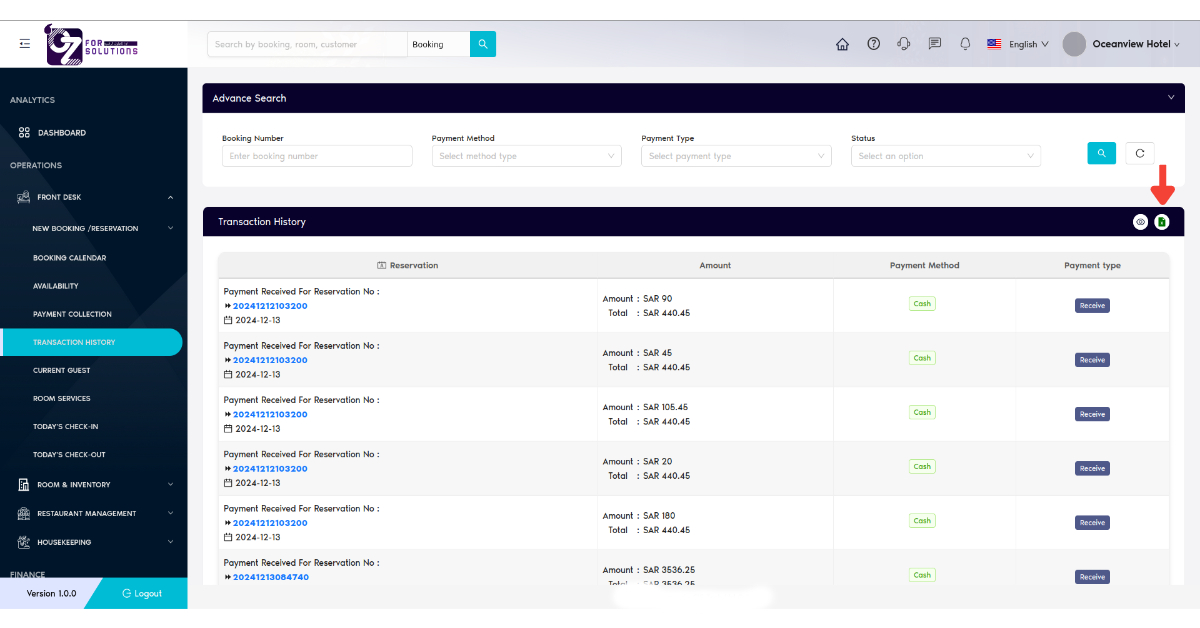
Export to Excel Report:
- Click the Excel Export (📤) button located at the top-right corner of the Payment Collection page
- An Excel file will be generated containing the visible data columns
- Exported data respects filters (date range, customer type, booking number, etc.)
- Ensure column visibility settings match your export needs
-
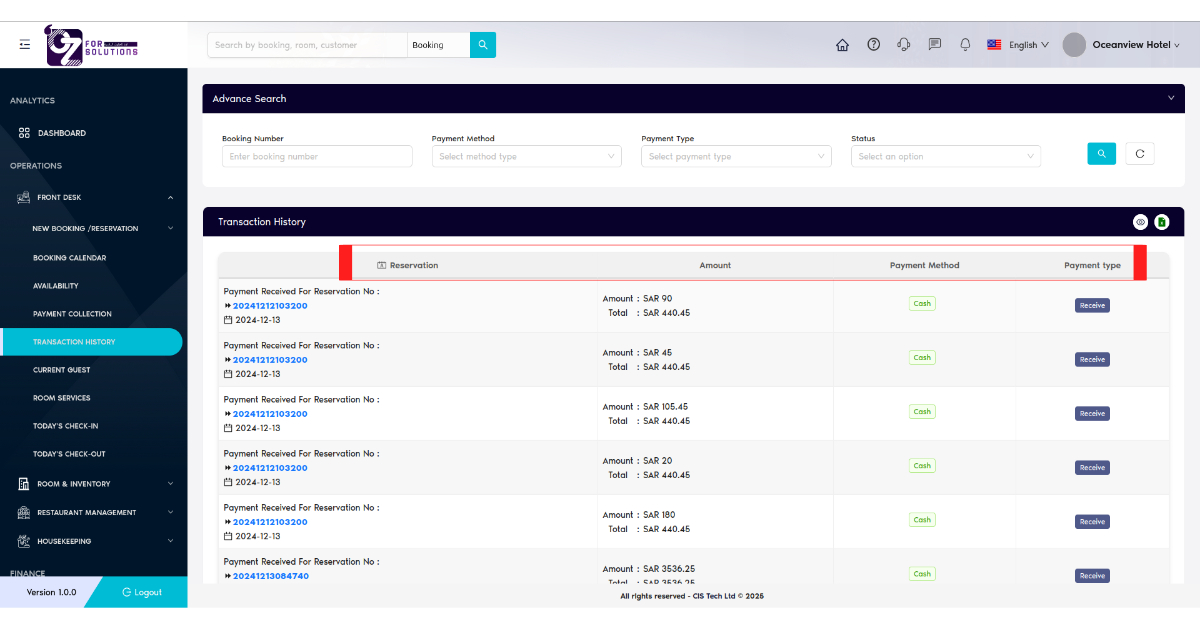
Understand Key Columns – Payment Logs:
- Reservation: Booking number (🔗 clickable, links to reservation details) and transaction date (📅)
- Amount: Paid amount and the total bill in SAR
- Payment Method: Indicates the method used to make the payment – 💵 Cash, 💳 Card, 🏦 Bank Transfer, or 🌐 Online
- Payment Type: Specifies whether the transaction is a Receive or a Refund
⚠️ Notes
- 💡 Amounts are displayed in SAR (Saudi Riyal).
- 🧾 Transactions are auto-linked with the booking number.
- 🗓️ Date format is shown as YYYY-MM-DD.
🧪 Related Modules
📞 Support
For issues related to incorrect logs, missing payments, or sync failures:
- Contact your Accounts & Finance team
- Or email: hello@cistechltd.com
💼 Accurate transaction records are essential for audit, finance reconciliation, and transparency.