🧳 Today's Check-Out – Front Desk
Module: Front Desk
Section: Today's Check-Out
Location: Operations > Front Desk > Today's Check-Out
Version: 1.0.0
Last Updated: July 2025
🧭 Overview
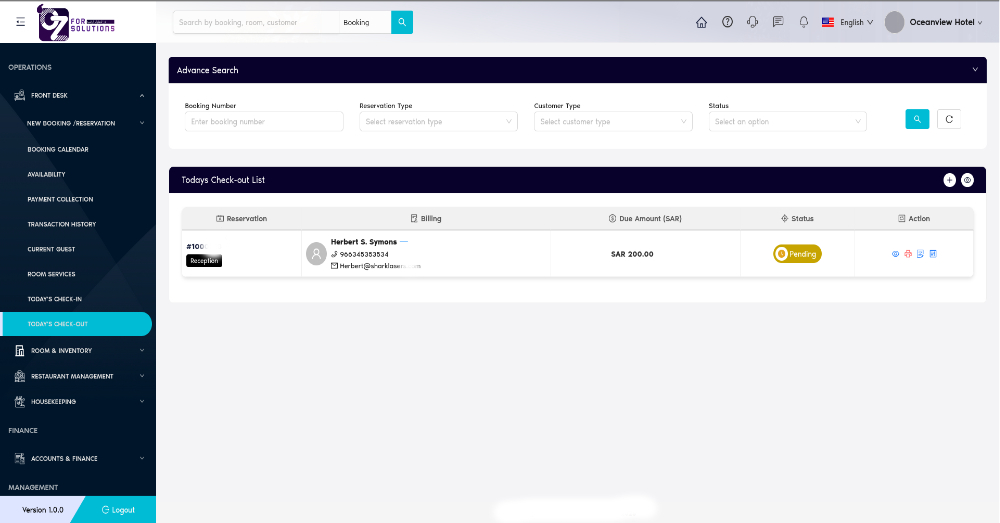
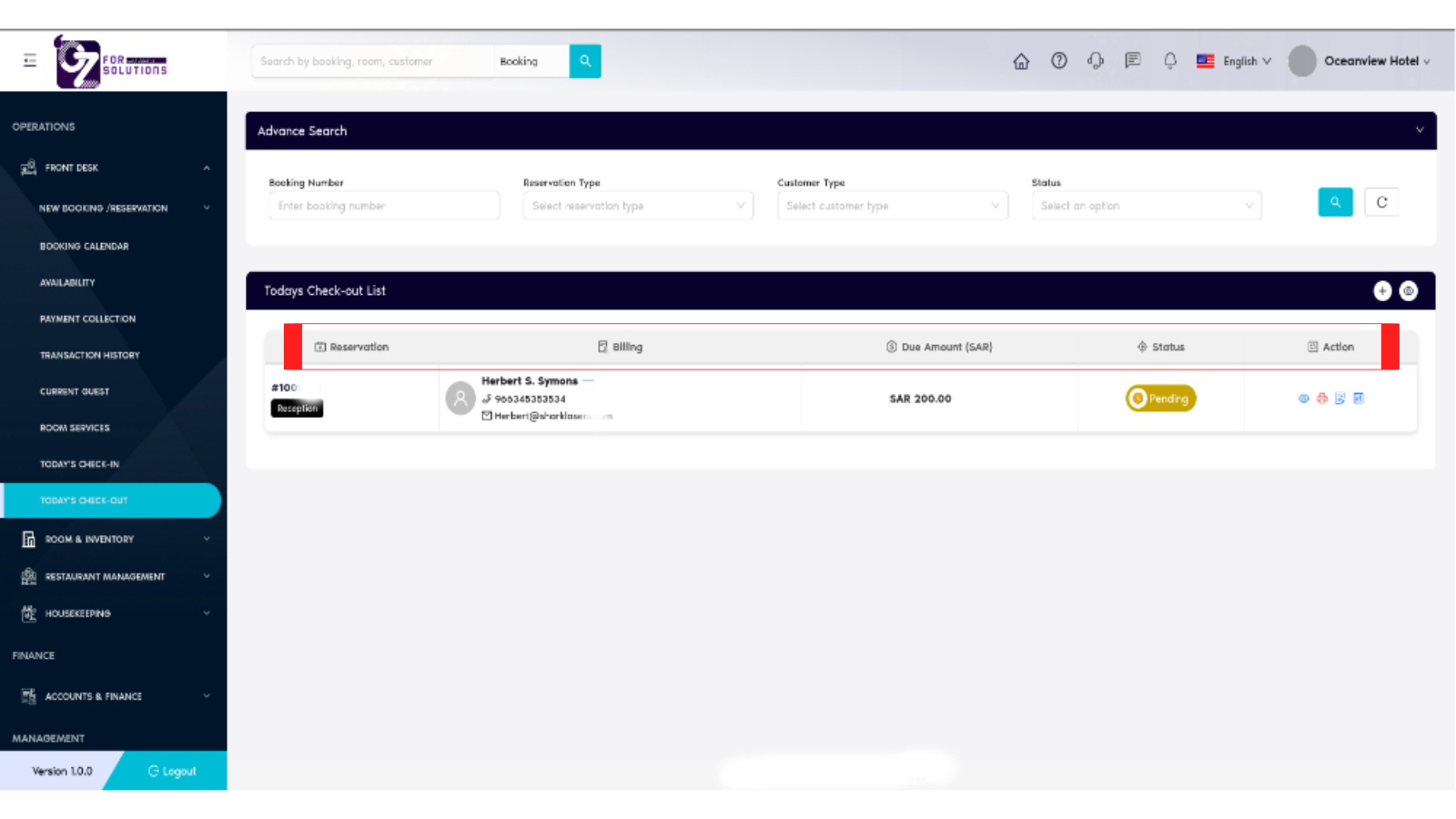
The Today's Check-Out page allows the front desk team to manage all guest check-outs scheduled for the current day. It displays key details such as reservation ID, guest contact, due amounts, and checkout status. This ensures timely departures and accurate billing.
🖼️ Interface Snapshot
👥 Access Permissions
| Role | Access Rights |
|---|---|
| Admin | Full Access |
| Manager | View & Confirm |
| Receptionist | View & Confirm |
| Staff | View Only (Optional) |
📌 Key Features
- 🔎 Filter guests by booking number, reservation type, customer type, or status
- 📞 Quick guest contact overview
- 💳 Billing summary & due amount
- 🖨️ Printable checkout documents
- ⚙️ Manage reservations with action icons
📋 How to Manage Today's Check-Out – Step by Step
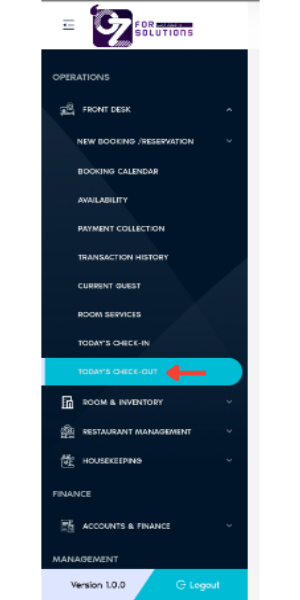
1. Navigate to Today's Check-Out
- Go to
Front Desk > Today's Check-Outfrom the sidebar. - A full list of scheduled guest check-outs will be displayed.
2. Filter Reservations
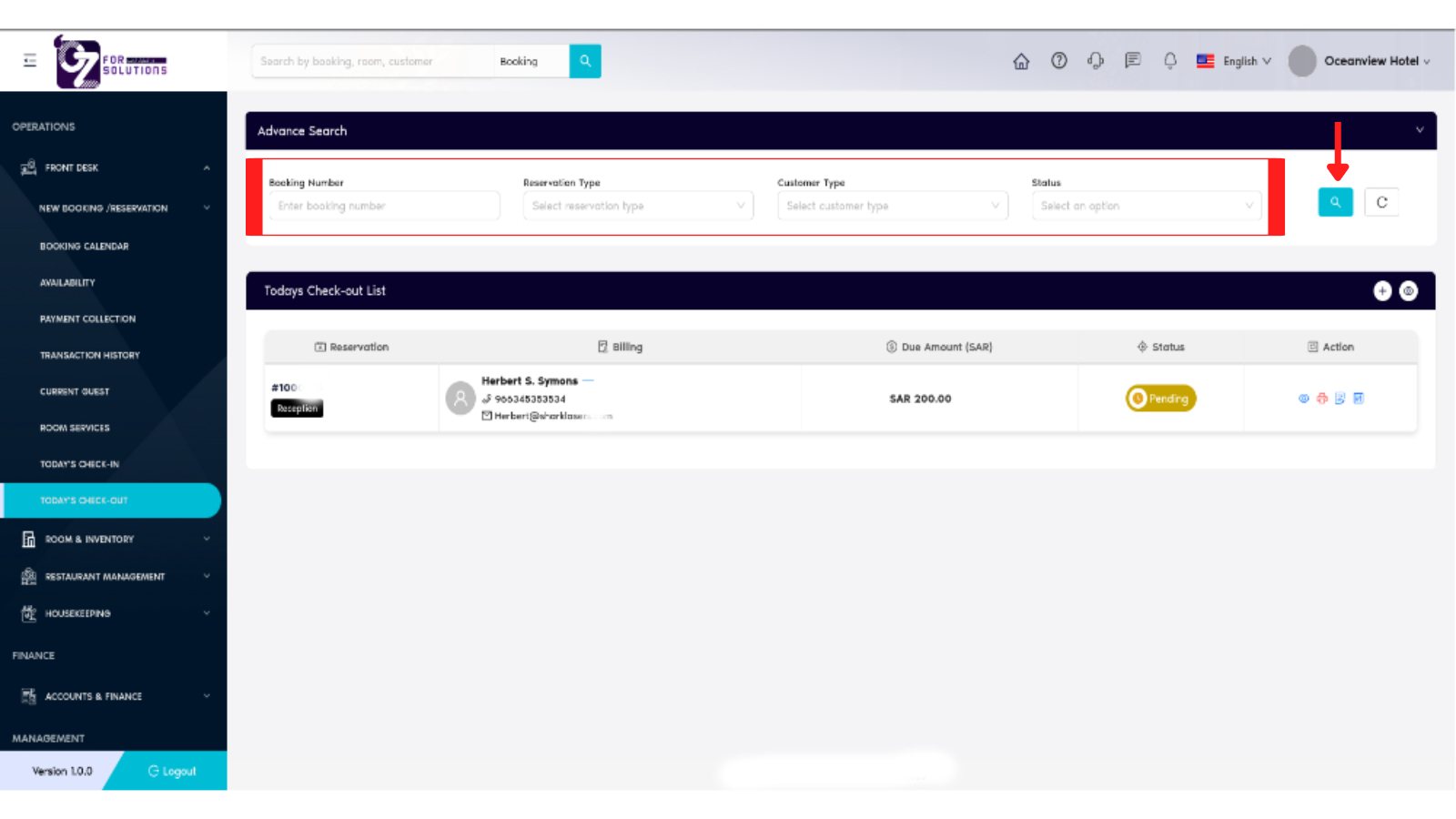
- Use filters in the Advanced Search bar:
- Booking Number
- Reservation Type
- Customer Type
-
Status
-
Click the Search icon to apply filters and load matching records.
3. Use Page Refresh Option
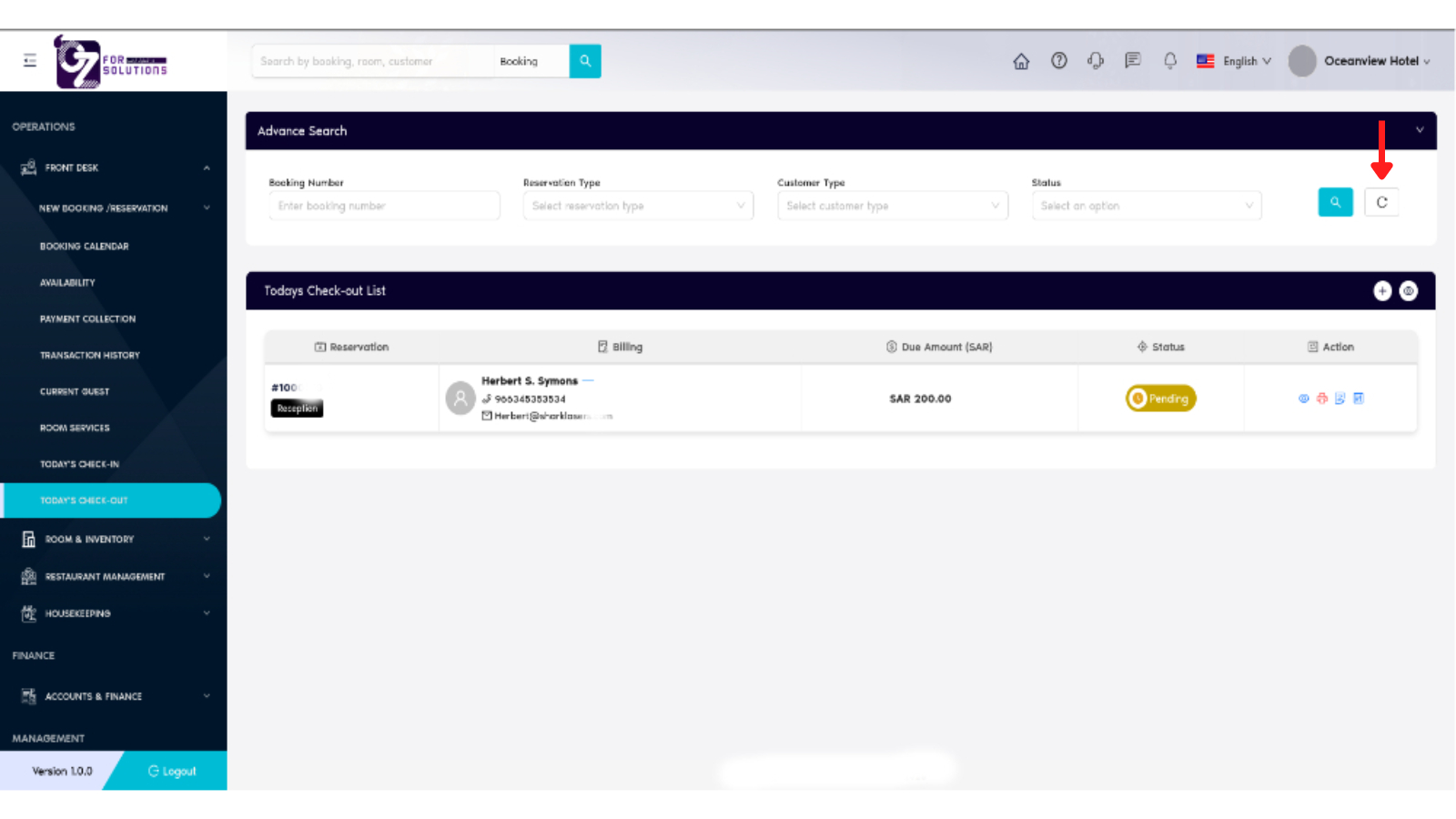
- Click the Refresh button to reload and display the latest list.
4. Understand Key Columns – Reservation List
- Reservation ID: Booking reference number
- Source: Reservation origin (e.g., Reception, Online)
- Guest Name: Name of the checking-out guest
- Contact Info: Phone and email of the guest
- Due Amount: Final payable amount (in SAR)
- Check-Out Status: Displays if the check-out is Pending or Completed
- Action: Manage each reservation entry
5. Perform Actions
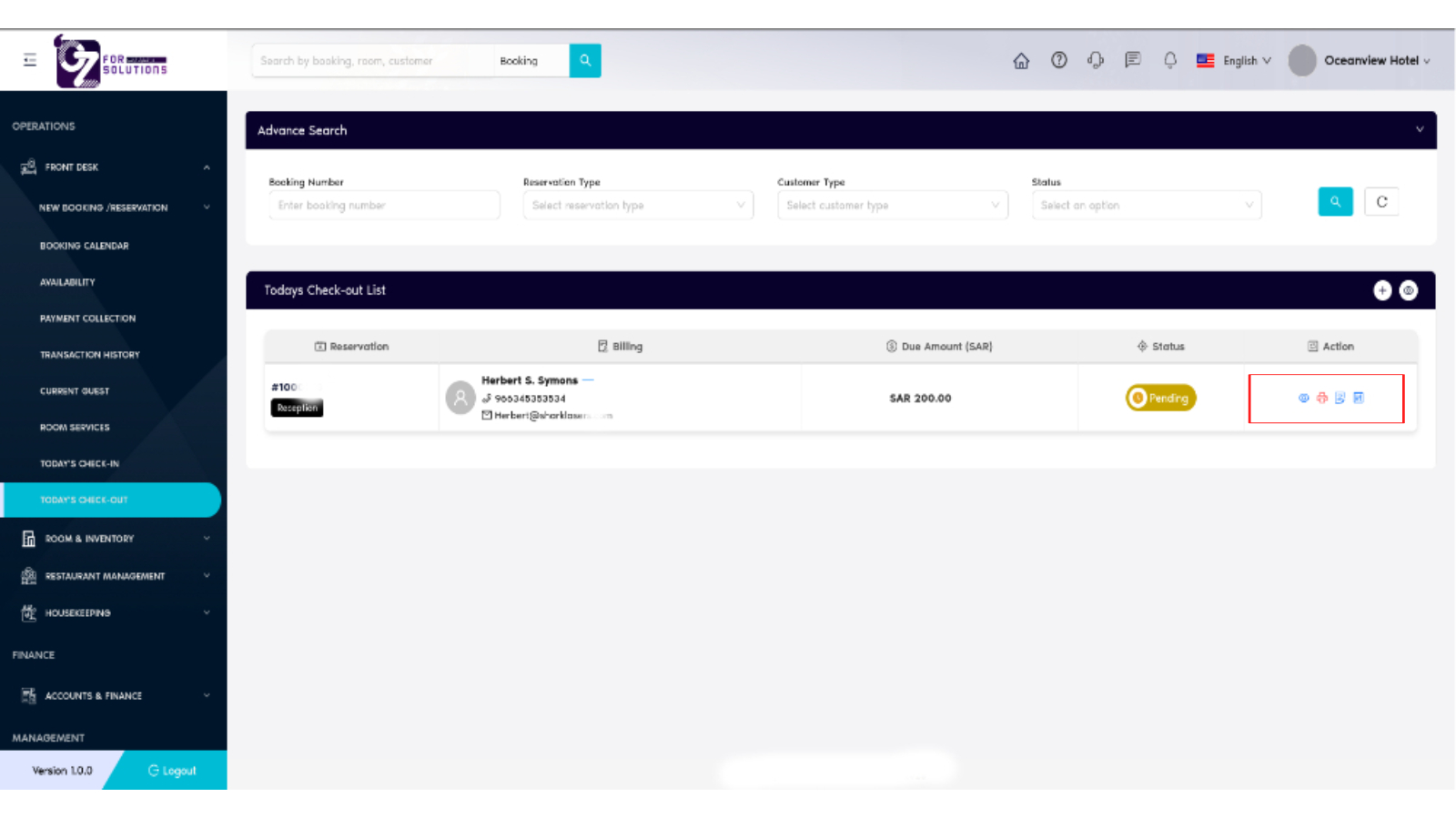
Use the Action column icons to manage reservations:
- 👁️ View Reservation – Open booking details
- 🖨️ Print Check-Out Slip – Generate a printable receipt
- 📝 Contract – View terms or billing agreement
- ✅ Guest Check-Out – Finalize guest departure
🚧 Troubleshooting
| Issue | Solution |
|---|---|
| Guest not appearing | Ensure reservation is scheduled for today’s check-out |
| Unable to check-out guest | Confirm billing is settled and payment info is updated |
| Incorrect due shown | Recheck with payment collection or update room charges |
🔗 Related Modules
📞 Support
For support during guest check-out:
📧 hello@cistechltd.com
👤 Contact your front desk supervisor
Ensure a smooth, accurate, and professional check-out experience for departing guests.