🛬 Today's Check-In – Front Desk
Module: Front Desk
Section: Today's Check-In
Location: Operations > Front Desk > Today's Check-In
Version: 1.0.0
Last Updated: July 2025
🧭 Overview
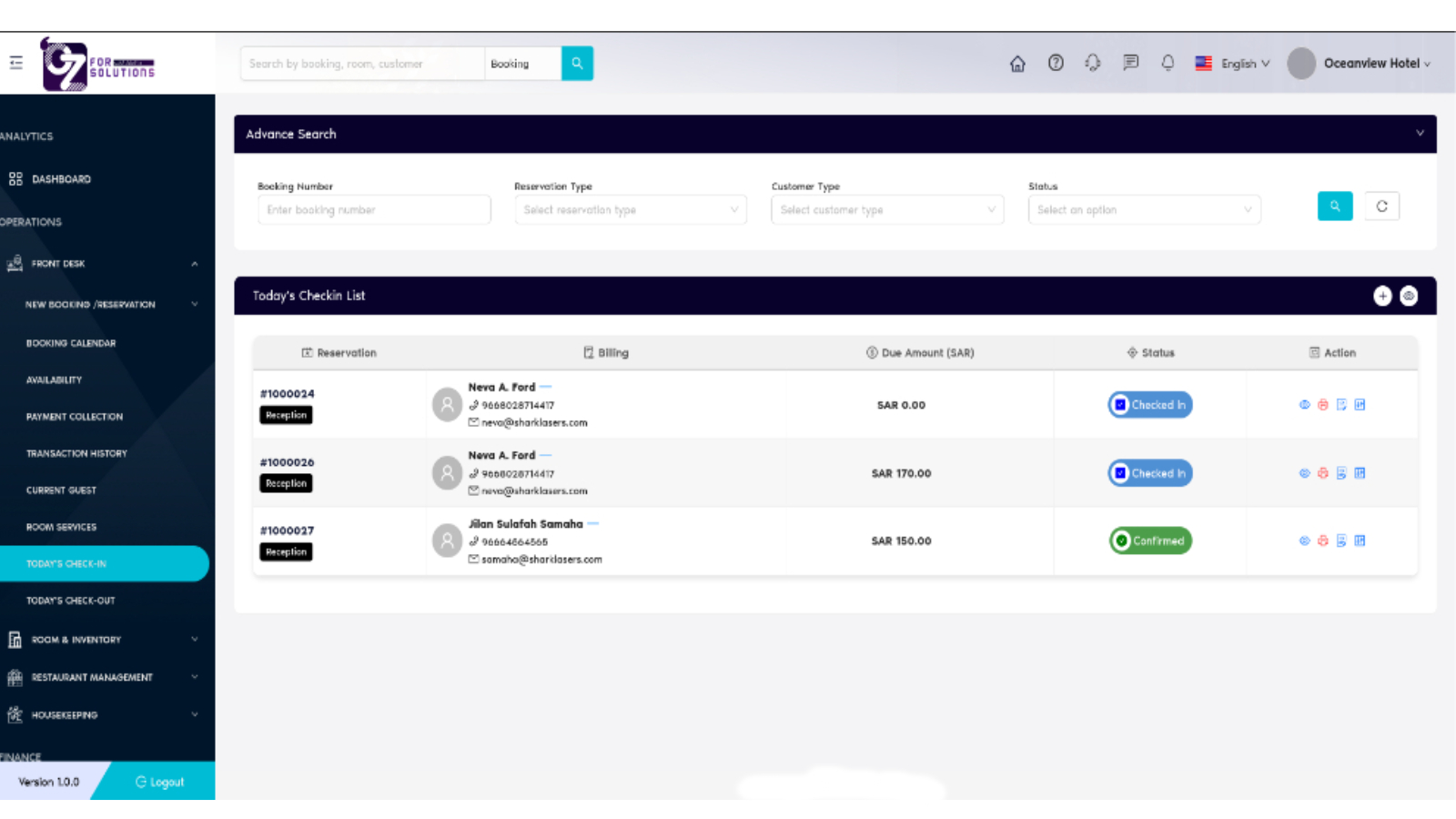
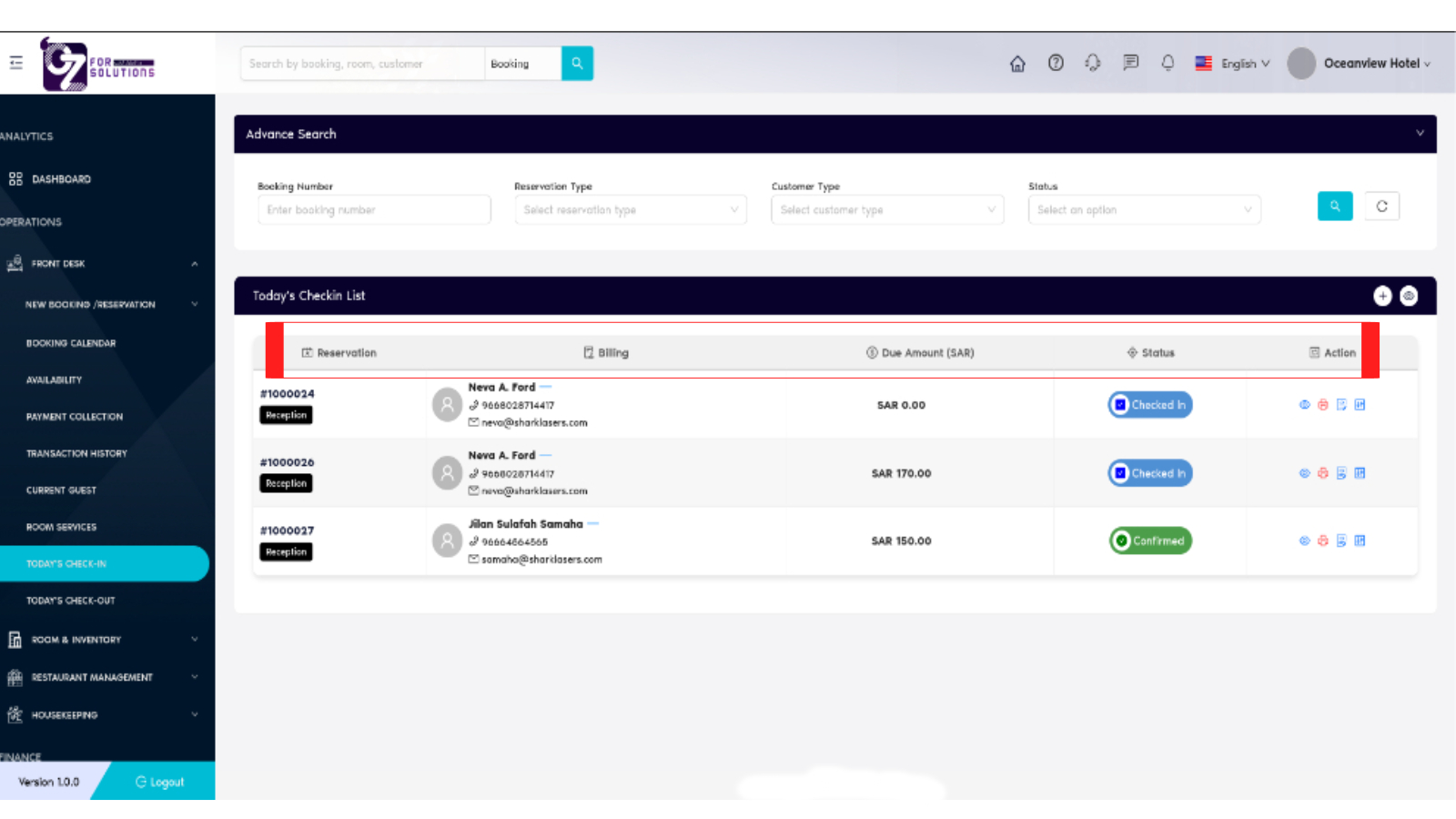
The Today's Check-In page enables front desk staff to view and manage all guests checking in on the current date. The table includes reservation details, guest information, payment status, and check-in confirmation actions. It streamlines the check-in process for efficient guest service.
🖼️ Interface Snapshot
👥 Access Permissions
| Role | Access Rights |
|---|---|
| Admin | Full Access |
| Manager | View & Confirm |
| Receptionist | View & Confirm |
| Staff | View Only (Optional) |
📌 Key Features
- 🔎 using booking number, reservation type, customer type, or status to search
- ✅ Real-time guest check-in status
- 💳 Billing and due amount view
- 🖨️ Printable check-in confirmation
- 🧾 Quick access to guest contact info
- ⚙️ Action icons for view, edit, print, and cancel
📋 How to Manage Today's Check-In – Step by Step
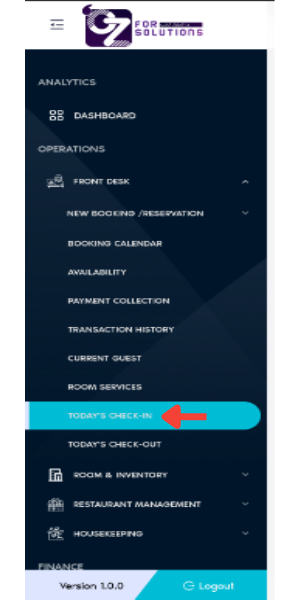
1. Navigate to Today's Check-In
- Go to
Front Desk > Today's Check-Infrom the sidebar. - A complete list of reservations scheduled for check-in today will be displayed.
2. Filter Reservations
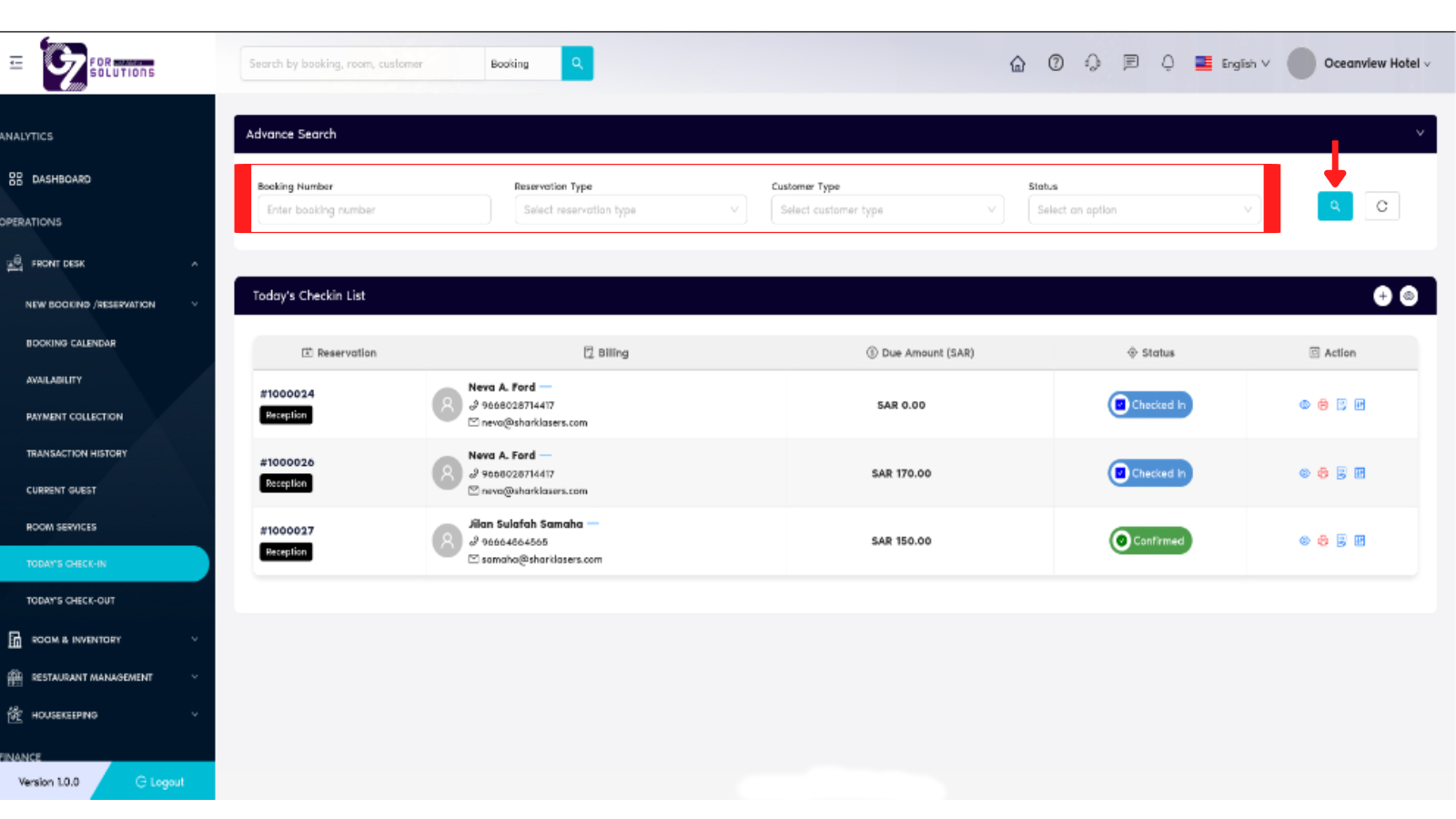
- Use filters in the Advanced Search bar:
- Booking Number
- Reservation Type
- Customer Type
-
Status
-
Click the Search icon to apply filters and load matching records.
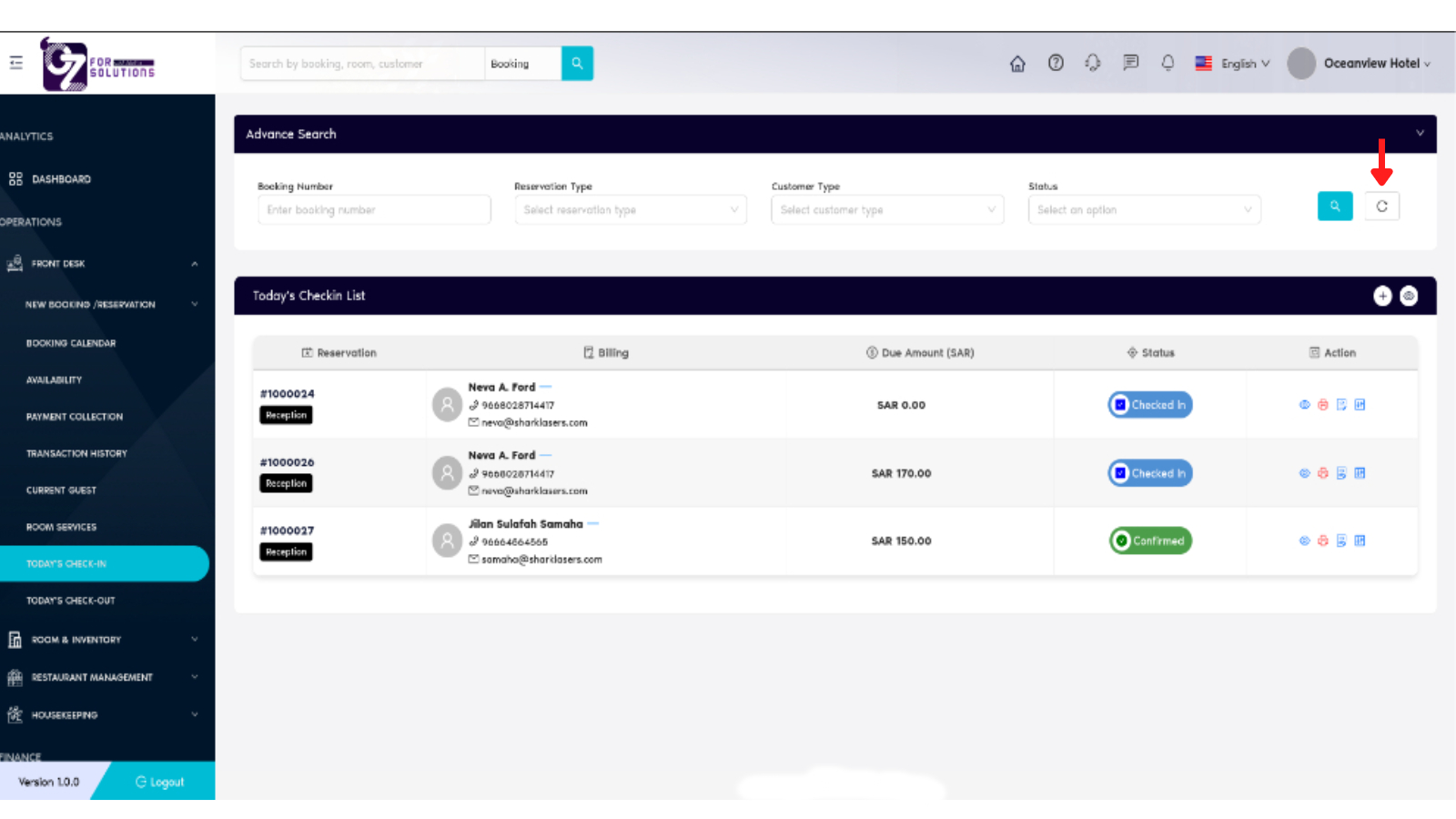
3. Use Page Refresh Option
- Click the Refresh button to reload and reflect the latest reservation data.
4. Understand Key Columns – Reservation List
- Reservation ID: Unique booking reference
- Source: Booking origin (e.g., Reception, Online)
- Guest Name: Full name of the customer
- Contact Info: Guest's phone/email
- Due Amount: Amount payable at check-in (SAR)
- Check-In Status: Displays if the guest is Confirmed, Checked-In, or Pending
- Action: Perform reservation-level actions
5. Perform Actions
- Use the icons in the Action column to manage reservations:
- 👁️ View Reservation – See full booking details
- 🖨️ Print Check-In Confirmation – Generate a printable slip
- 📝 Contract – See full contract details
- ✅ Guest Check-in: Trigger guest check-in

🚧 Troubleshooting
| Issue | Solution |
|---|---|
| Guest not listed | Confirm the booking is for today’s check-in |
| Cannot confirm check-in | Ensure dues are paid and billing info is entered |
| Due amount not accurate | Recheck payment collection status or adjustments |
🔗 Related Modules
📞 Support
For assistance with check-in tasks:
📧 hello@cistechltd.com
👤 Contact your front desk supervisor
Ensure a seamless and quick check-in experience for all guests using this module.