🛎️ Room Services – Front Desk
Module: Operations
Section: Room Services
Location: Modules > Operations > Front Desk > Room Services
Version: 1.0.0
Last Updated: July 2025
🧭 Overview
The Room Services section allows hotel staff to manage, view, and maintain a list of all available in-room services offered to guests. This includes food, entertainment, relaxation treatments, and essential guest requests.
This module ensures a smooth and personalized guest experience while enabling efficient backend service tracking.
🖼️ Interface Preview
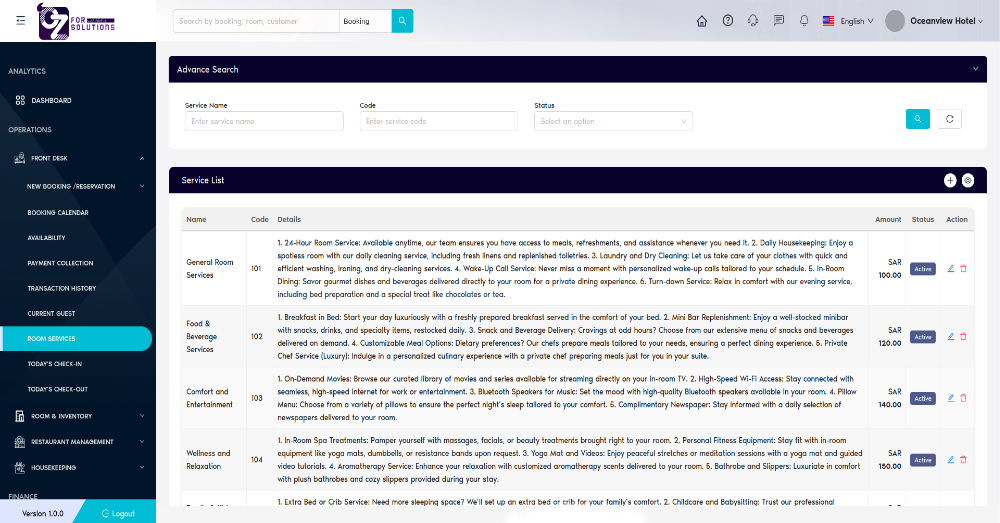
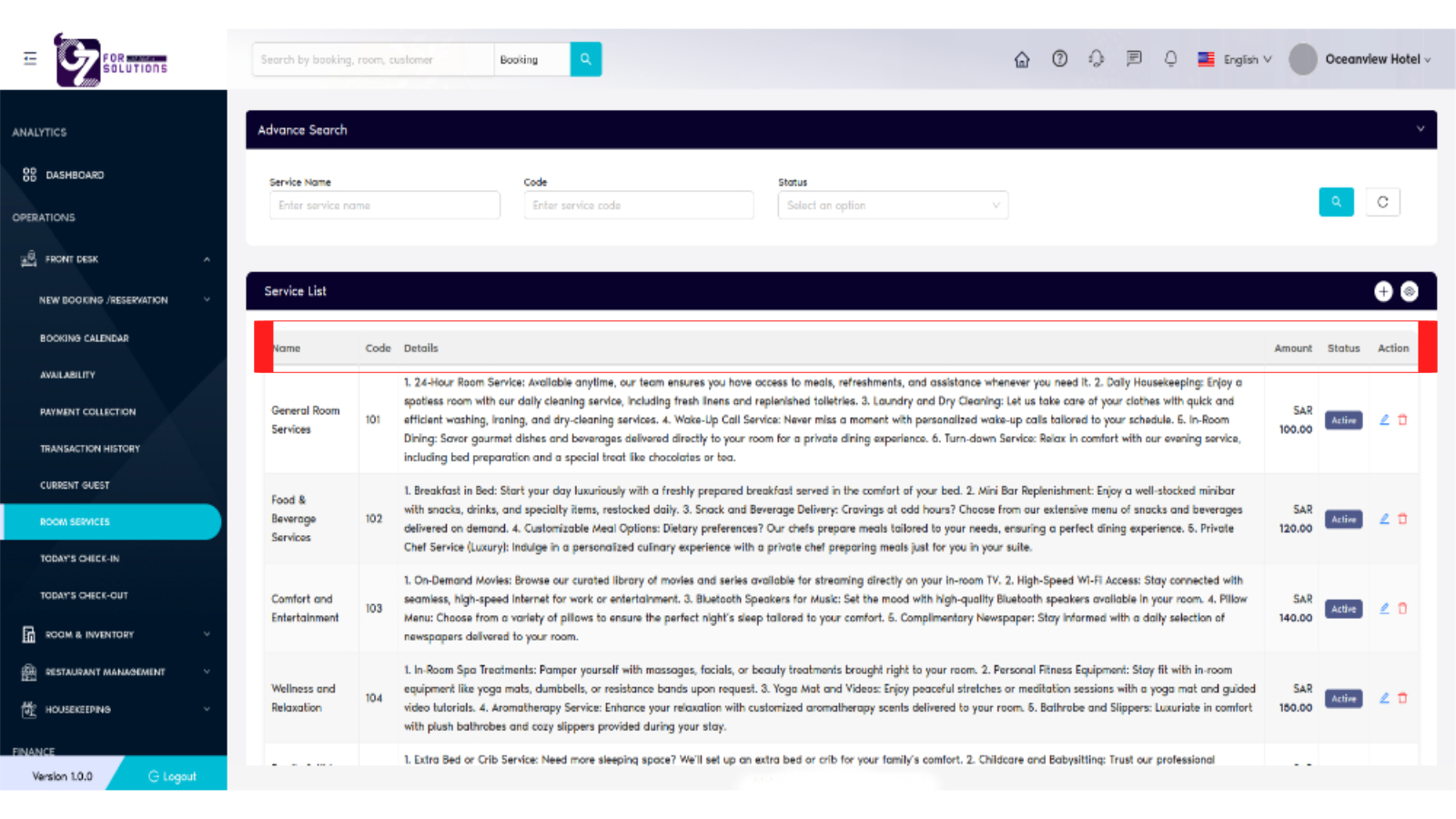
Image: Room service table showing service name, code, description, price, status, and actions.
👤 Who Can Access
| Role | Access Level |
|---|---|
| Admin | Full Access |
| Front Desk | Add / Edit Services |
| Manager | View Only |
| Housekeeping | No Access |
📌 Key Features
- 🔍 Advanced Search by service name, code, or availability status
- 📃 Service List with detailed descriptions, pricing, and availability
- ➕ Add New Services to expand guest offerings
- 🖊️ Edit/Delete Options for managing existing services
- 🔄 Status Control to activate or deactivate services in real time
📋 How to Manage Room Services – Step by Step
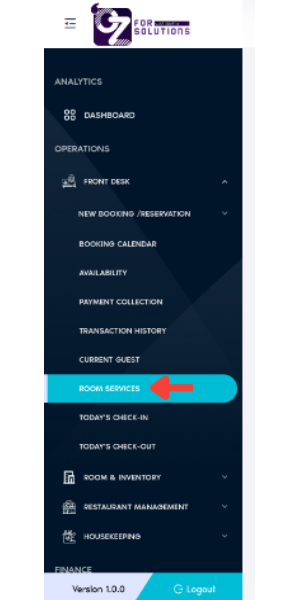
1. Navigate to Room Services
- Go to
Front Desk > Room Servicesfrom the sidebar. - A full list of available guest services will be displayed.
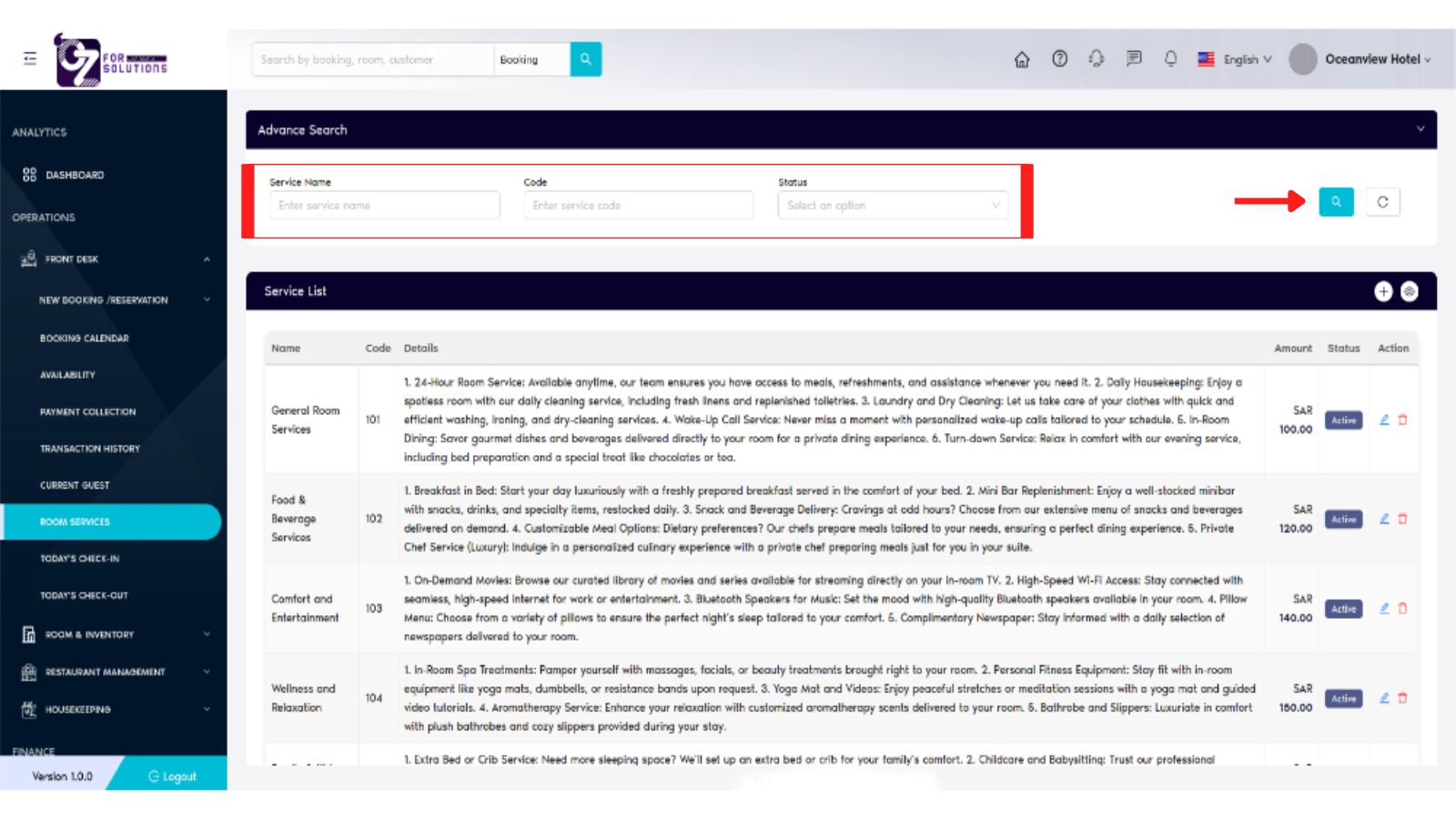
2. Searching for a Service
- Use filters in the Advanced Search bar:
- Service Name
- Code
- Status (Active/Inactive)
- Click the Search icon to apply filters and load matching results.
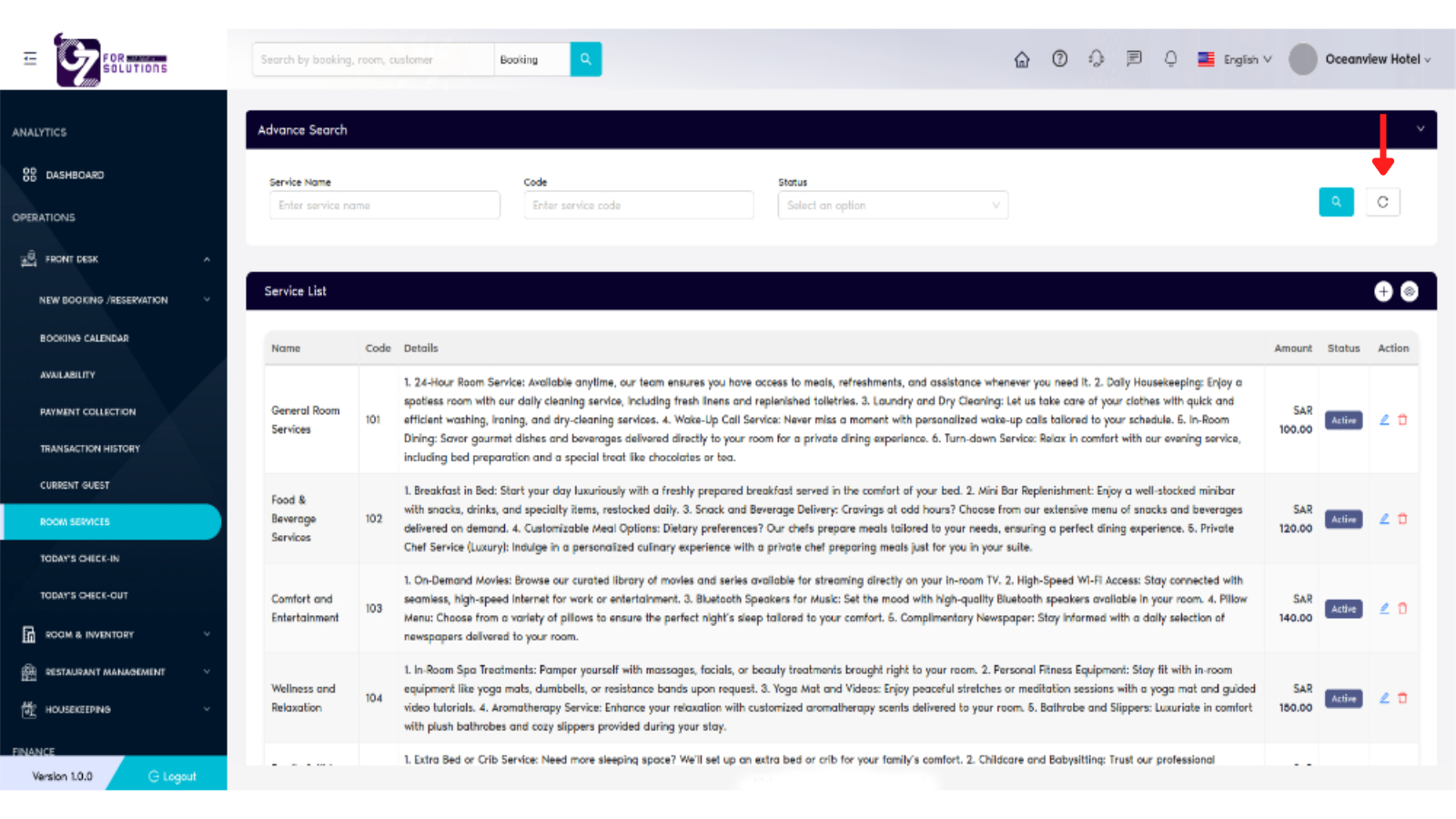
3. Use Page Refresh Option
- Click the Refresh button to reload and reflect the latest list and updates.
4. Understand Key Columns – Service List
- Name: The label of the service (e.g., General Room Services, Food & Beverage)
- Code: Unique identifier for internal reference
- Details: Full service breakdown, including specific benefits offered to the guest
- Amount: Price charged to the guest (in SAR)
- Status: Indicates if the service is Active or Inactive
- Action: Edit (🖊️) or Delete (🗑️) service
5. Add a New Service
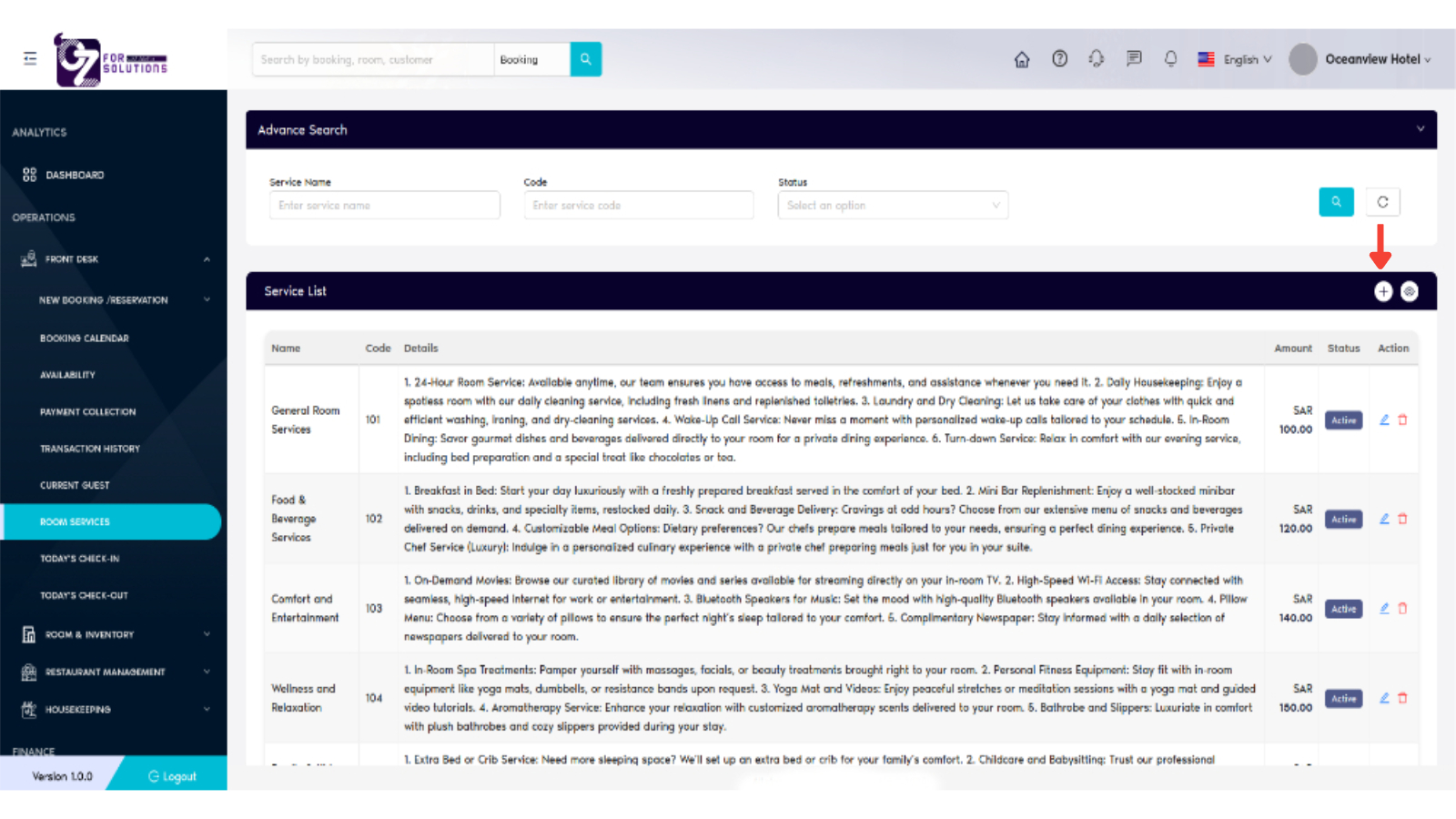
- Click the ➕ Add icon (top-right).
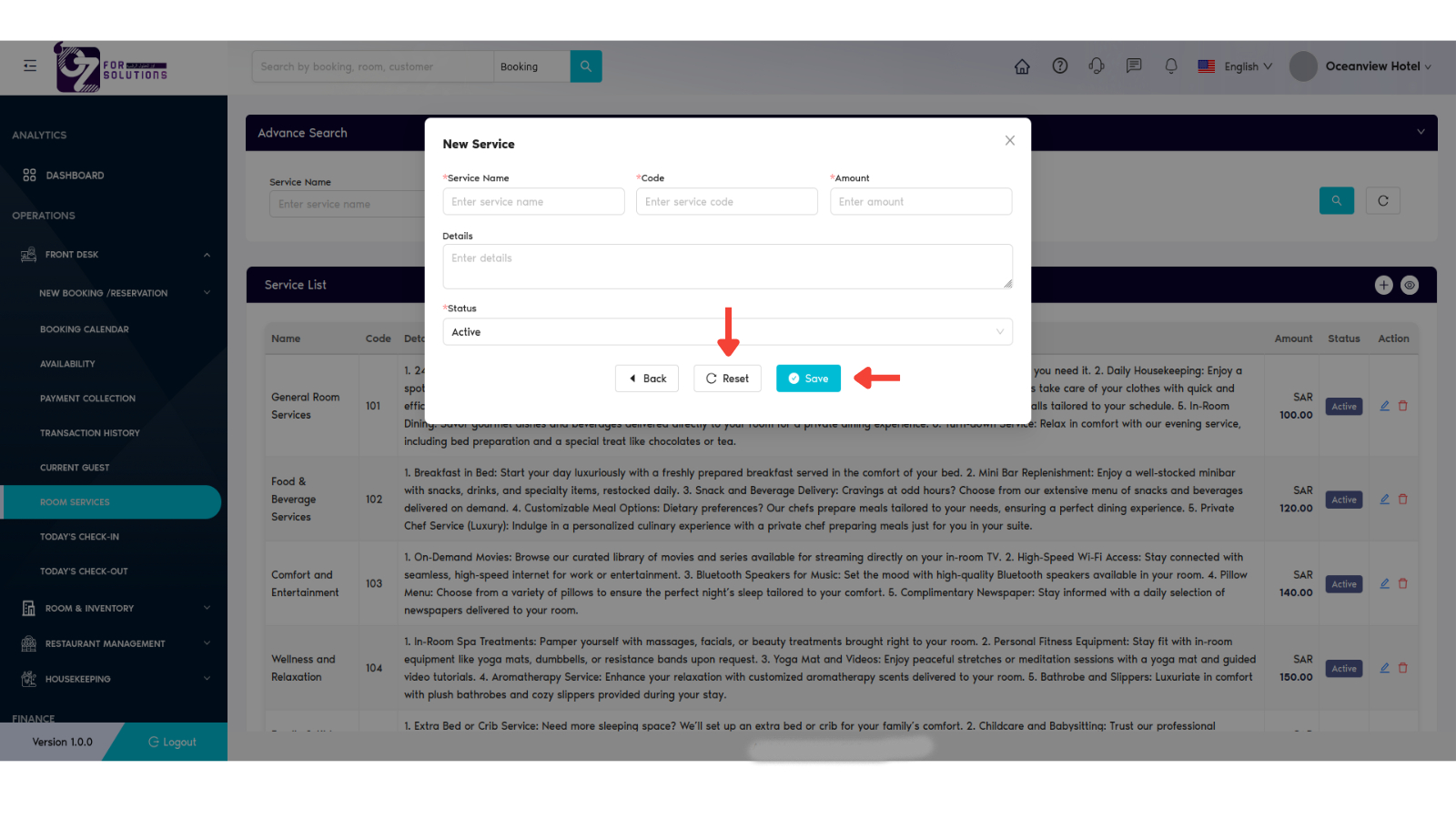
- Enter:
- Service Name
- Code
- Details (what is included)
- Amount (in SAR)
- Status (Active or Inactive)
- Click Save to create the service or click on Refresh to clear all data.
6. Edit or Delete an Existing Service
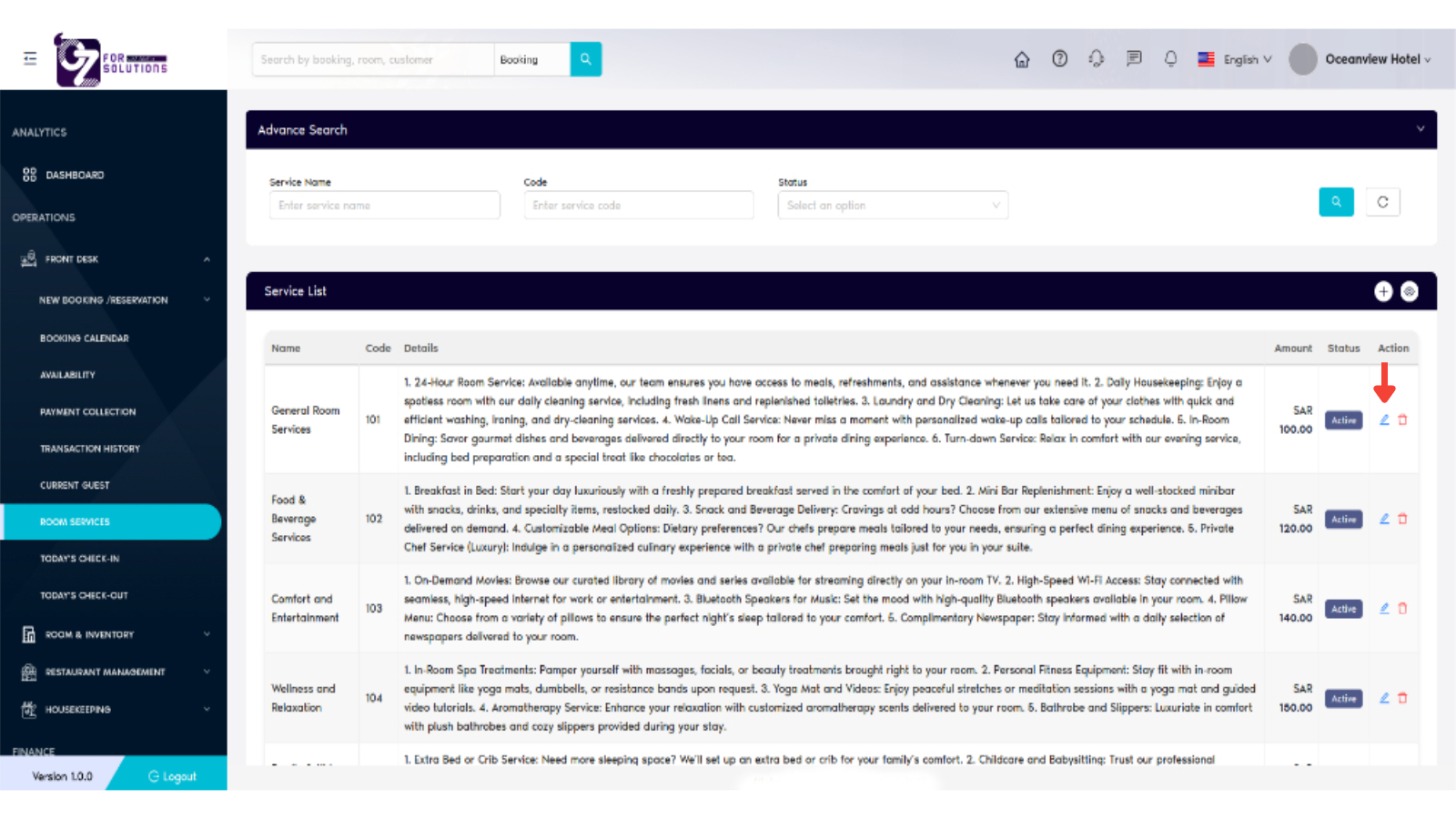
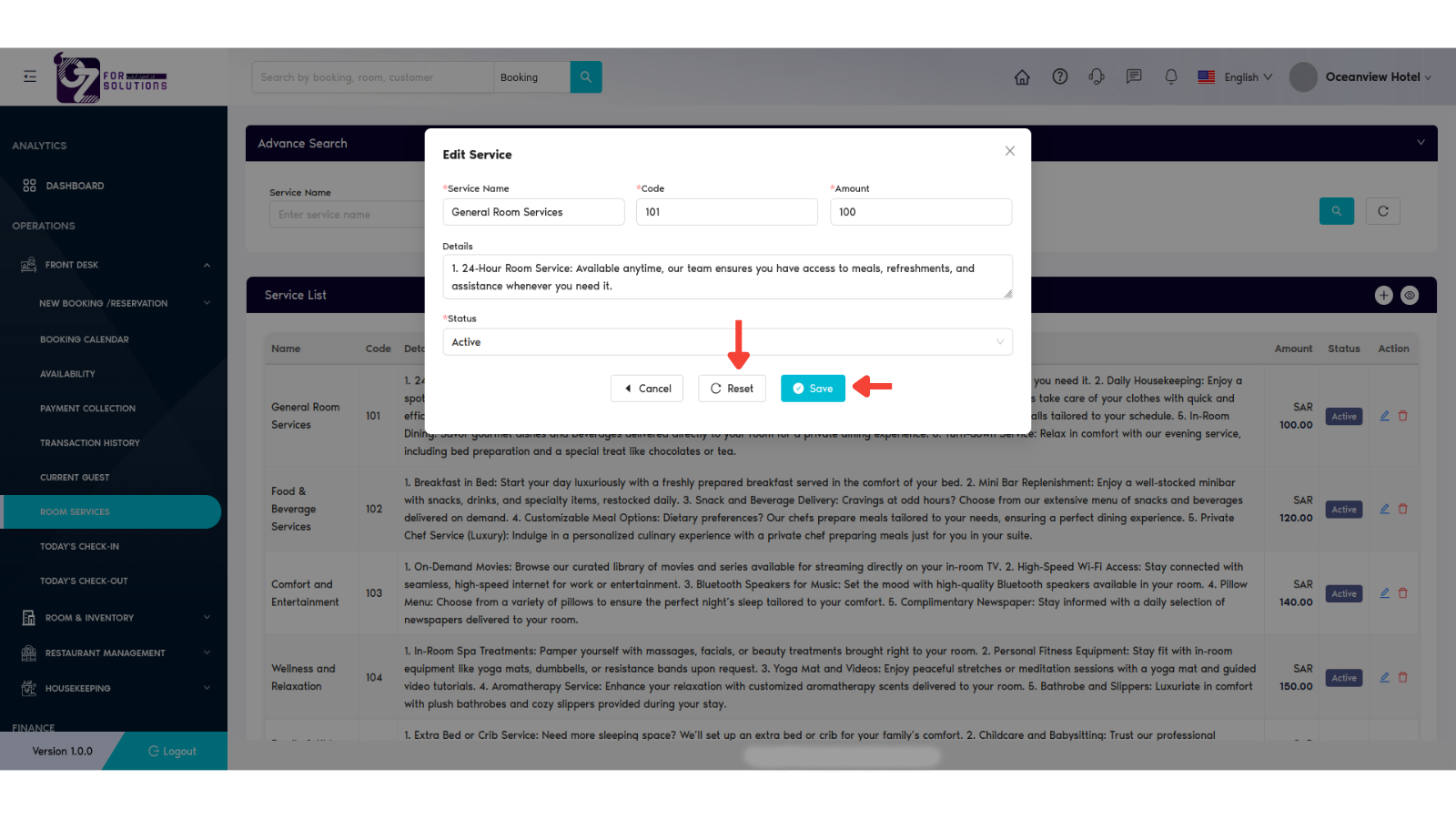
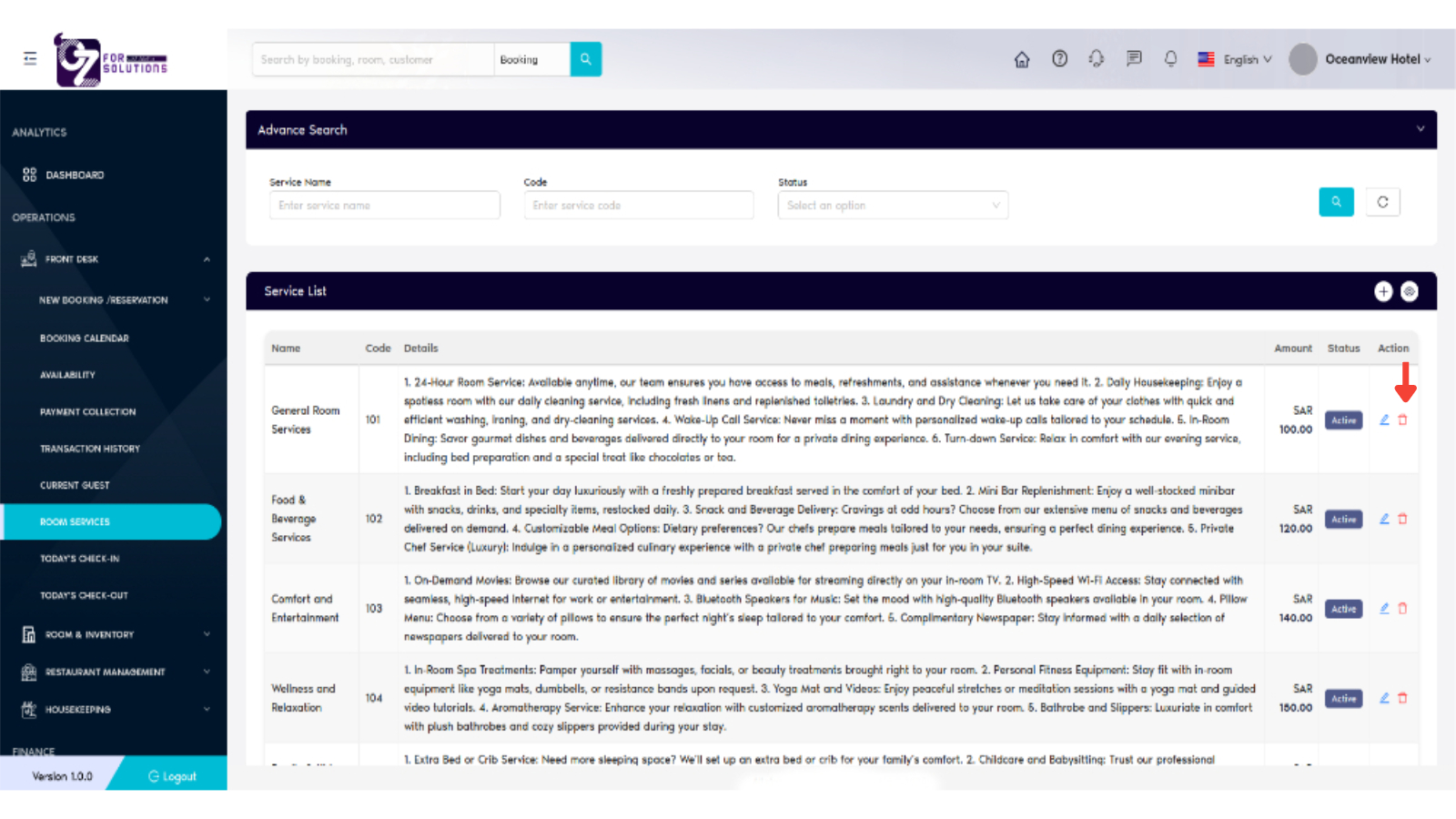
- To Edit: Click the 🖊️ icon beside the service row.
- Update any field and click Save, or click on Refresh to clear all data.
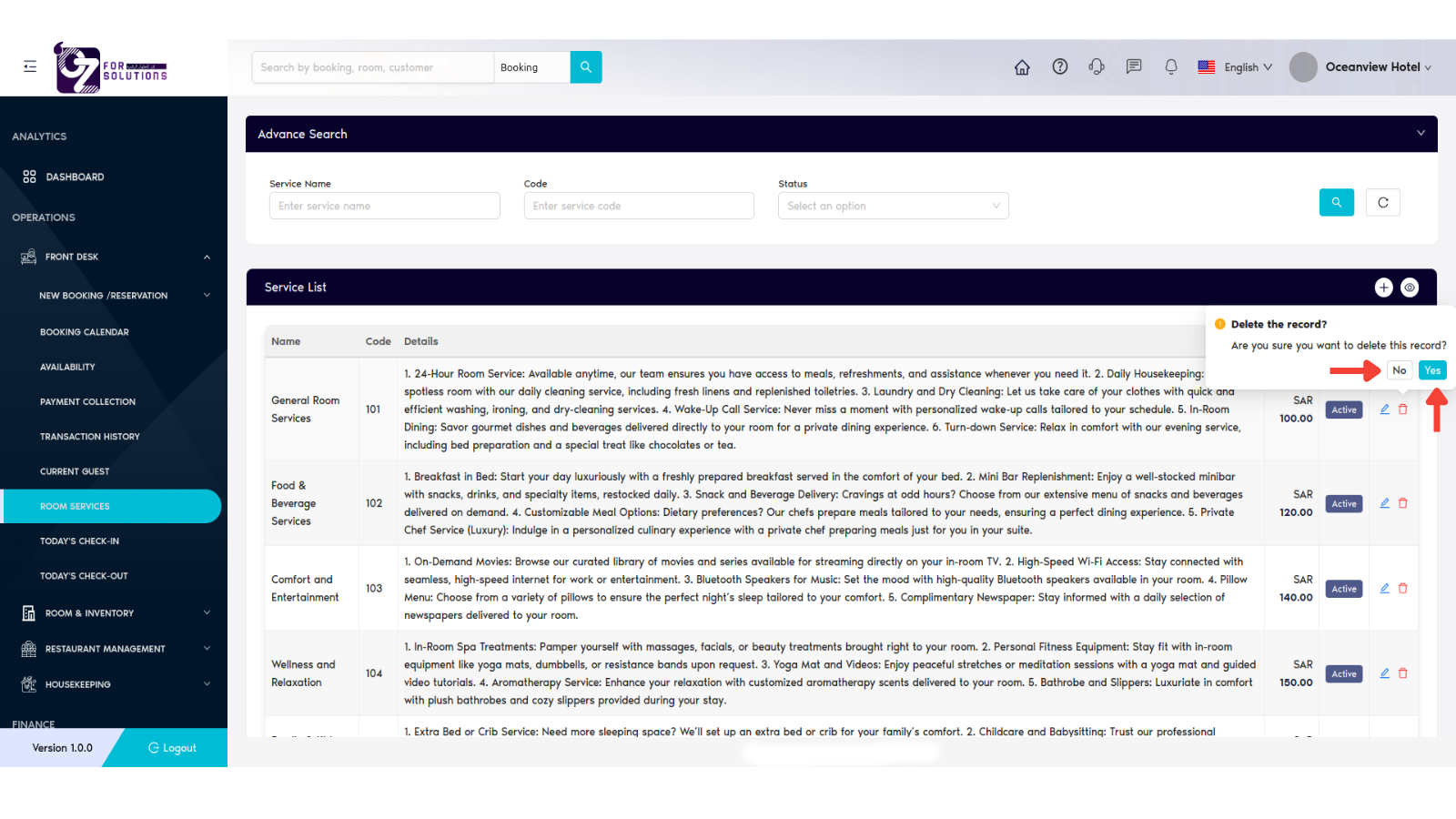
- To Delete: Click the 🗑️ icon.
- Confirm deletion in the popup dialog.
🧾 Sample Services Table (as shown)
| Name | Code | Details Summary | Amount | Status |
|---|---|---|---|---|
| General Room Services | 101 | 24-hour room service, laundry, in-room dining, etc. | SAR 100.00 | Active |
| Food & Beverage Services | 102 | Breakfast in bed, minibar, dining preferences | SAR 120.00 | Active |
| Comfort & Entertainment | 103 | Wi-Fi, streaming access, newspapers, pillows | SAR 140.00 | Active |
| Wellness & Relaxation | 104 | Spa, fitness equipment, bathrobes, yoga | SAR 160.00 | Active |
💡 Best Practices
- ✅ Regularly update service details and pricing
- 📝 Keep descriptions informative but guest-friendly
- 🔒 Only Admin should have delete permissions
- 📊 Monitor service trends via transaction data to adjust offerings
❗ Troubleshooting
| Issue | Solution |
|---|---|
| Service not displaying | Ensure it’s marked as Active and refresh the page |
| Unable to delete service | Only Admin roles can remove services |
| Price not updating | Make sure the form was saved properly after editing |
| Fields missing on add/edit form | Refresh browser or check for UI loading errors |
🧪 Related Modules
📞 Support
Need assistance managing room services?
- Contact the System Administrator
- Email: hello@cistechltd.com
🛎️ Enhance guest satisfaction through personalized and well-maintained service offerings.