🛏️ Room Availability – Front Desk
Module: Operations
Section: Availability
Location: Front Desk > Availability
Version: 1.0.0
Last Updated: June 2025
🧭 Overview
The Room Availability screen provides a color-coded, real-time overview of all hotel rooms and their current statuses — including available, reserved, in housekeeping, under maintenance, and more.
This module is essential for front desk agents and reservation managers to manage check-ins, bookings, and room readiness efficiently.
🖼️ Interface Preview
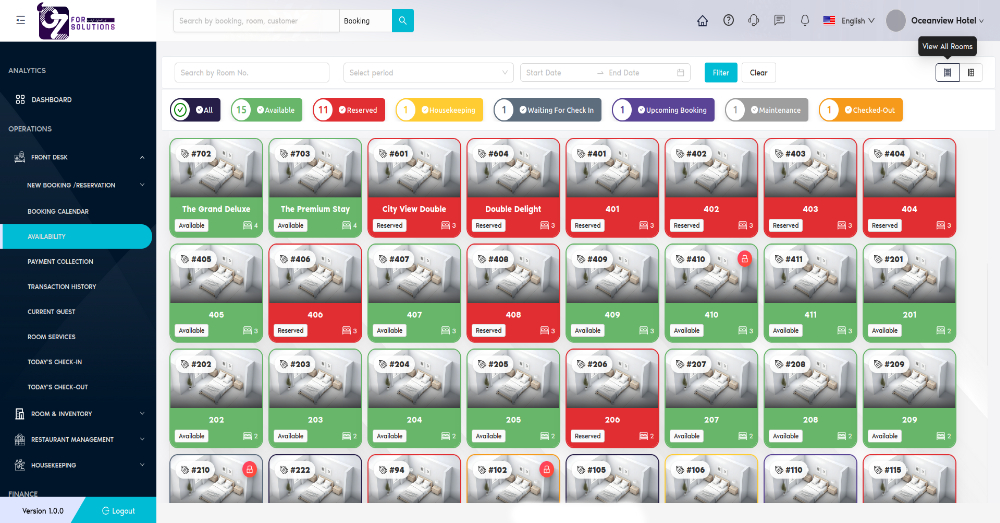
Full view showing all rooms with their current status.
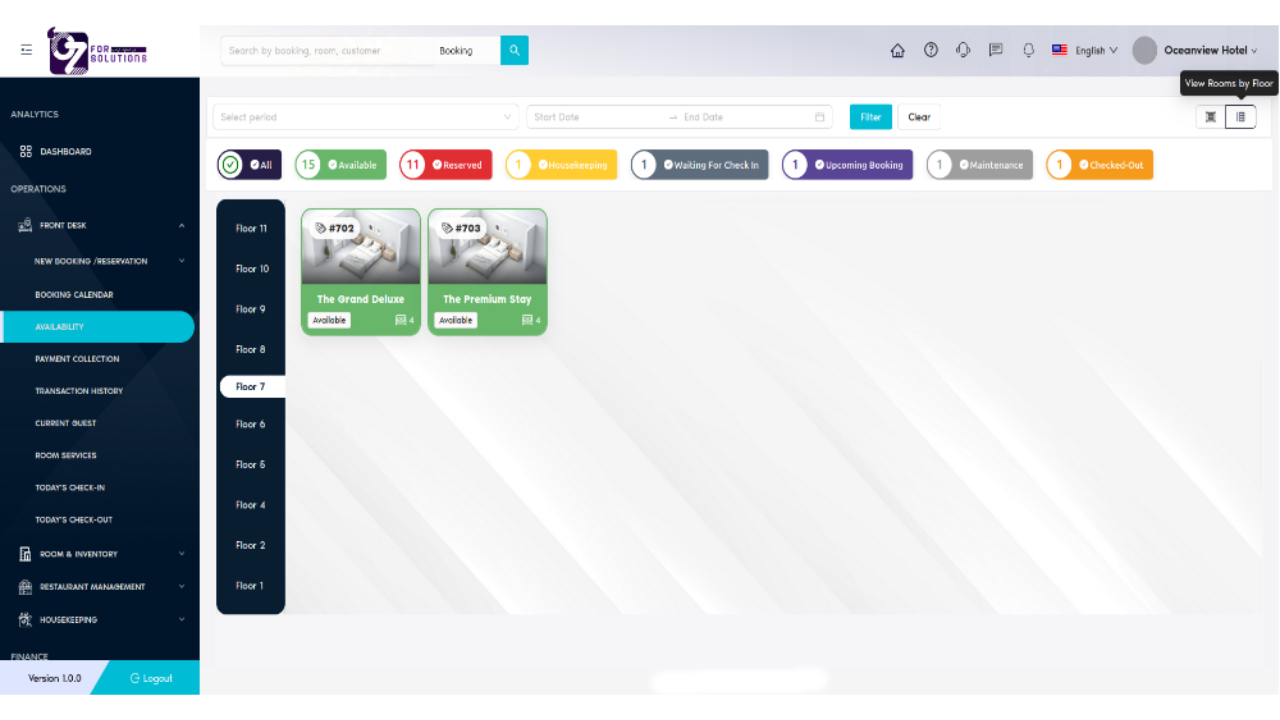
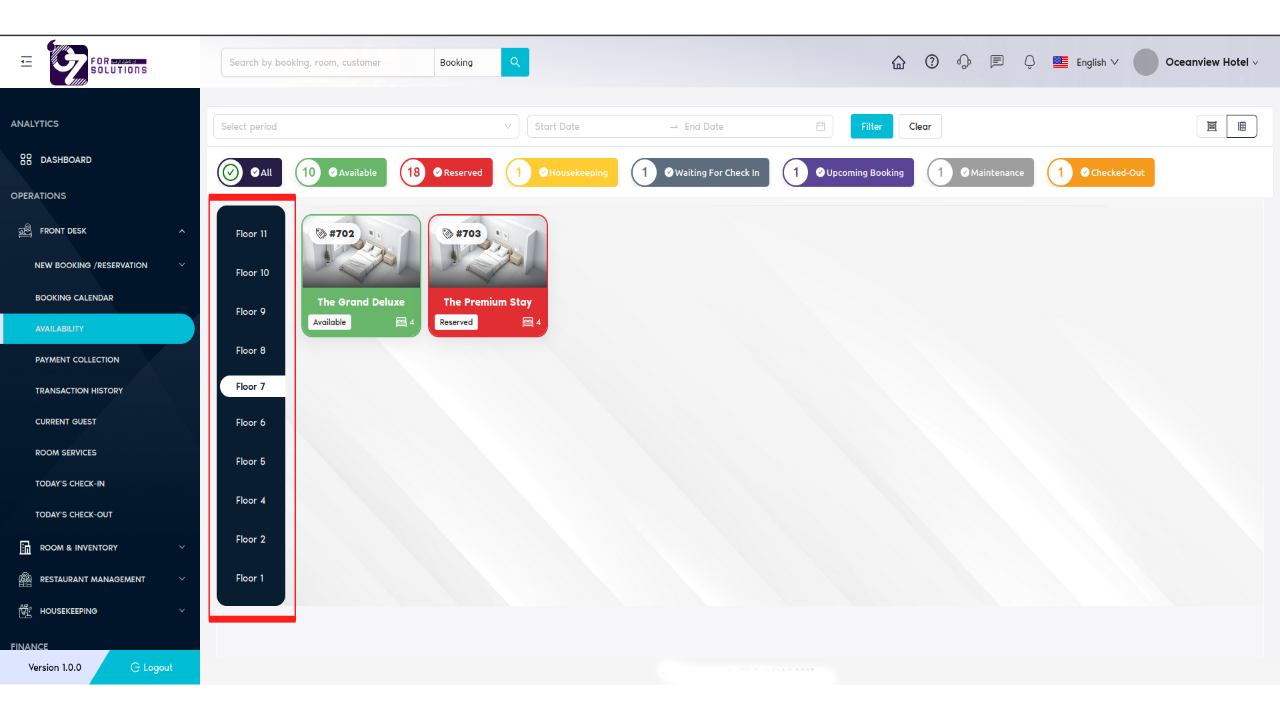
Rooms filtered by Floor 7, showing only available rooms.
👤 Who Can Access
| Role | Access Level |
|---|---|
| Admin | Full Access |
| Manager | Full Access |
| Front Desk | Full Access |
| Housekeeping | View Only |
| Staff | No Access |
🔍 How to Check Room Availability – Step by Step
Follow the steps below to effectively check room availability from the Front Desk module:
-
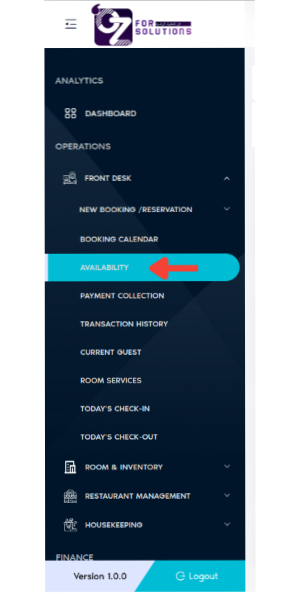
Navigate to Availability Screen
- Go to
Front Desk > Availabilityfrom the main sidebar.
- Go to
-
Use the Search Bar
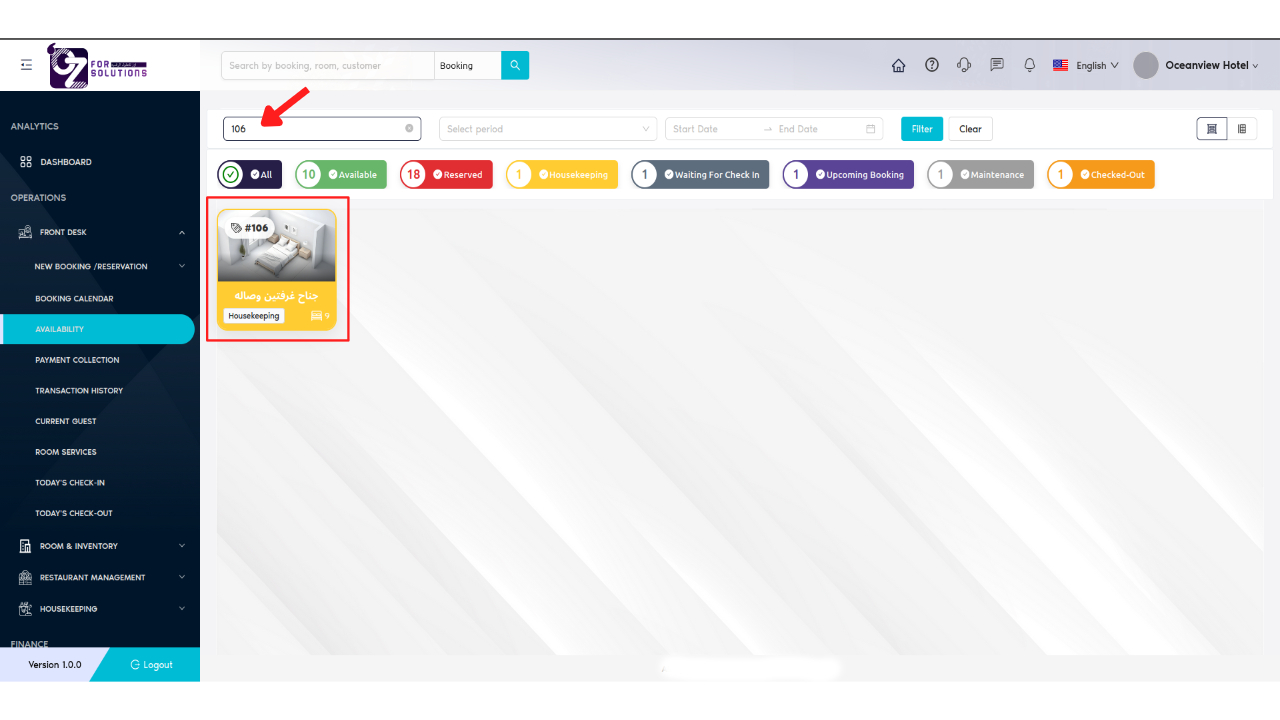
- 🔍 Enter a Room Number to filter specific results.
- 🔍 Enter a Room Number to filter specific results.
-
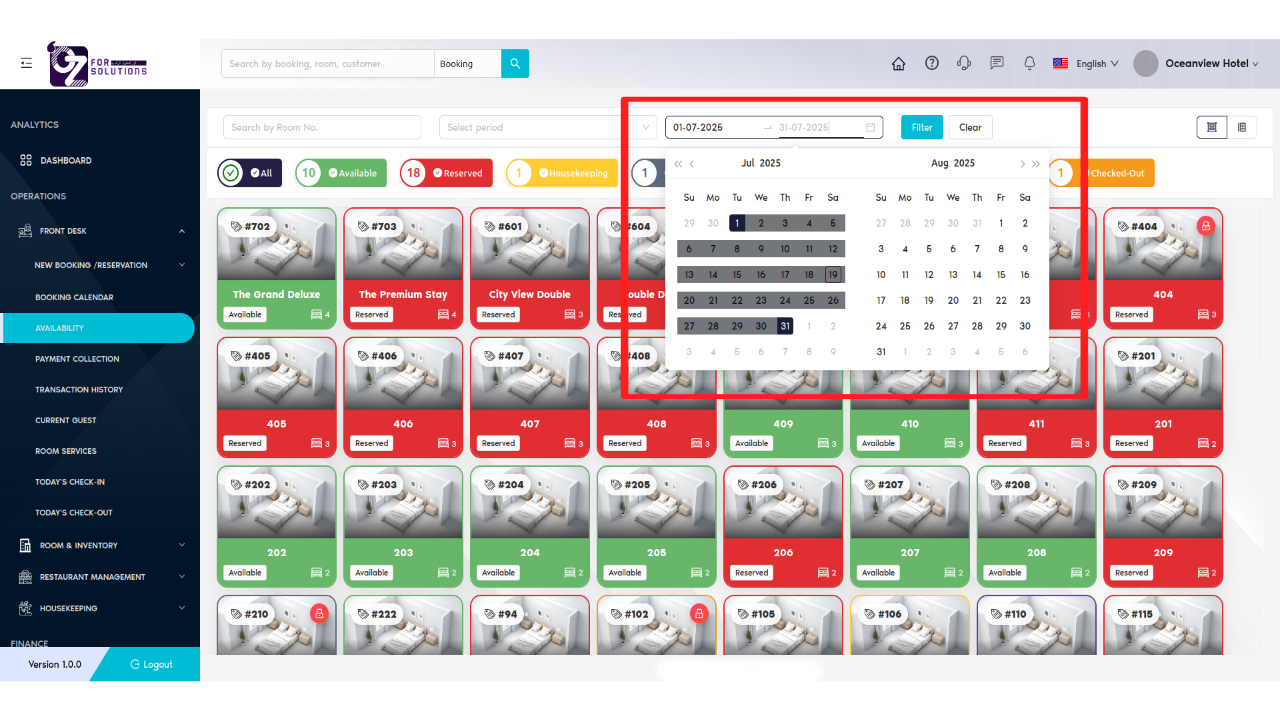
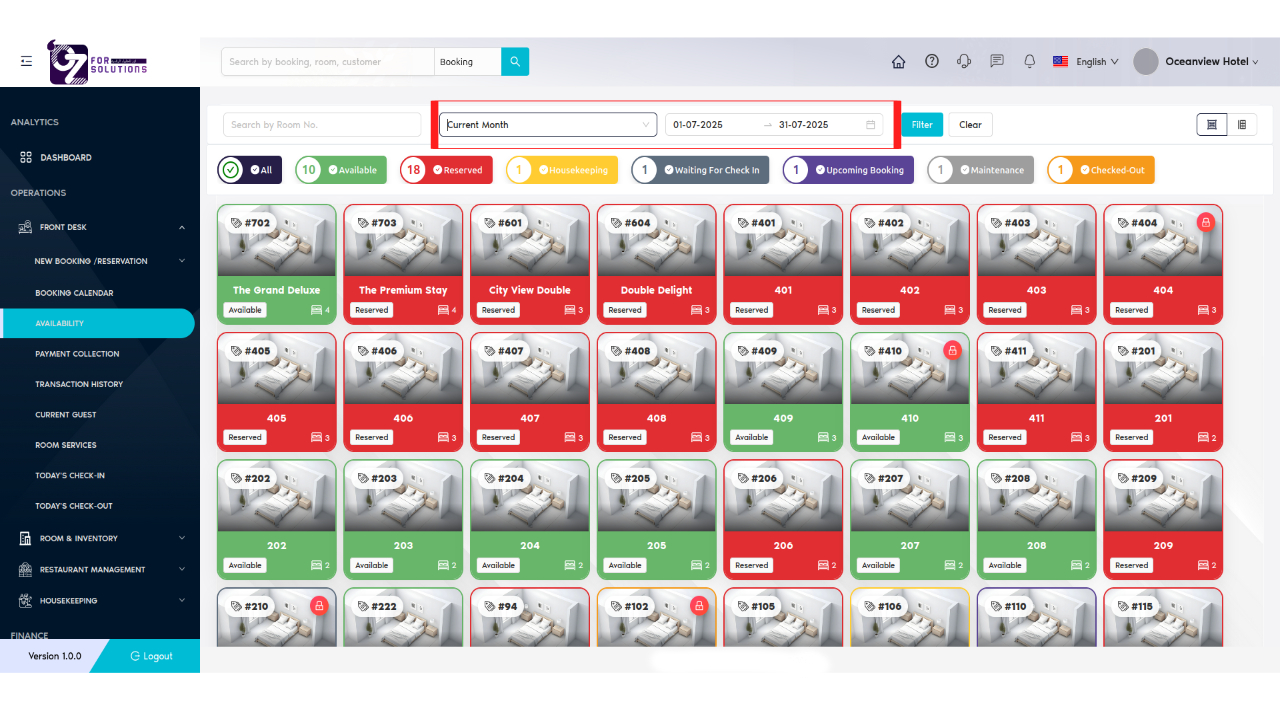
Apply Date Range
-
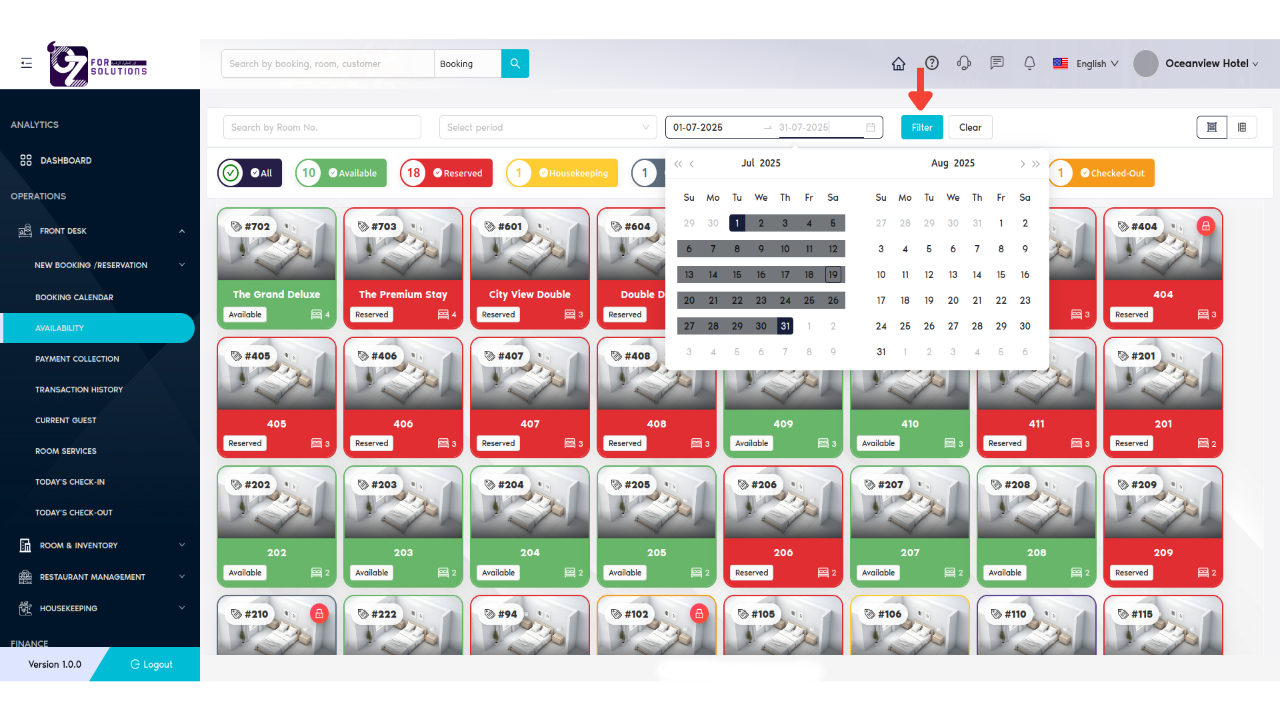
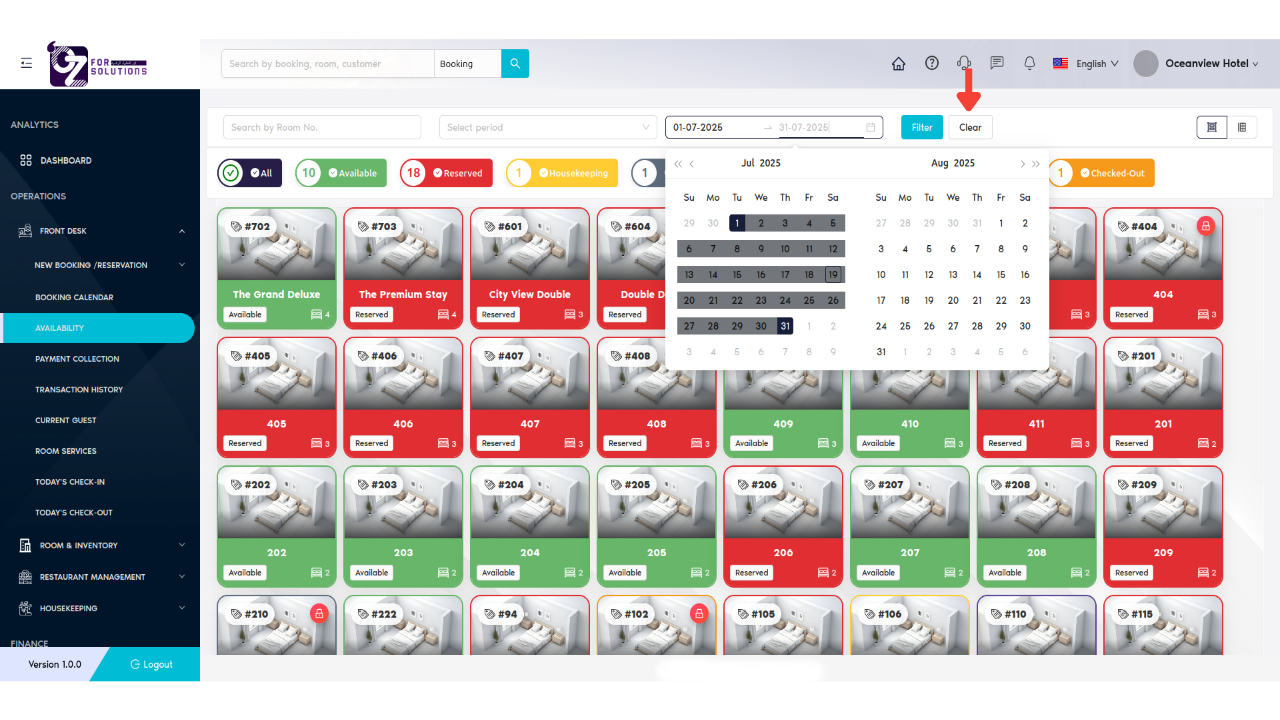
📅 Select a Start Date and End Date to filter room status during that timeframe.
- Select start and end date
- Click on Filter button
- Click on Clear button to refresh
-
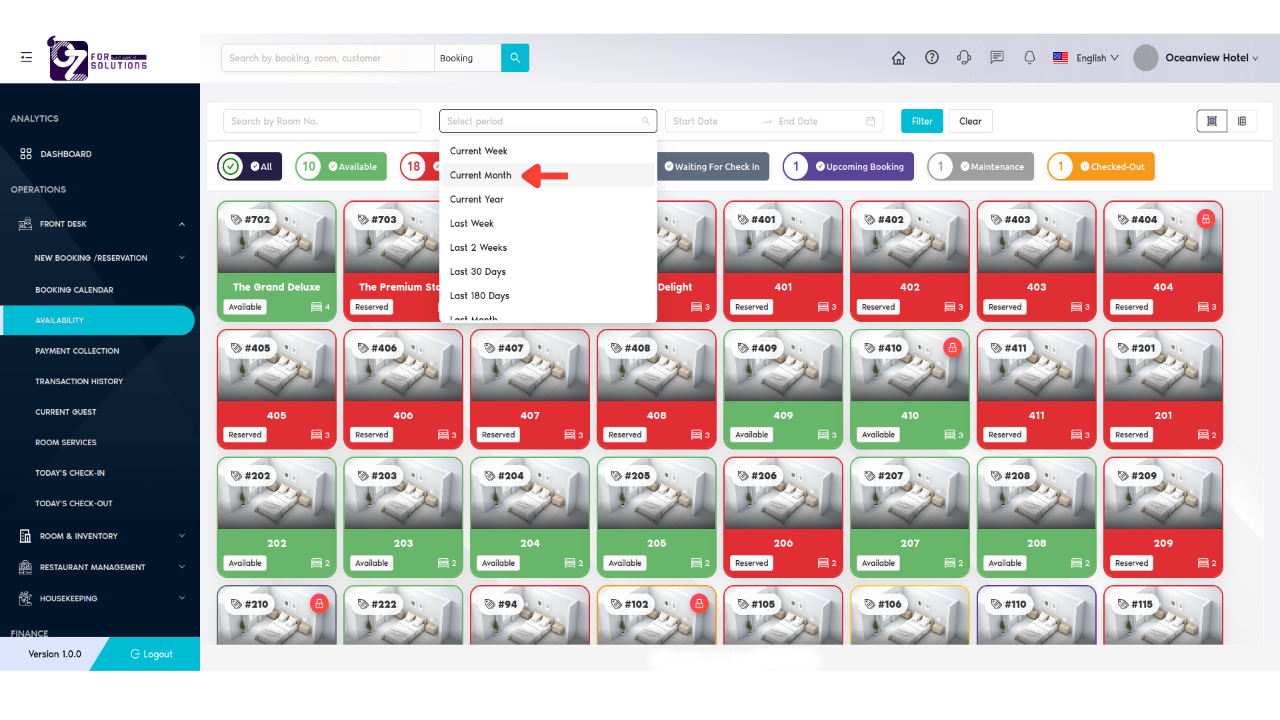
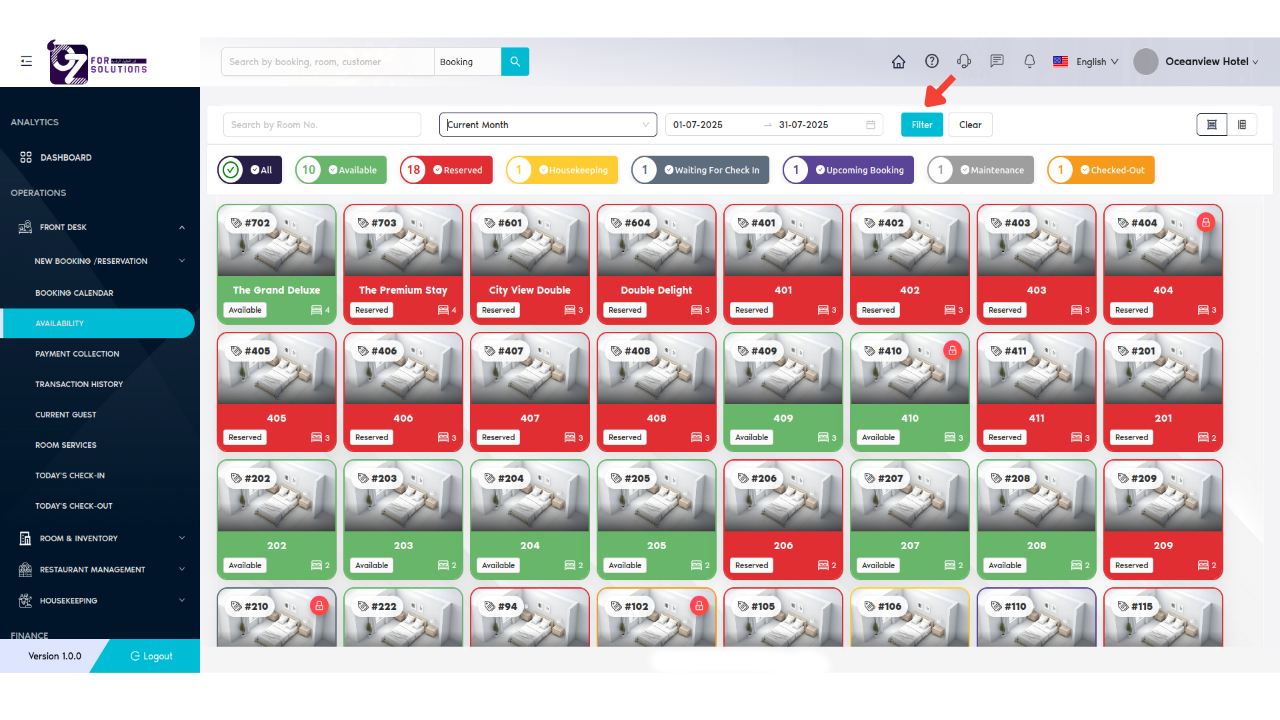
Or choose a preset period option (e.g., Today, This Week) for quick selection.
- Select any time period
- Click on Filter button
-
-
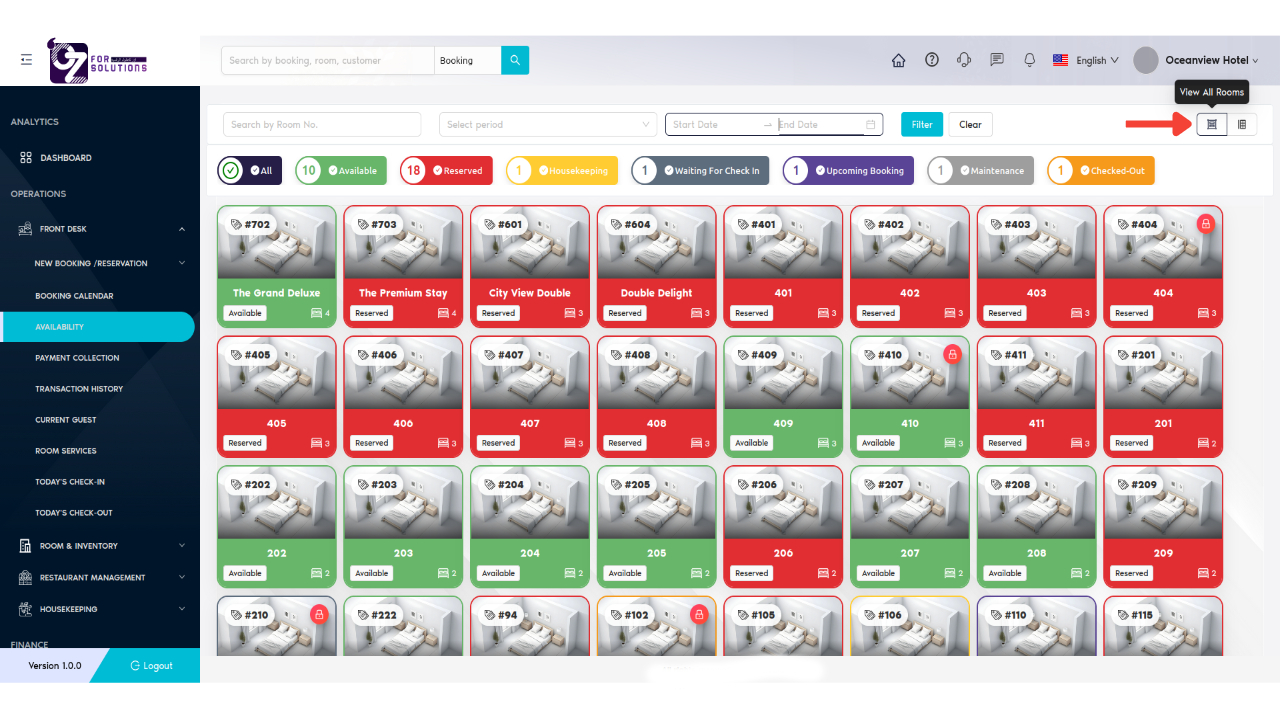
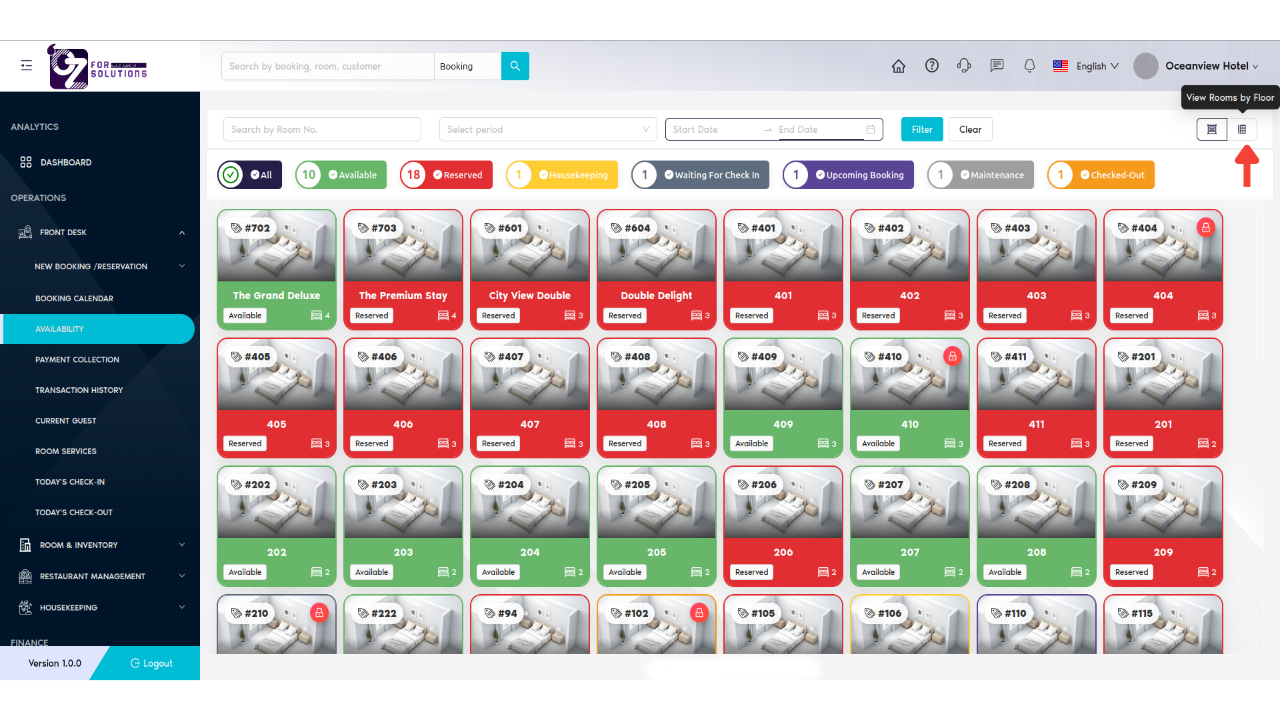
Toggle Room View
-
🧭 Use the All Rooms / By Floor toggle on the top-right to switch views.
-
In By Floor view, use the sidebar to select a specific floor.
-
-
Review Room Cards
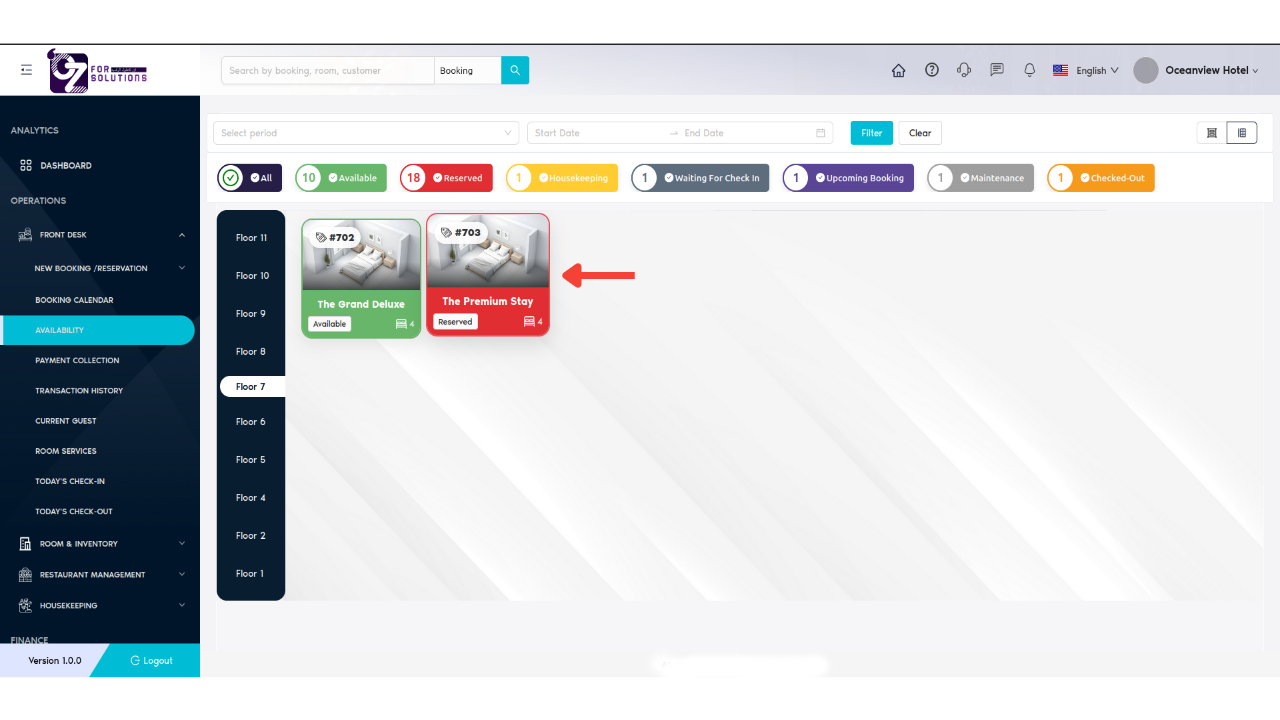
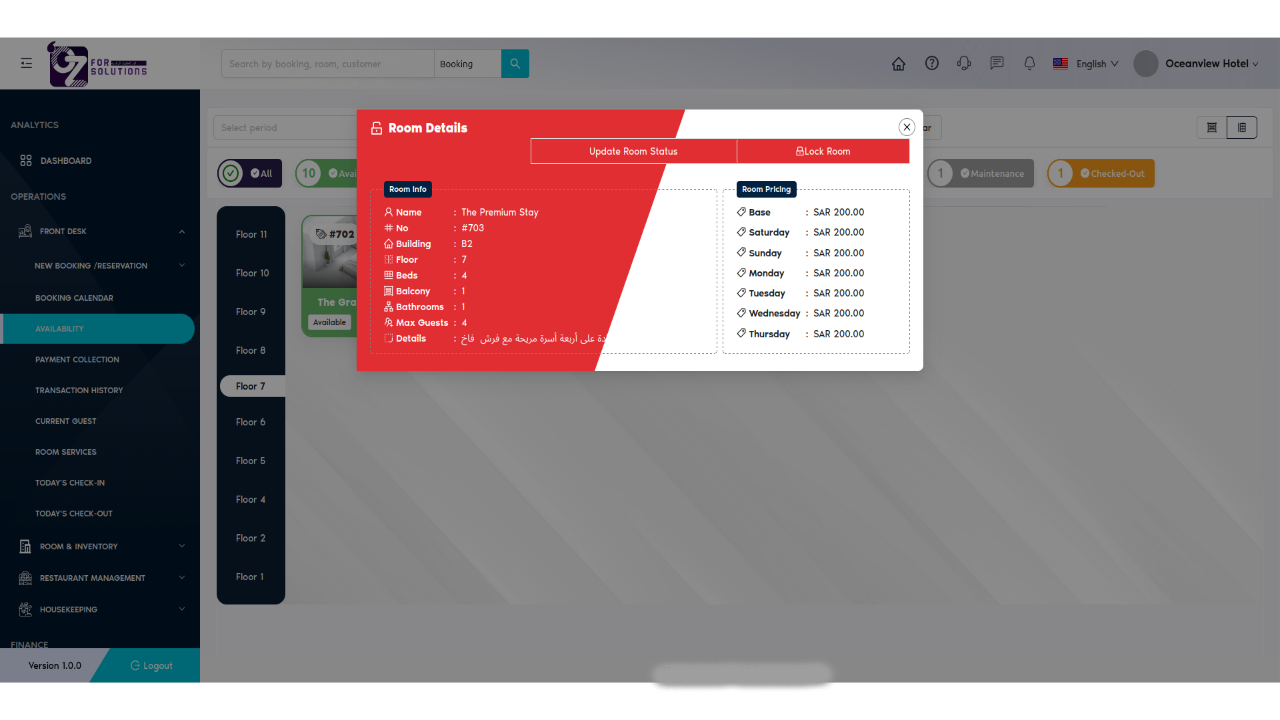
- Click on any room card
- Each room appears as a card showing:
- Room Info
- Room Pricing
-
Check Room Status Color
-
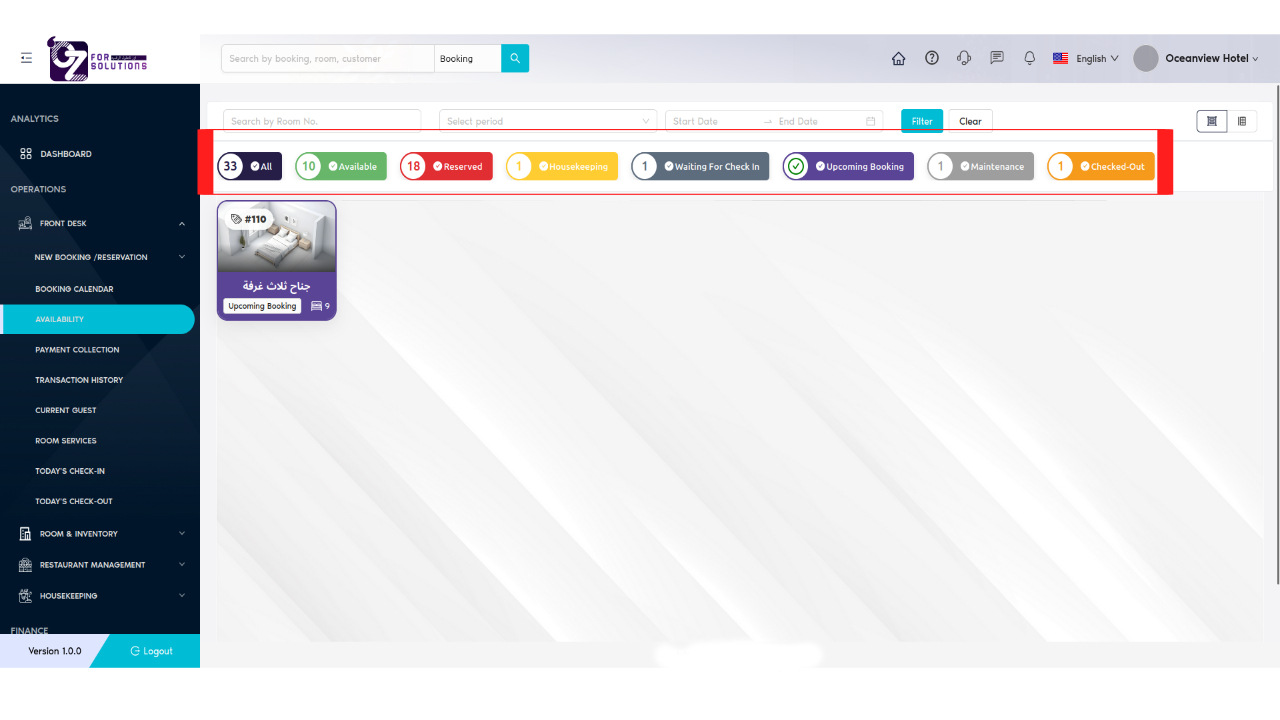
Refer to the color codes (see 🔑 Room Status Indicators) for real-time status:
- 🟩 Available
- 🟥 Reserved
- 🟨 Housekeeping
- ⚪ Maintenance
- 🟪 Upcoming Booking
-
-
Click Room for Aditional Features
-
Clicking a room opens:
- Click on room card
- Click on Update Room Status button then it will open Update Reservation window
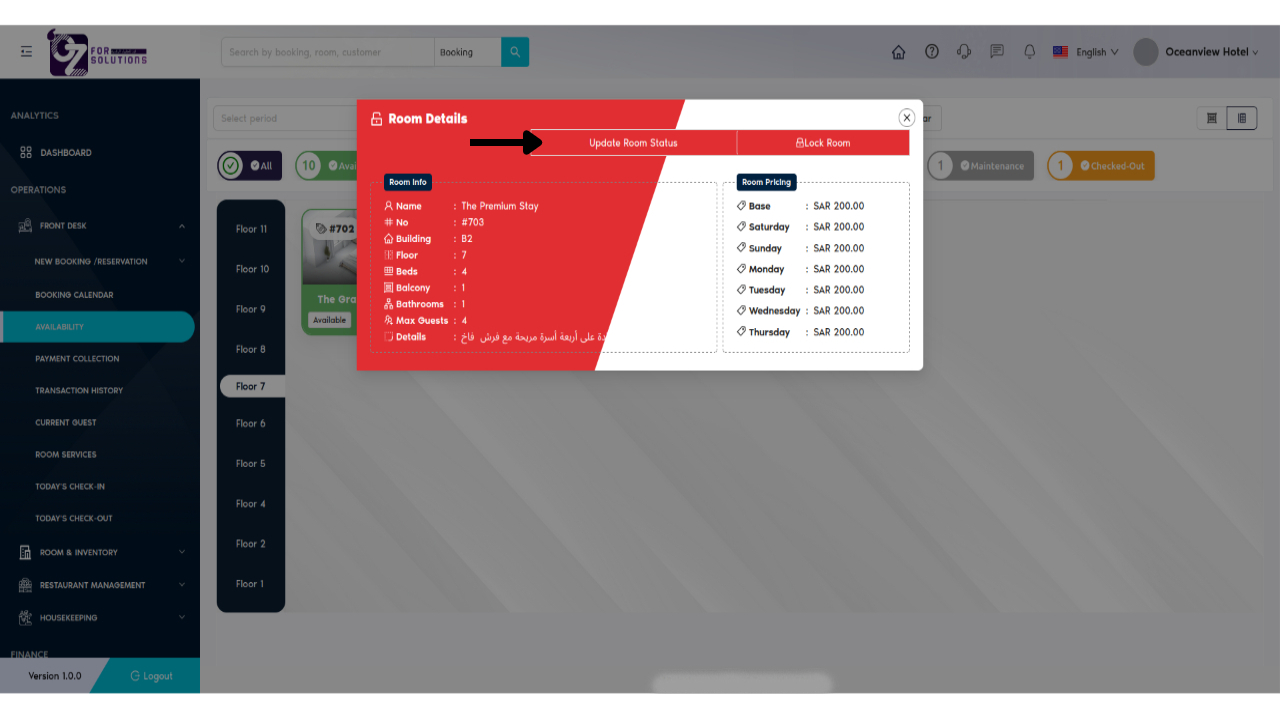
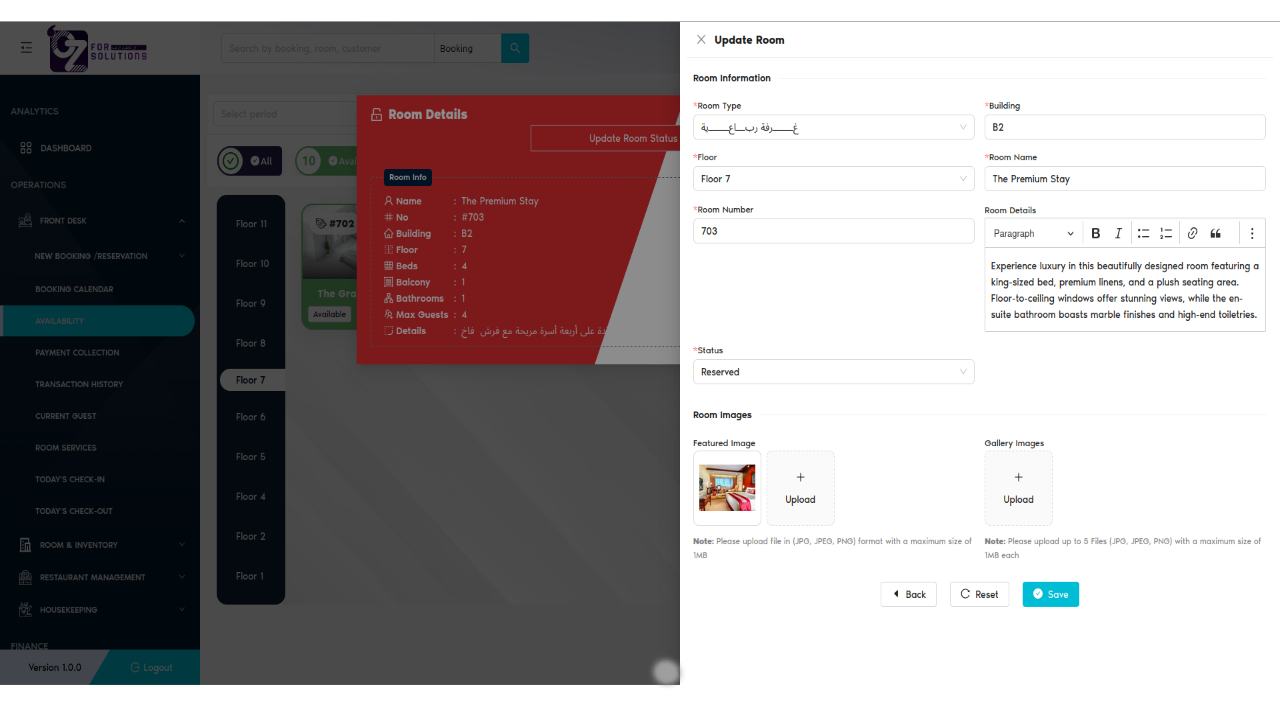
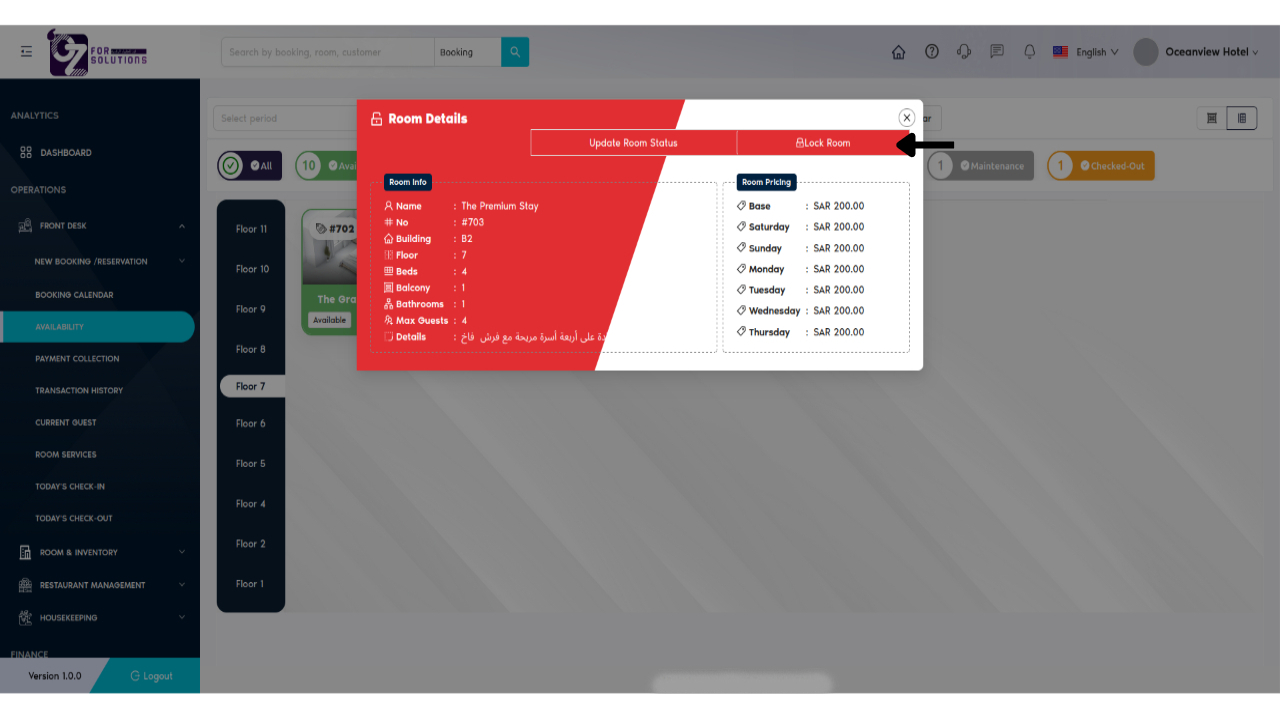
- Lock/Unlock options for special use (e.g. group bookings)
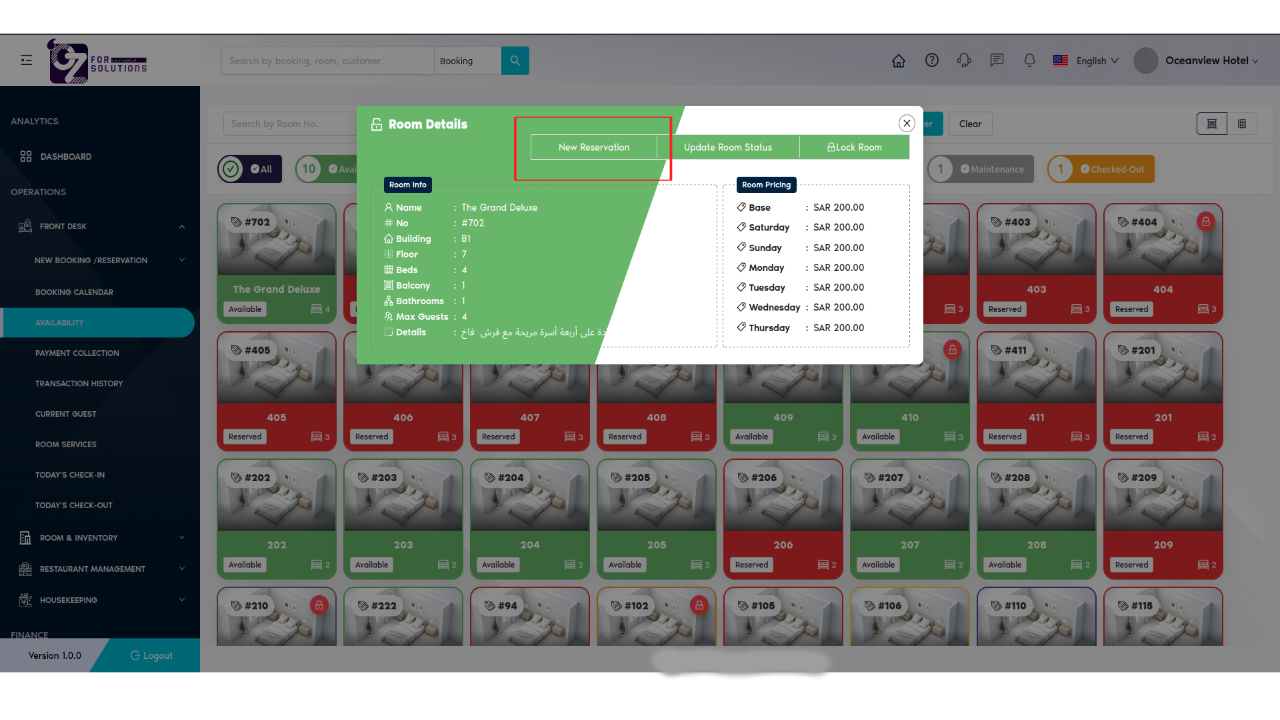
- Only Available room card have extra button New Reservation to go to add reservation directly
-
🔑 Room Status Indicators
| Color | Status | Meaning |
|---|---|---|
| 🟩 Green | Available | Ready for check-in |
| 🟥 Red | Reserved | Room is booked |
| 🟨 Yellow | Housekeeping | Under cleaning |
| 🟪 Purple | Upcoming Booking | Assigned but not yet arrived |
| ⚪ Gray | Maintenance | Unavailable due to maintenance |
| 🟦 Blue dot | Waiting Check-In | Guest arriving today |
| 🟧 Orange | Checked-Out | Recently vacated, pending housekeeping |
💡 Best Practices
- ✅ Refresh the page frequently during peak check-in/check-out hours.
- 🧹 Coordinate with housekeeping via real-time availability data.
- 🔐 Use Lock Room only for admin-approved bulk or long-term reservations.
- 📊 Use the Status Summary Panel for a quick glance of the overall occupancy.
❗ Troubleshooting
| Problem | Solution |
|---|---|
| Room not showing | Remove filters or refresh the page |
| Status not updated | Click "Refresh" or sync with housekeeping module |
| Can't change room status | Check role permissions or locked state |
🧪 Related Modules
📞 Support
If you're experiencing issues:
- Contact your Property Admin
- Or email hello@cistechltd.com
🛏️ Keeping track of room availability ensures smooth check-ins, better guest satisfaction, and optimal housekeeping coordination.