💳 Payment Collection – Front Desk
Module: Operations
Section: Payment Collection
Location: Front Desk > Payment Collection
Version: 1.0.0
Last Updated: July 2025
🧭 Overview
The Payment Collection module is used by front desk and finance teams to view, manage, and record guest payments for active or past reservations.
It provides a real-time status of each booking, including total due, amount paid, payment method, and invoice history.
This view supports filtering by customer, booking source, and status — making it easier to keep financial records transparent and up-to-date.
👤 Who Can Access
| Role | Access Level |
|---|---|
| Admin | Full access |
| Finance | Full access |
| Front Desk | View & Add Payment |
| Housekeeping | No access |
| Guest | No access |
🖼️ Interface Preview
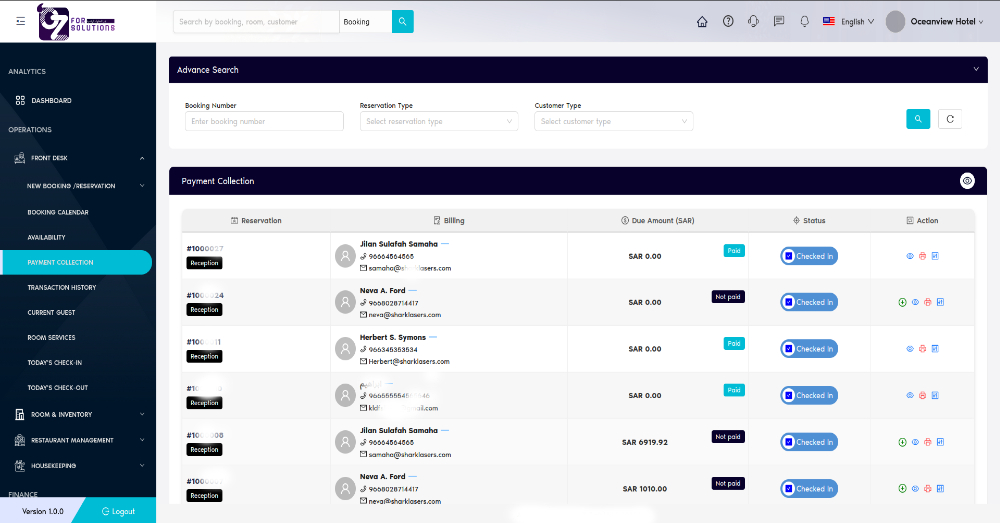
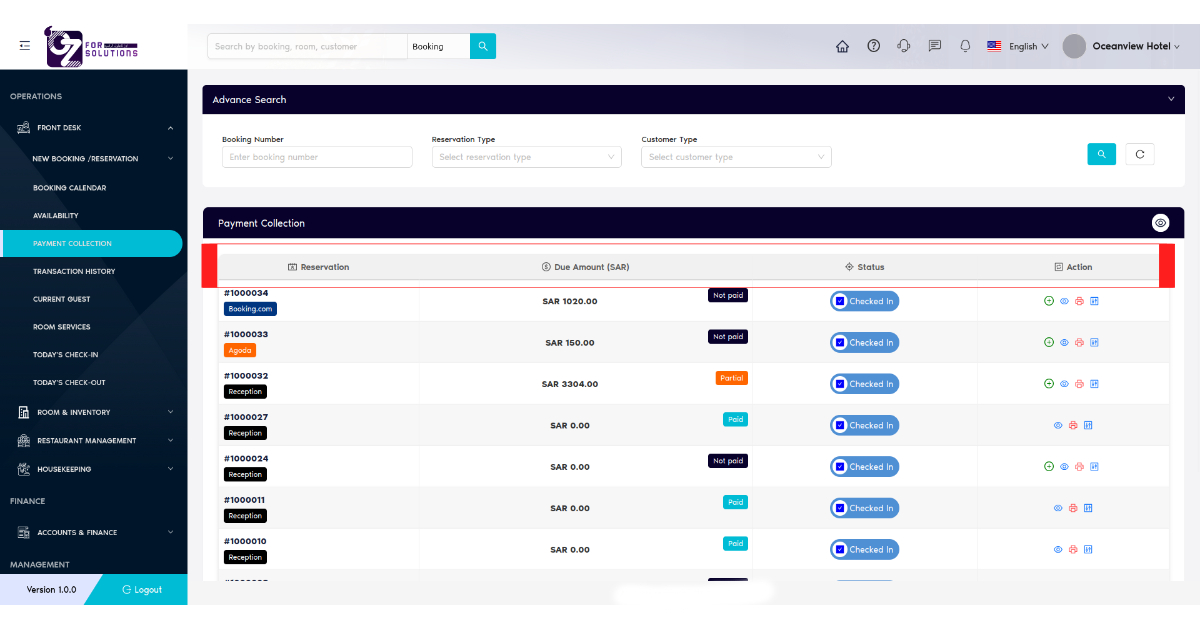
Image: Full UI view showing reservations with payment statuses and actions.
🧾 Key Columns & Descriptions
| Column | Description |
|---|---|
| Reservation | Booking ID or reference, categorized by source (e.g., Walk-in, OTA) |
| Billing | Guest name, phone number, and email address |
| Due Amount (SAR) | Remaining amount to be paid in Saudi Riyal (SAR) |
| Status | Guest’s check-in status (e.g., Reserved, Checked-In, Checked-Out) |
| Payment | Status label: Paid, Partial, or Not Paid |
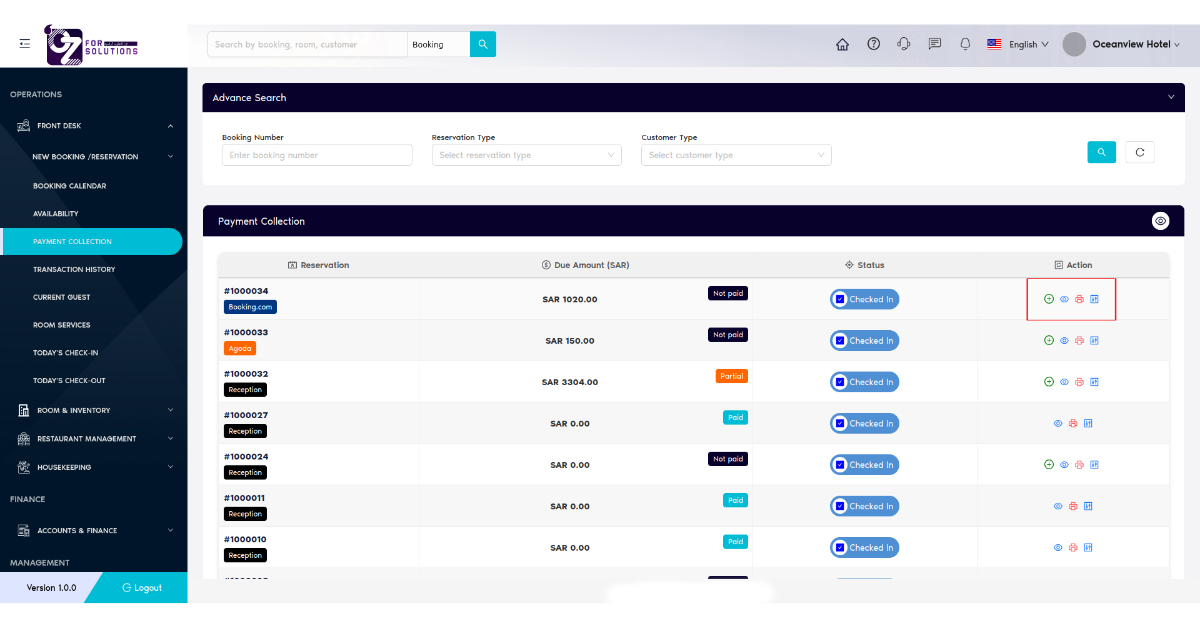
| Actions | Buttons to view, add payment, delete record, or print invoice |
💳 Payment Status Tags
| Tag | Color | Meaning |
|---|---|---|
| Paid | 🟦 Teal | Full amount received |
| Partial | 🟧 Orange | Partial payment made, balance pending |
| Not Paid | ⚫ Dark Gray | No payment has been recorded yet |
📌 Action Icons
| Icon | Action | Purpose |
|---|---|---|
| 👁️ | View | View reservation billing and history |
| ➕ | Add Payment | Register a new payment for the booking |
| 🖨️ | Print Invoice | Generate and download invoice (PDF) |
| ✅ | Guest Check-in | Update Guest Check-in (if permitted) |
🔍 Filters and Search Options
Use the top filter panel to narrow your results:
- Booking Number: Search by Booking Number.
- Reservation Type: Filter by booking type (Single, Group, Package).
- Customer Type: Filter by Individual or Company.
📋 How to Check Payment Collection – Step by Step
-
Navigate
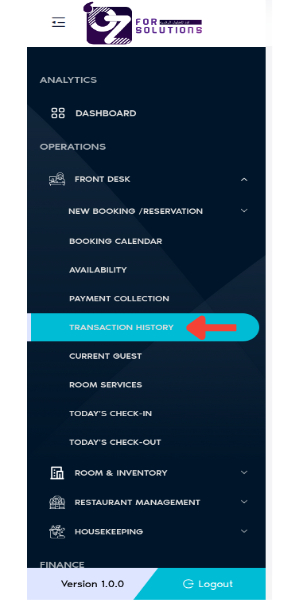
- Go to
Front Desk > Payment Collectionpage from the main sidebar.
- Go to
-
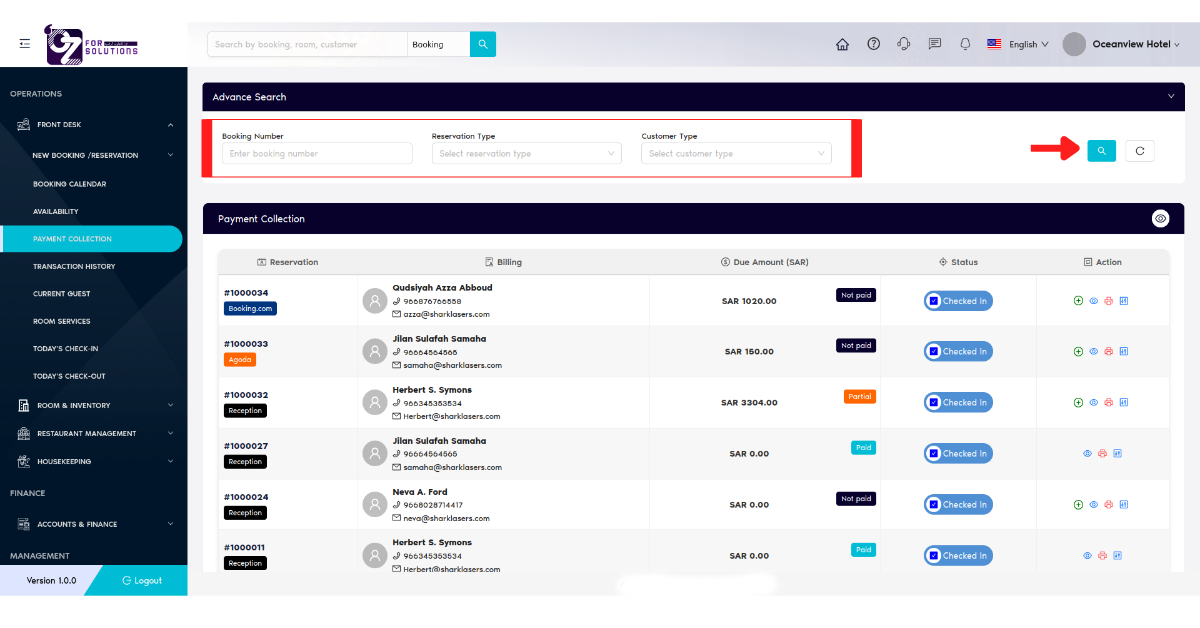
Use Search Filters:
- Booking number (Reservation ID)
- Reservation type (Single, Group, Package)
- Customer type (Individual, Company)
- Select any type of Filter or multiple Filters
- Click search button
-
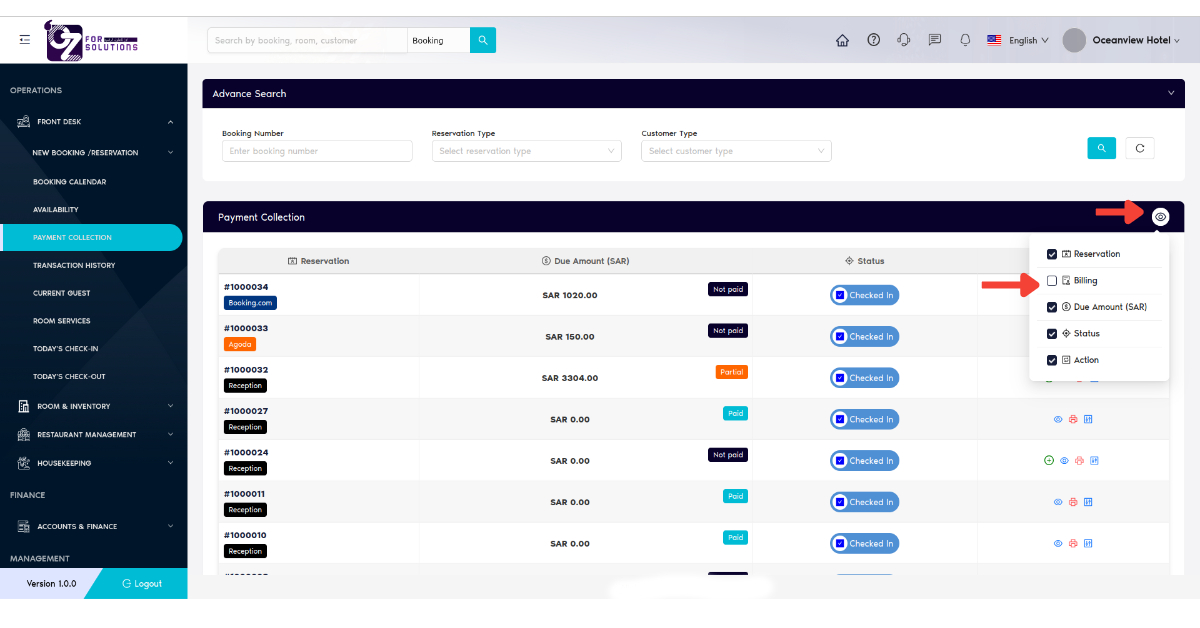
Use Column View Control:
- Click on the
View Column Control(👁️ icon) - Check or Uncheck columns to view necessary column (only for your current view)
- Click on the
-
Understand Key Columns:
- Reservation: Booking number and source
- Billing: Guest’s name, mobile, and email
- Due Amount (SAR): Remaining balance and payment status
- Status: Reservation status (e.g., Reserved, Checked-In)
-
Perform Actions (Action Column):
- ➕ Add Payment: Opens payment entry form
- 👁️ View Details: See full billing and guest info
- 🖨️ Print: Generate invoice in PDF
- ✅ Guest Check-in: Trigger guest check-in
-
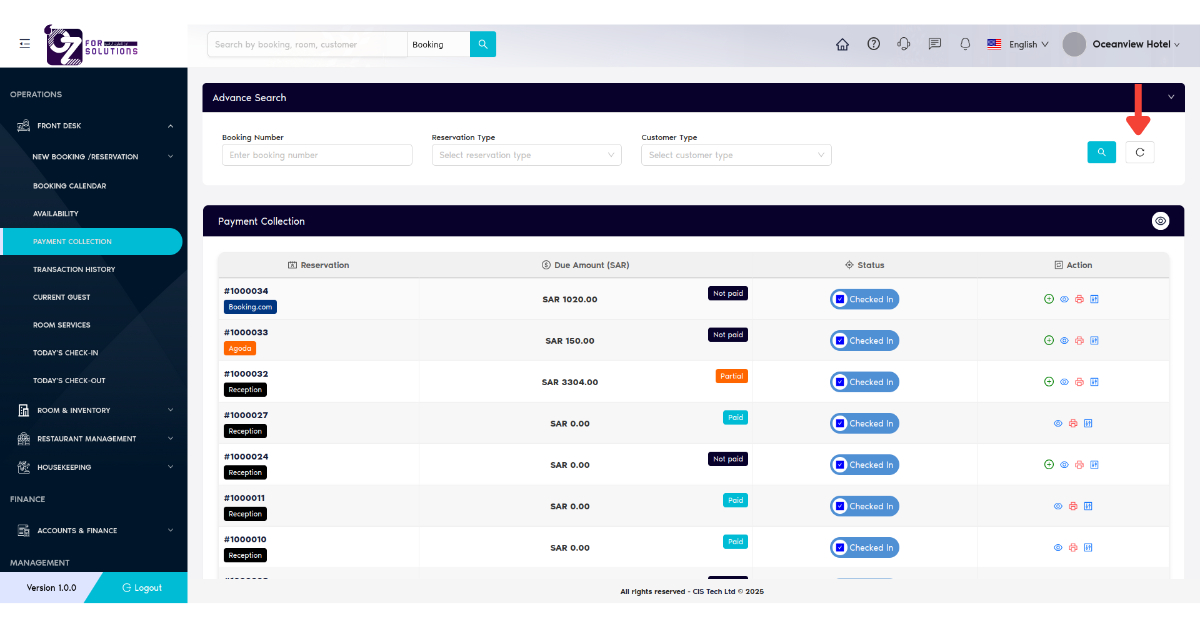
Use Page Refresh Option:
- Click Refresh button to reload and reflect latest data
⚠️ Notes
- 💡 All amounts are displayed in SAR (Saudi Riyal).
- 📨 Guest email and contact info is automatically pulled from reservation data.
- 🖨️ Invoices can be re-generated and printed at any time.
🧪 Related Modules
📞 Support
For issues related to payment logs, sync errors, or access:
- Contact your Finance Department
- Or email hello@cistechltd.com
💼 Keeping guest payments accurate ensures smooth operations and builds long-term trust.