📅 Reservation List – Front Desk
Module: Front Desk
Section: All Bookings / Reservation List
Location: Operations > Front Desk > All Bookings
Version: 1.0.0
Last Updated: June 2025
🧭 Overview
The Reservation List page displays all existing reservations in a searchable and filterable format. It provides quick access to booking details, billing, status, and actions such as edit, delete, view, and print.
This page supports daily operations for front desk staff and management.
🖼️ Interface Preview
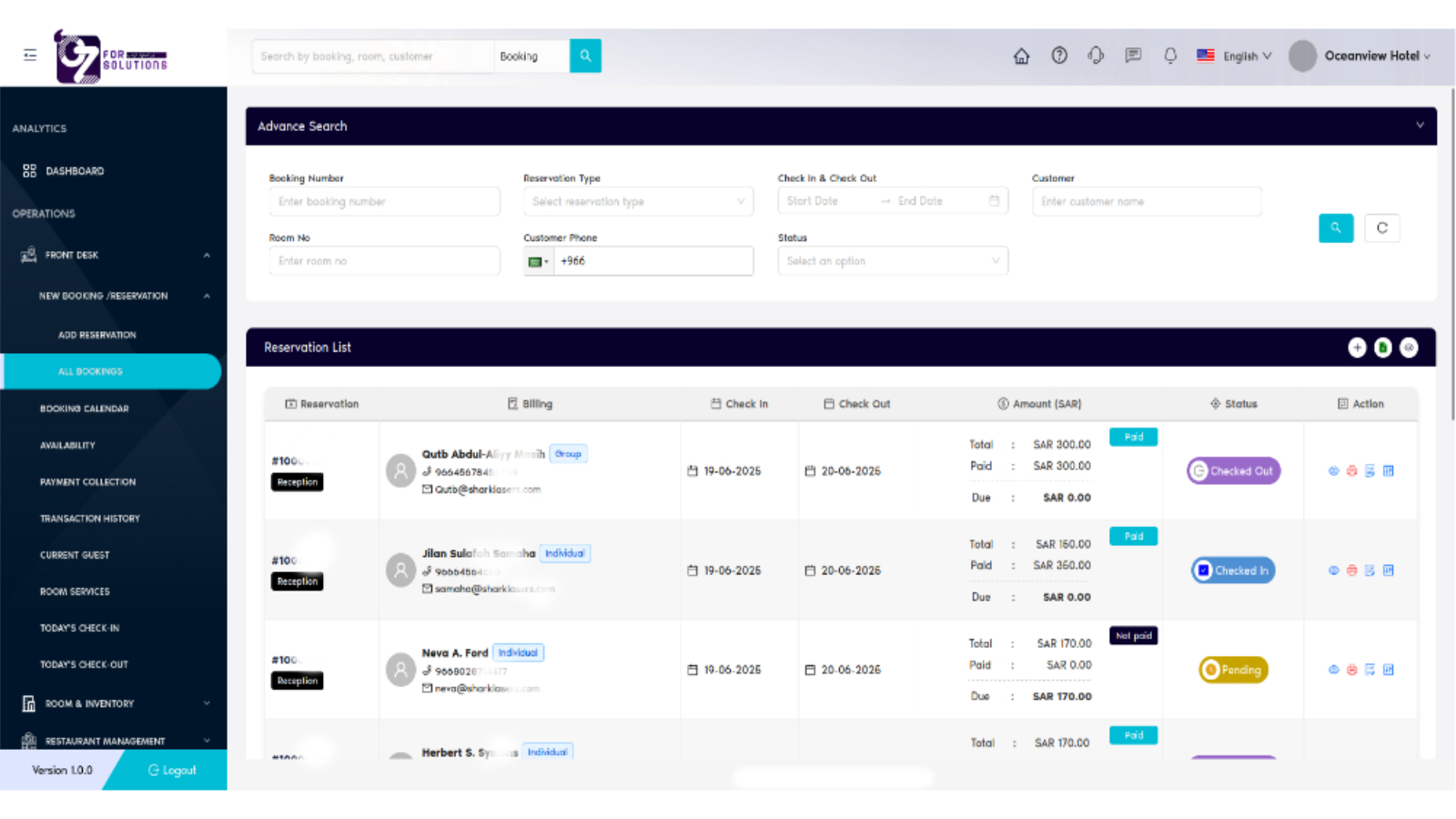
Image: Table of all reservations with filtering options and status indicators.
👤 Who Can Access
| Role | Access Level |
|---|---|
| Admin | Full access |
| Manager | View/Edit/Delete |
| Receptionist | Add/Edit/View |
| Staff | View only (optional) |
🔍 Advanced Search Filters
| Filter | Description |
|---|---|
| Booking Number | Search using exact reservation ID |
| Reservation Type | Individual / Group / Company |
| Check-in & Check-out | Filter by date range |
| Customer Name | Search by guest name |
| Customer Phone | Filter by mobile number |
| Status | Paid / Not Paid / Pending / etc. |
📋 Table Columns Explained
| Column | Description |
|---|---|
| Reservation | Displays ID, source (e.g. Reception), customer type |
| Billing | Contact number and email of guest |
| Check-In | Booking start date |
| Check-Out | Booking end date |
| Amount (SAR) | Total, Paid, and Due amounts in Saudi Riyal |
| Status | Displays reservation status (Confirmed, Pending, Checked Out, etc.) |
| Action | Icons to view, edit, delete, and print reservation details |
🟢 Status Indicators
| Status | Color | Description |
|---|---|---|
| Confirmed | Green | Booking confirmed, not yet checked in |
| Checked Out | Purple | Guest has completed the stay |
| Pending | Yellow | Reservation created, not confirmed |
| Not Paid | Dark Blue | Payment not yet received |
| Paid | Light Blue | Payment fully settled |
🧭 Actions Available
| Icon | Action |
|---|---|
| 👁️ | View reservation details |
| ✏️ | Edit reservation information |
| 🗑️ | Delete the reservation (if allowed) |
| 🖨️ | Print the reservation receipt |
✅ How to view Reservation List – Step by Step
-
Navigate to the Reservation List Page
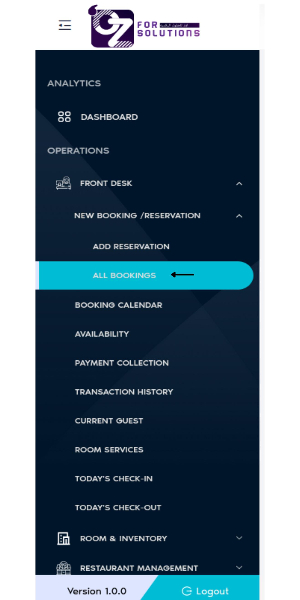
- Go to
Front Desk > All Bookingsfrom the left-side navigation menu.
- Go to
-
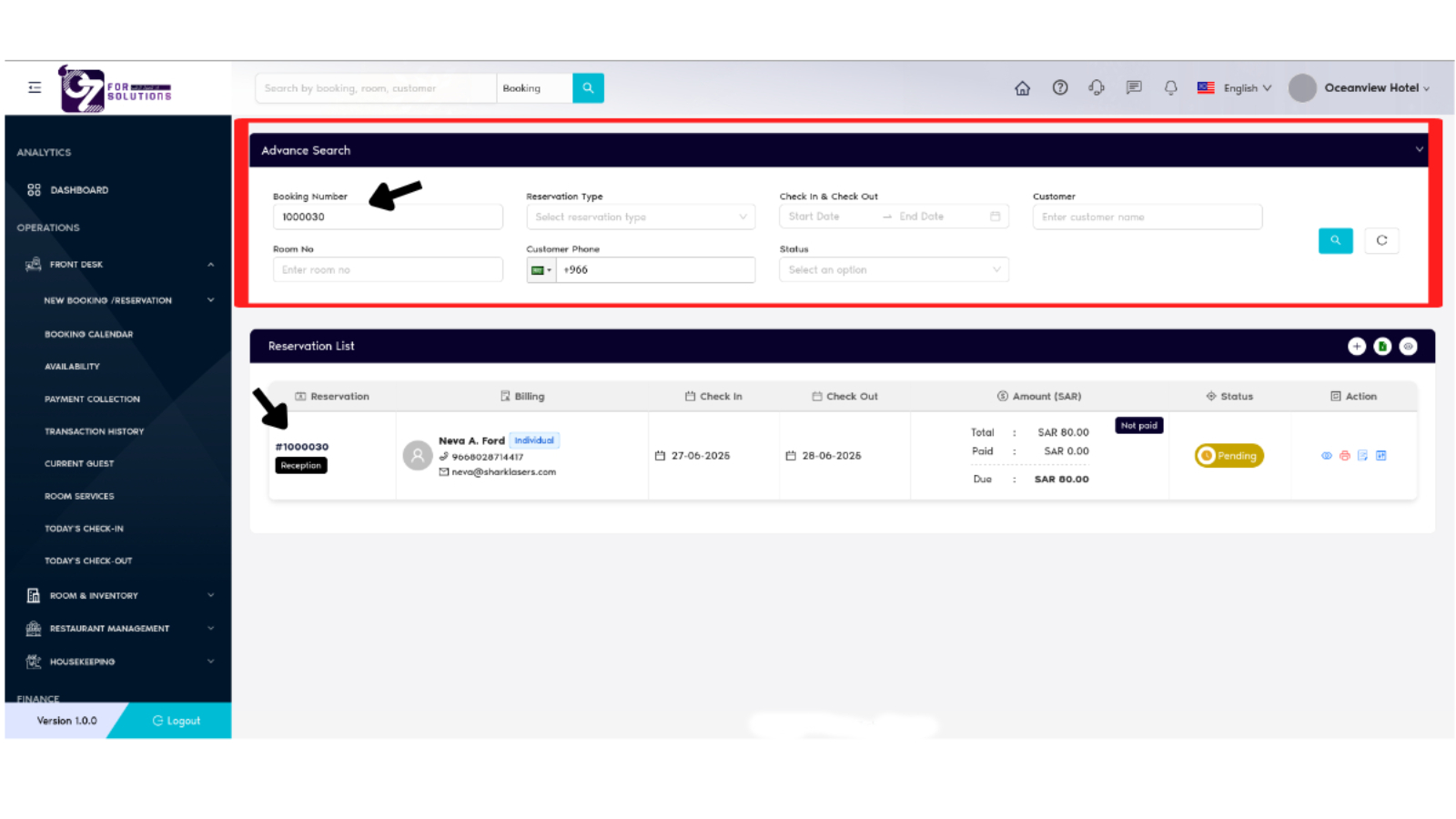
Apply Advanced Filters (Optional)
- Use available fields to narrow down search results:
- Booking Number
- Reservation Type (Individual / Group / Company)
- Check-in & Check-out Date Range
- Customer Name or Phone Number
- Room No
- Reservation Status (Confirmed, Cancelled, Pending, Checked In, Checked Out etc.)
-
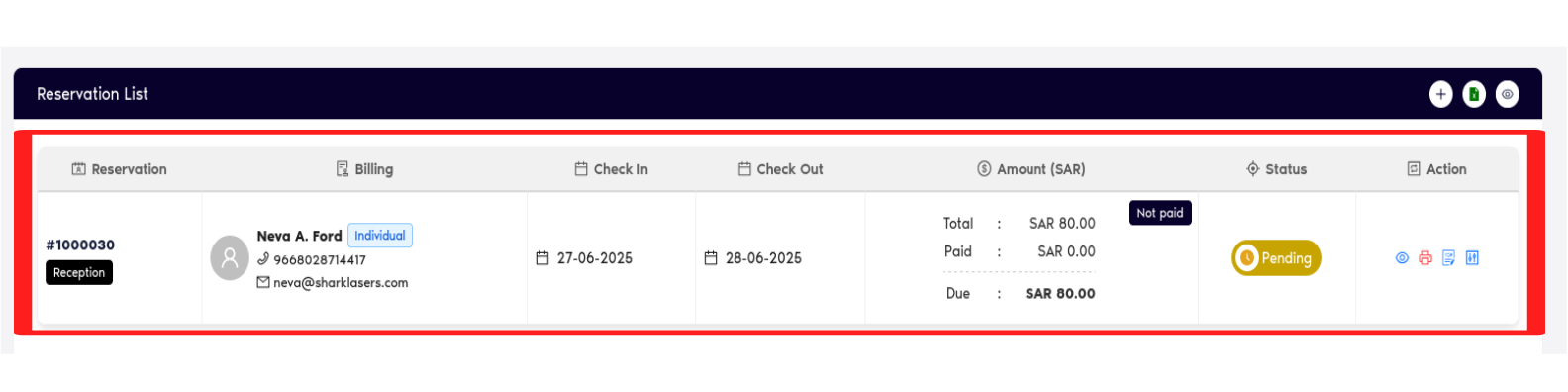
Review Reservation Data
- Review columns including:
- Guest and Contact Info
- Check-in / Check-out Dates
- Total, Paid, and Due Amounts
- Current Status (Confirmed, Checked Out, etc.)
-
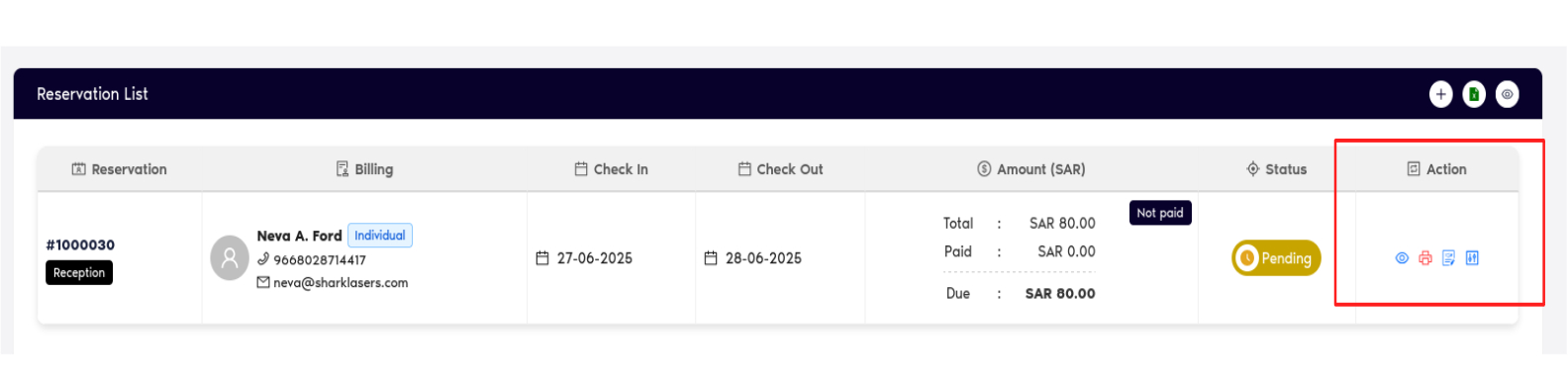
Perform Actions on Reservations
- Use action icons in the last column:
- 👁️ View – See full reservation details
- ✏️ Edit – Modify existing reservation info
- 🗑️ Delete – Remove the reservation (if permitted)
- 🖨️ Print – Print the reservation invoice or summary
-
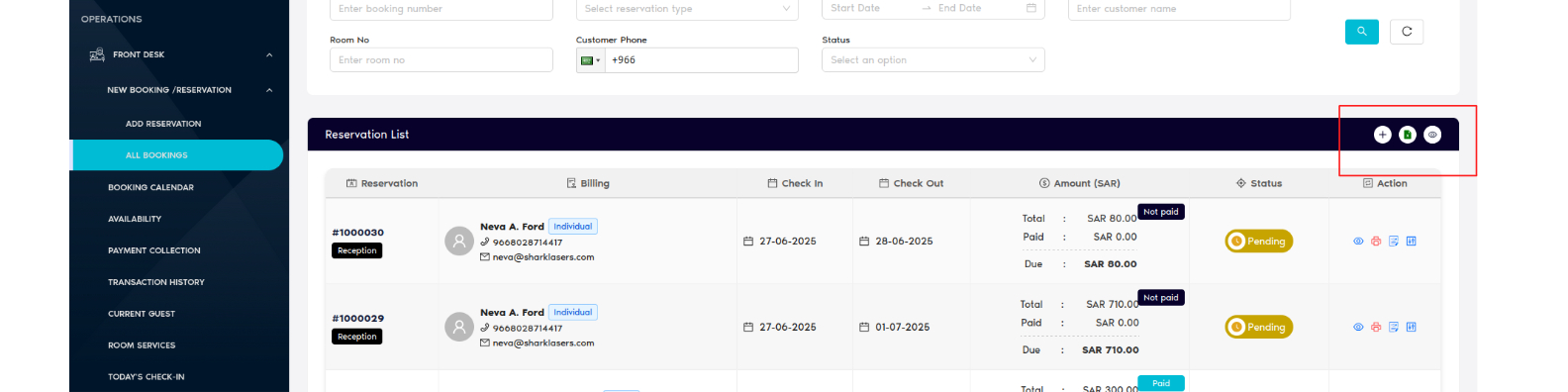
Perform Additionals Items on Reservations
- Add button to go to add reservation
- Excel file download option
- View reservation list column selection option
❗ Troubleshooting
| Issue | Solution |
|---|---|
| No results found | Clear filters or adjust search parameters |
| Status not updating | Ensure check-in/check-out processes are completed |
| Payment not reflected | Confirm payment under Payment Collection module |
🔗 Related Pages
📞 Support
For issues with viewing or updating reservations:
- Contact your system administrator
- Or email: hello@cistechltd.com
Easily manage, track, and update reservations with a detailed, filterable reservation list.