🧍♂️ Current Guest
Module: Front Desk
Section: Current Guest
Location: Modules > Operations > Front Desk > Current Guest
Version: 1.0.0
Last Updated: June 2025
🧭 Overview
The Current Guest section provides a real-time overview of all guests currently staying at the property. This module helps the front desk manage occupancy, track guest check-in/check-out dates, and access contact and contract details.
🖼️ Interface Preview
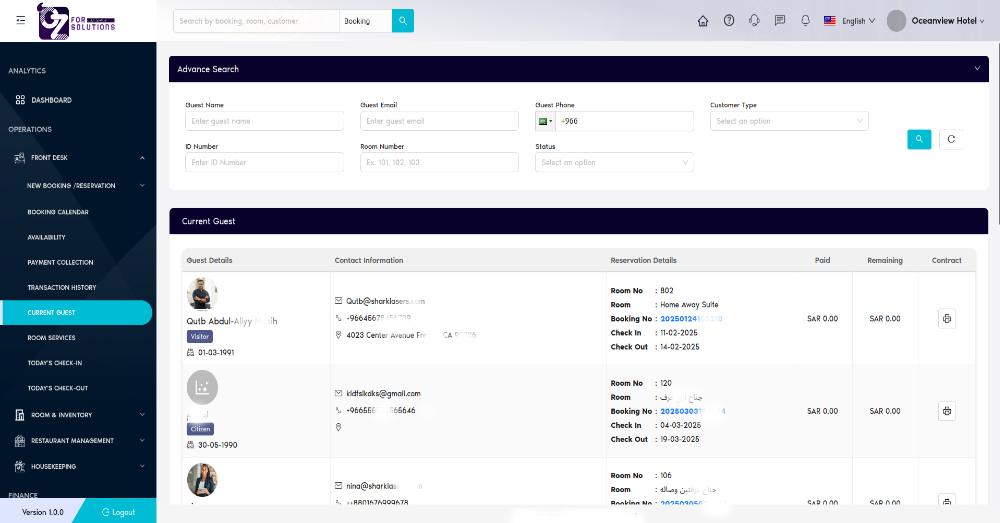
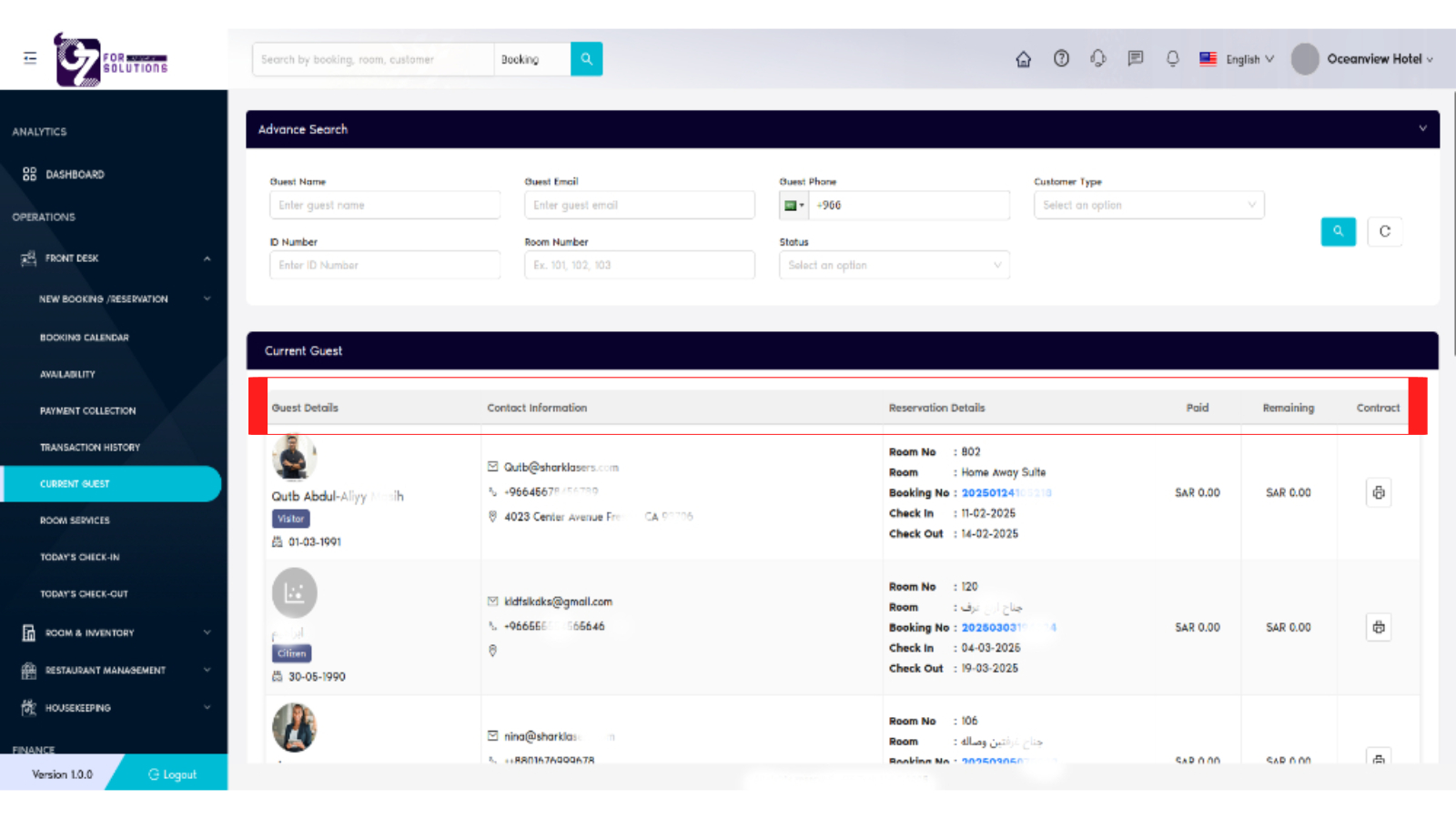
Image: Table showing current guests with personal, reservation, and payment details.
👤 Who Can Access
| Role | Access Level |
|---|---|
| Admin | Full access |
| Manager | View only (default) |
| Receptionist | View + basic edits |
📌 Key Features
- 🔍 Advanced Search by guest name, email, phone, ID, room number, or status
- 👤 Guest Details with profile picture, role (e.g., Citizen or Visitor), and date of birth
- 📇 Contact Information including phone, email, and address
- 🛌 Reservation Info such as room number, suite type, booking number, check-in/out dates
- 💰 Payment Summary with paid and remaining amount
- 📄 Contract Access button for viewing or printing contract documents
📋 📋 How to Check Current Guest – Step by Step
-
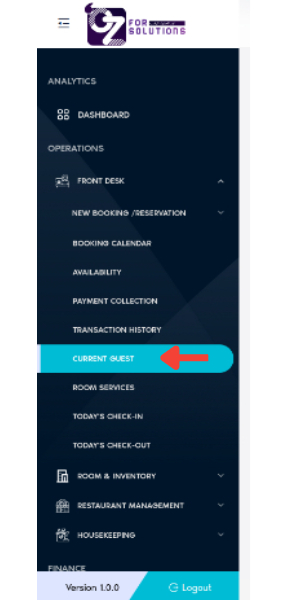
Navigate to Current Guest
- Go to
Front Desk > Current Guestfrom the left sidebar (A list of all current guests with active reservations is displayed)
- Go to
-
Searching For a Guest
-
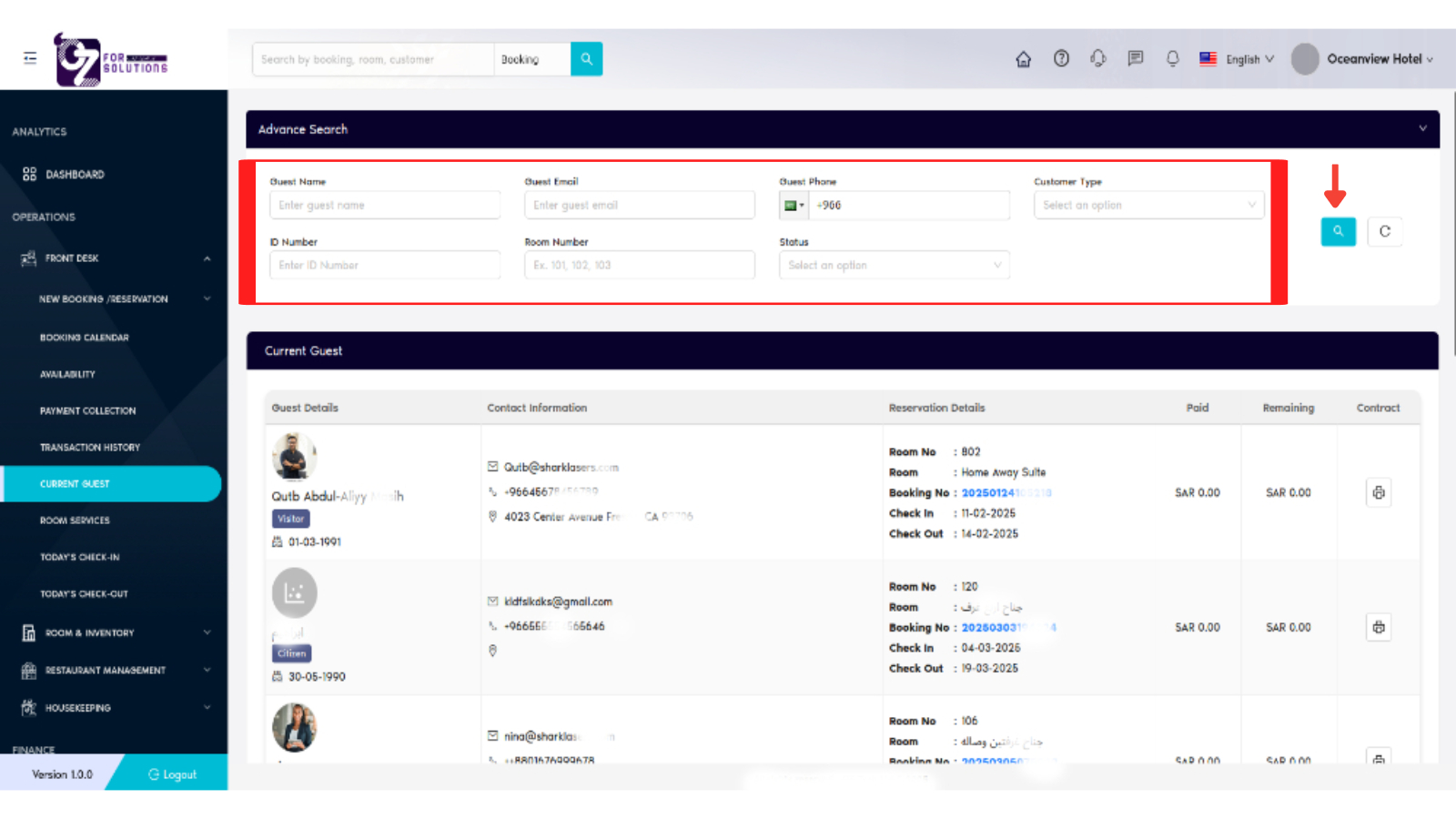
Use filters in the Advanced Search bar:
- Guest Name or Email
- Phone Number (supports country code)
- ID Number or Room Number
- Customer Type (Citizen, Visitor)
- Status (Checked-in, Reserved, etc.)
- Select any type of Filter or multiple Filters
- Click the search icon to load relevant records.
-
-
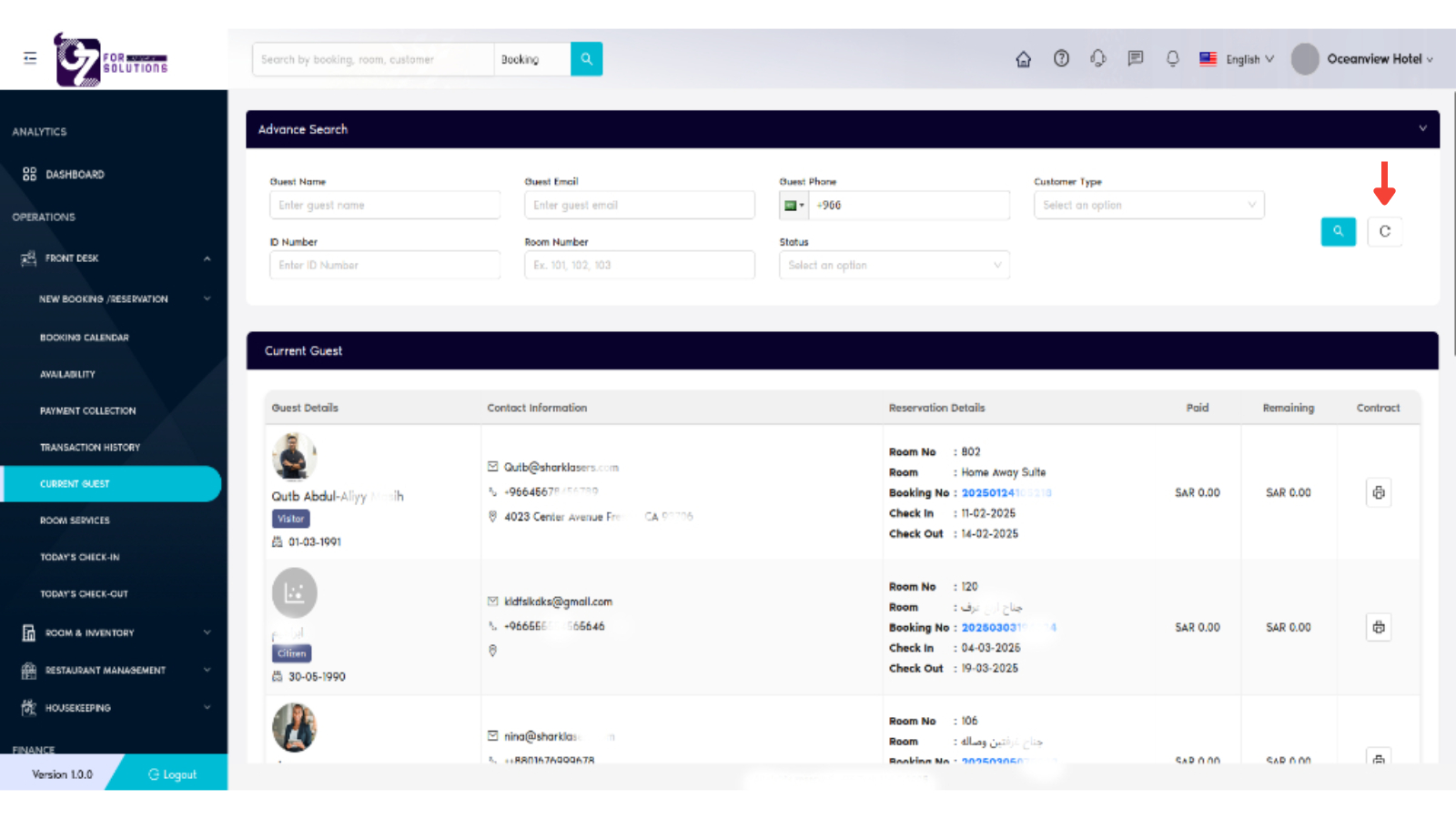
Use Page Refresh Option:
- Click Refresh button to reload and reflect latest data
-
Understand Key Columns – Current Guest:
- Guest Details: Displays guest name, type (e.g., Visitor), date of birth, and profile photo if available
- Contact Information: Shows email, phone number, and guest address
- Reservation Details: Includes room number, booking number (🔗 clickable), check-in and check-out dates
- Paid / Remaining: Indicates amount paid and outstanding balance (SAR)
- Contract: Shows contract status and gives option to view/download (🗎 icon)
-
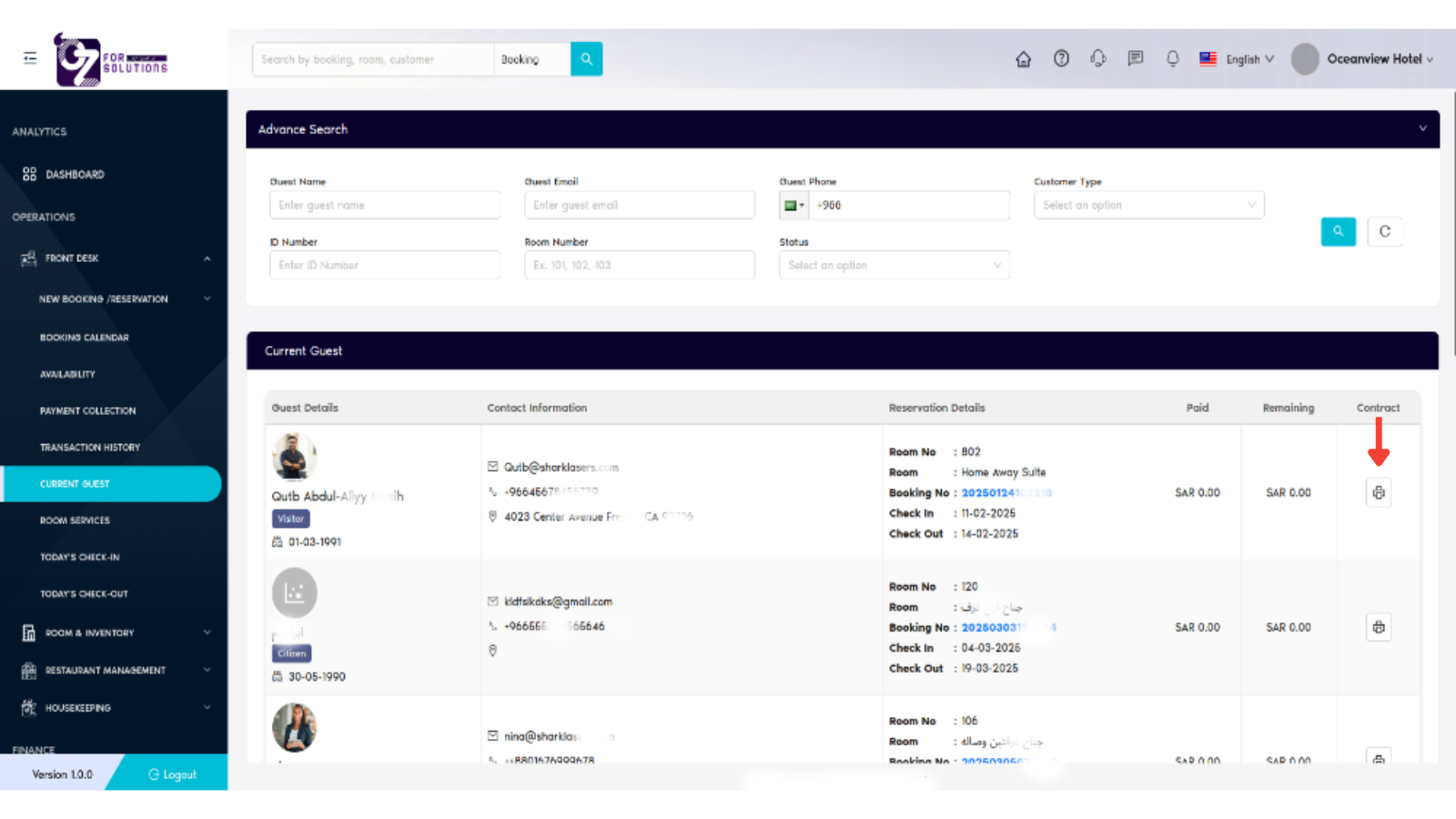
Print Guest Reservation Details
- Use the 🖨️ Print icon under the Contract column in the Current Guest table
-
Clicking the icon opens a printable view of the guest’s reservation contract
Included in the Print:
- Guest Name and Contact Info
- Room Number and Room Type
- Booking ID, Check-In and Check-Out Dates
- Payment Breakdown (Paid, Remaining Amount)
- Contract Terms and Signature Section (if applicable)
💡 Best Practices
- ✅ Verify guest contact info and ID before check-in
- 📑 Use contract icons to reprint or view guest agreements
- 📅 Monitor check-out dates daily for planning room availability
❗ Troubleshooting
| Issue | Solution |
|---|---|
| Guest not listed | Ensure guest has an active reservation and is checked in |
| Incorrect payment info | Review payment logs under Transaction History |
| Contract not opening | Confirm PDF viewer compatibility or try another browser |
🧪 Related Modules
📞 Support
Need help managing guest data or correcting reservation entries?
- Contact the Property Manager
- Email: hello@cistechltd.com
🧍 The Current Guest module is essential for day-to-day operations, providing full visibility into active stays and guest details at a glance.