📅 Booking Calendar – Front Desk
Module: Front Desk
Section: Booking Calendar
Location: Operations > Front Desk > Booking Calendar
Version: 1.0.0
Last Updated: June 2025
🧭 Overview
The Booking Calendar module provides a visual representation of all current and upcoming reservations across different rooms. It includes both monthly calendar and Gantt-style timeline views, allowing staff to manage room occupancy and plan effectively.
This view is essential for front desk users, room allocators, and hotel managers to track daily check-ins, check-outs, and availability.
🖼️ Interface Preview
📅 Monthly Booking View
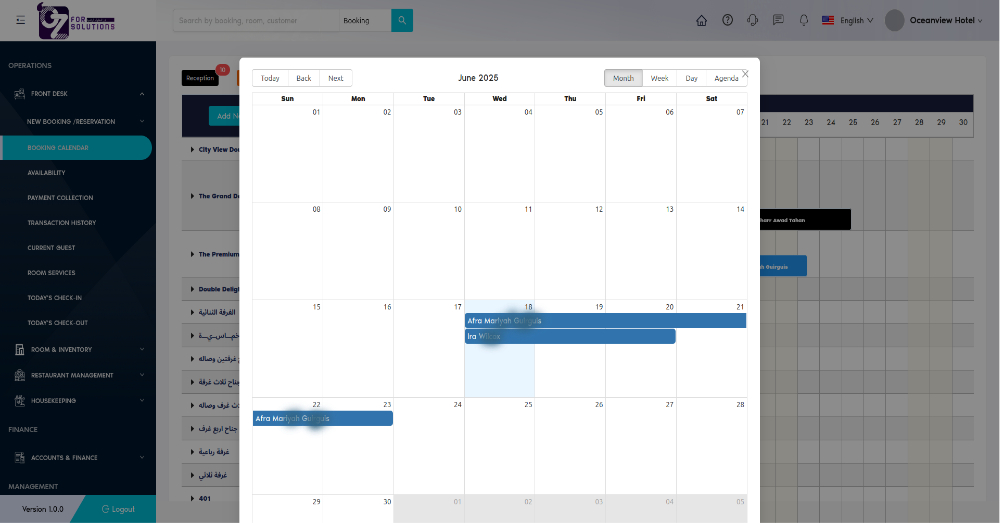
- Displays a calendar layout for June 2025.
- Shows booking blocks for guests like Afra Mariyah Guirguis and Ira Wilcox.
- Helpful for visualizing stays across days/weeks in a single glance.
- Navigation options: Month, Week, Day, Agenda.
📊 Booking Calendar (Gantt Style)

- Timeline view with room categories on the left and booking dates along the top.
- Colored blocks represent bookings (e.g., Reception, Booking.com, etc.).
- Supports filtering by source (Agoda, AirBnB, etc.).
- Includes an Import/Export button for data operations.
🧾 Booking Details Popup
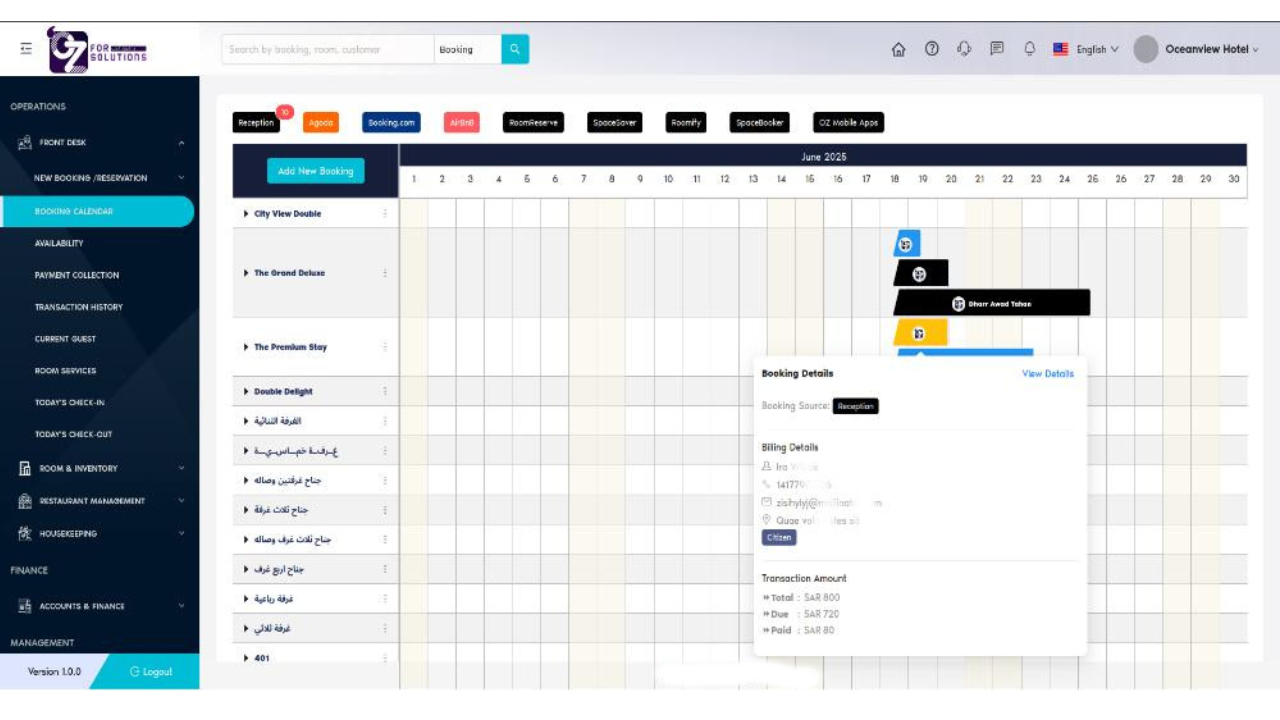
- Popup appears on clicking a booking block.
- Includes:
- Guest Name: Ira Wilcox
- Contact Info: Phone, Email
- Source: Reception
- Amounts: Total (SAR 800), Paid (SAR 80), Due (SAR 720)
- “View Details” link for extended booking information.
🧭 Navigation Panel (Left Sidebar)
- Main Sections:
- Front Desk
- New Booking / Reservation
- Booking Calendar
- Availability, Payment, History, Room Services
- Check-in/Check-out
- Room & Inventory
- Finance and Housekeeping
- Sidebar includes logout and version number (
v1.0.0).
👤 Who Can Access
| Role | Access Level |
|---|---|
| Admin | Full access |
| Manager | View/Edit |
| Receptionist | View |
| Staff | View only (optional) |
🔍 View Modes and Filters
| View Mode | Description |
|---|---|
| Month / Week / Day / Agenda | Switches between calendar views |
| Gantt View | Horizontal timeline across rooms and dates |
| Source Filter | Filters bookings by origin (e.g., Agoda, Booking.com, Reception, etc.) |
| Room Type Filter | Show only selected room categories or floors |
🧾 Booking Details Displayed
| Field | Description |
|---|---|
| Guest Name | Full name of the customer |
| Contact Info | Phone and email address |
| Source | Origin of reservation (e.g., Reception) |
| Total Amount | Total reservation value (in SAR) |
| Paid / Due | Payment breakdown |
| View Link | Redirects to full reservation detail |
🧭 Navigation Panel Highlights
| Section | Purpose |
|---|---|
| New Booking / Reservation | Add individual, group, or company booking |
| Availability | View room availability in real time |
| Payment Collection | Manage payments and dues |
| Today’s Check-In / Out | Track daily guest flow |
✅ How to check booking Calender – Step by Step
-
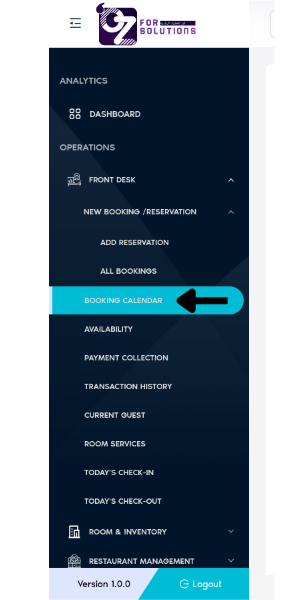
Access the Booking Calendar
- Navigate to
Front Desk > Booking Calendarfrom the left-side menu.
- Navigate to
-
Switch Between Views
-
Use the top toolbar to select:
- Monthly Calendar View: Click on marked area, it will change the view.

- Yearly Calendar View: Click on marked area, it will change the view.
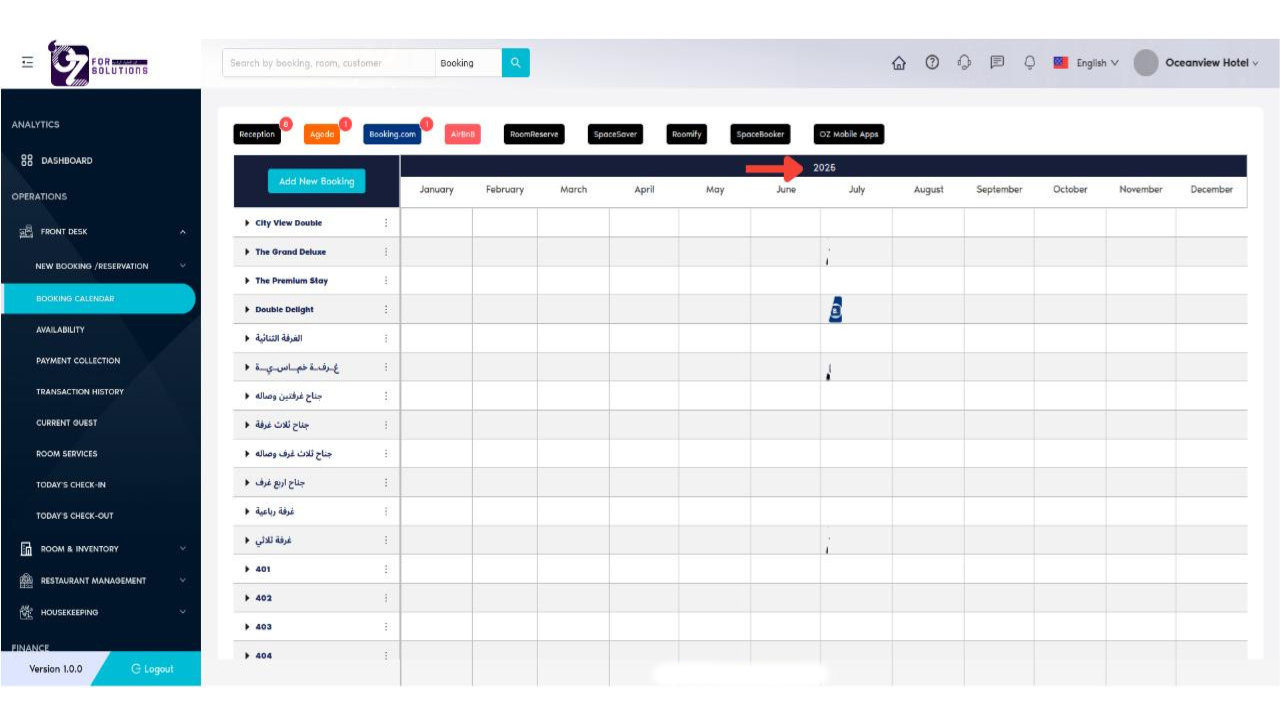
- Daily,or hourly View: Click on marked area, it will change the view.
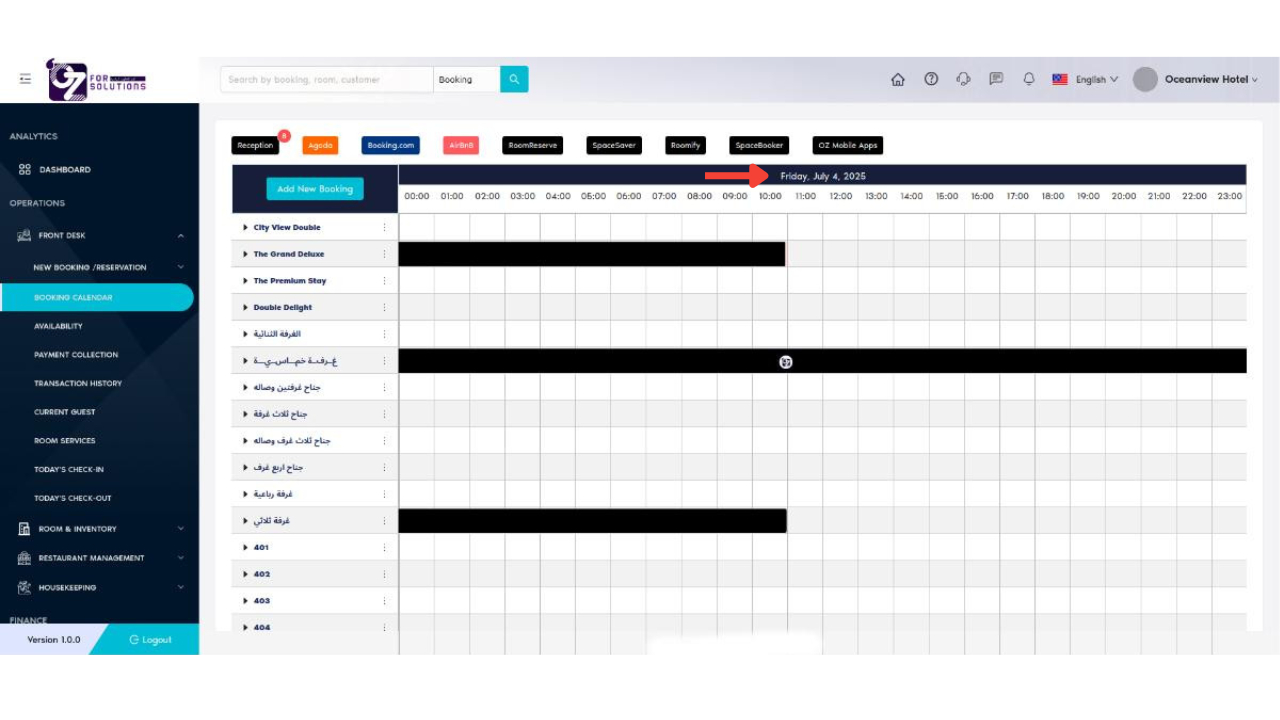
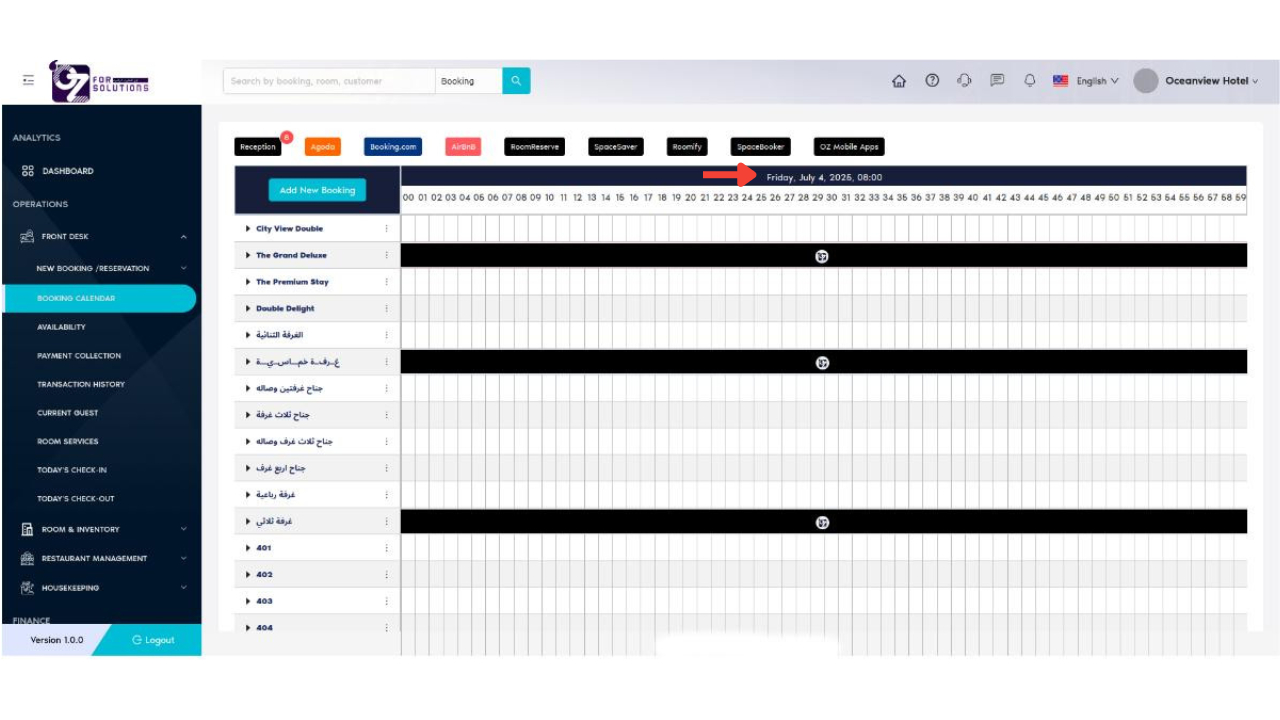
- Gantt-style Timeline View
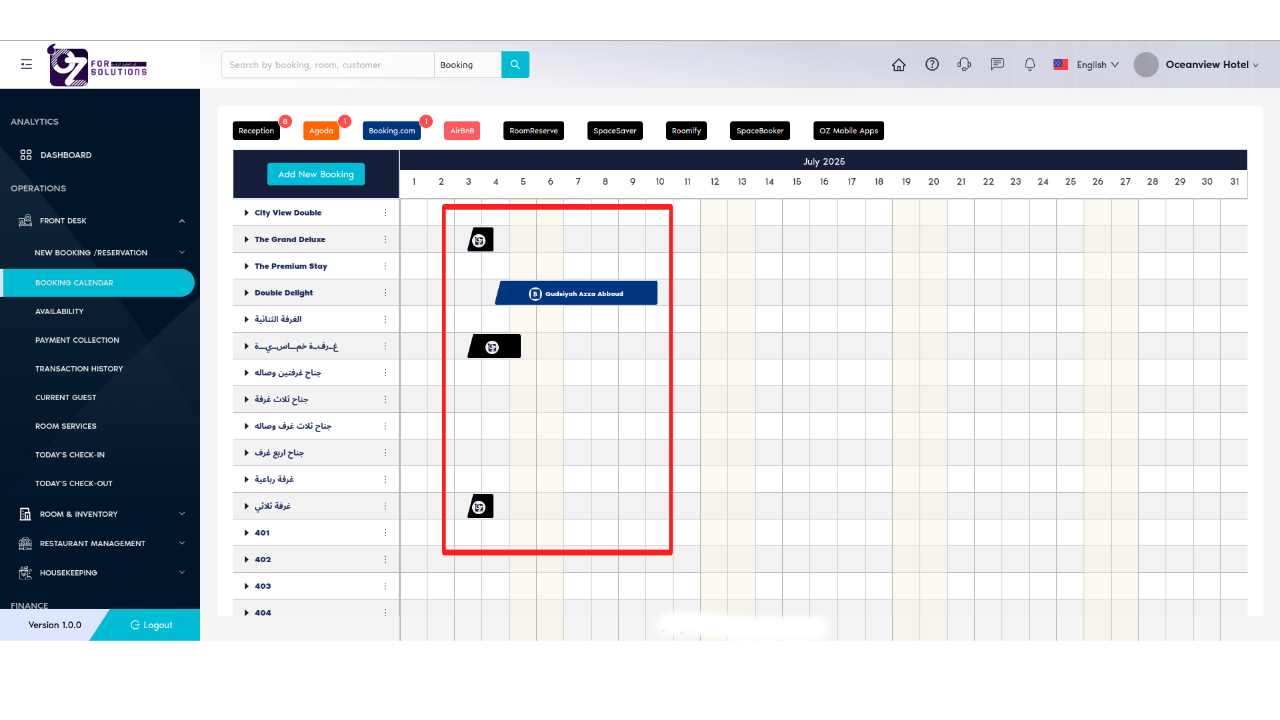
- Monthly Calendar View: Click on marked area, it will change the view.
-
-
Filter Bookings
- Apply filters to narrow down data by:
- Source (Reception, Agoda, Booking.com, etc.)
- Room Name
- Date Range
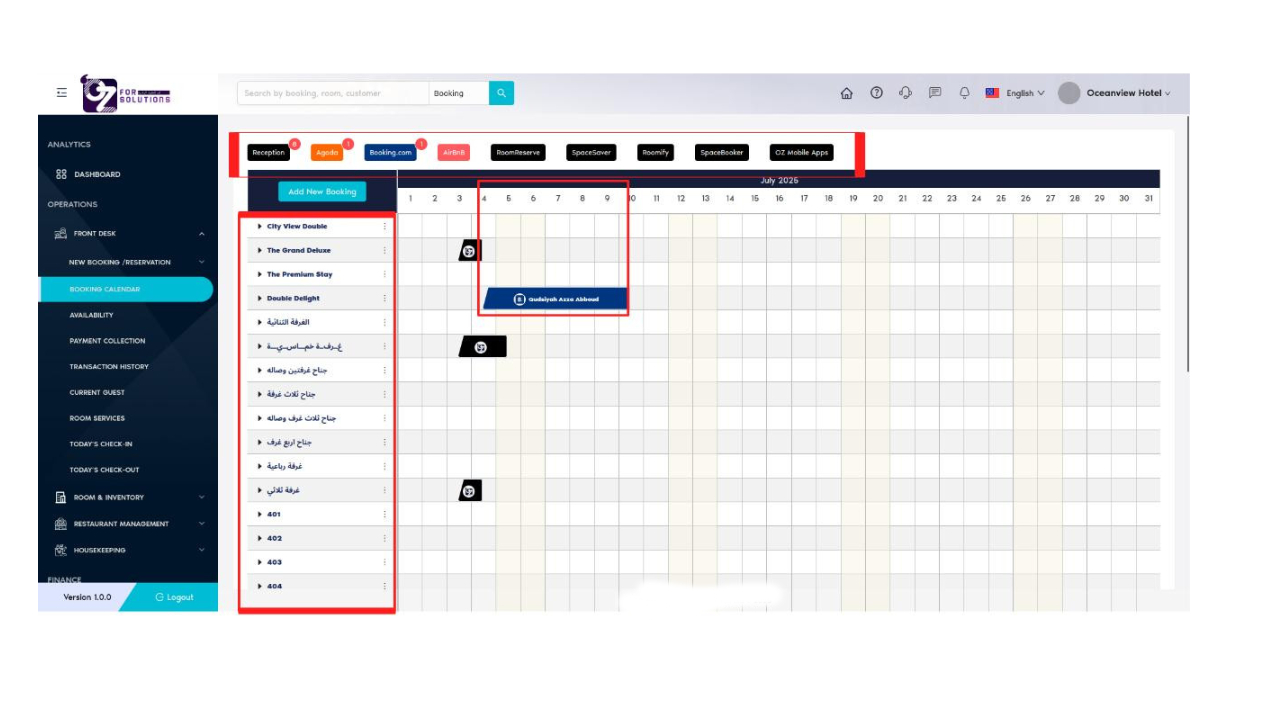
- Apply filters to narrow down data by:
-
Review Booking Information
- Click a booking block to view:
- Guest Name and Contact Details
- Source of Booking
- Total, Paid, and Due Amounts
- Quick link to full reservation details
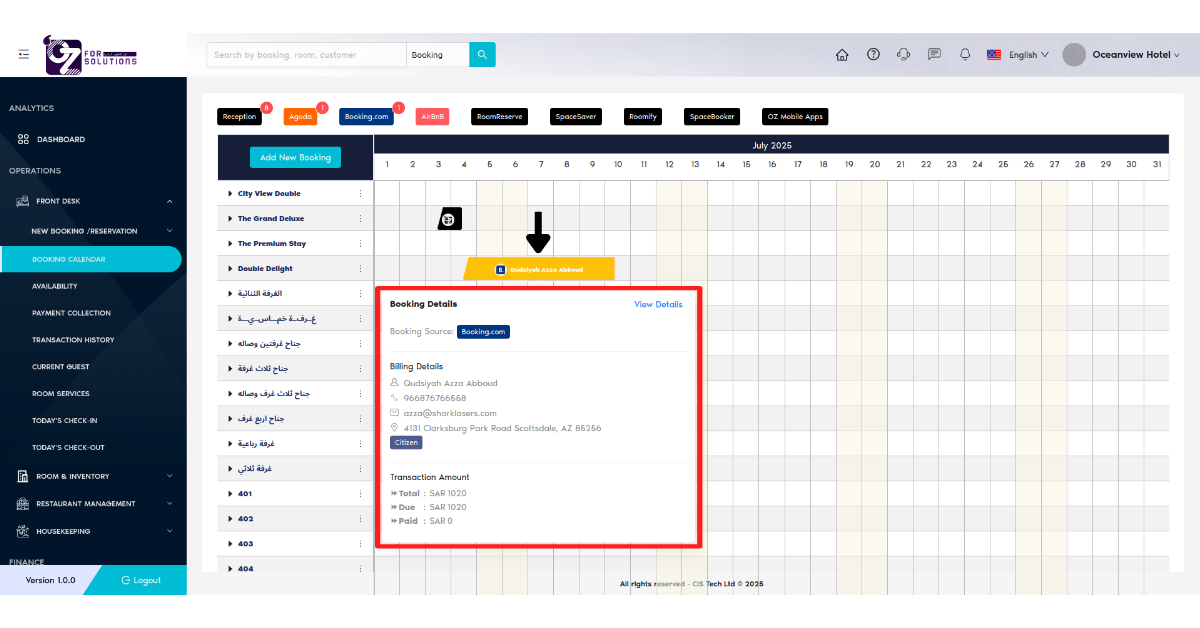
- Click a booking block to view:
-
Manage Calendar Data
- Use the Import/Export button (top-right) to:
- Click on Kebab Menu (⋮)
- Export booking data in supported formats
- Import external reservation data (if needed)
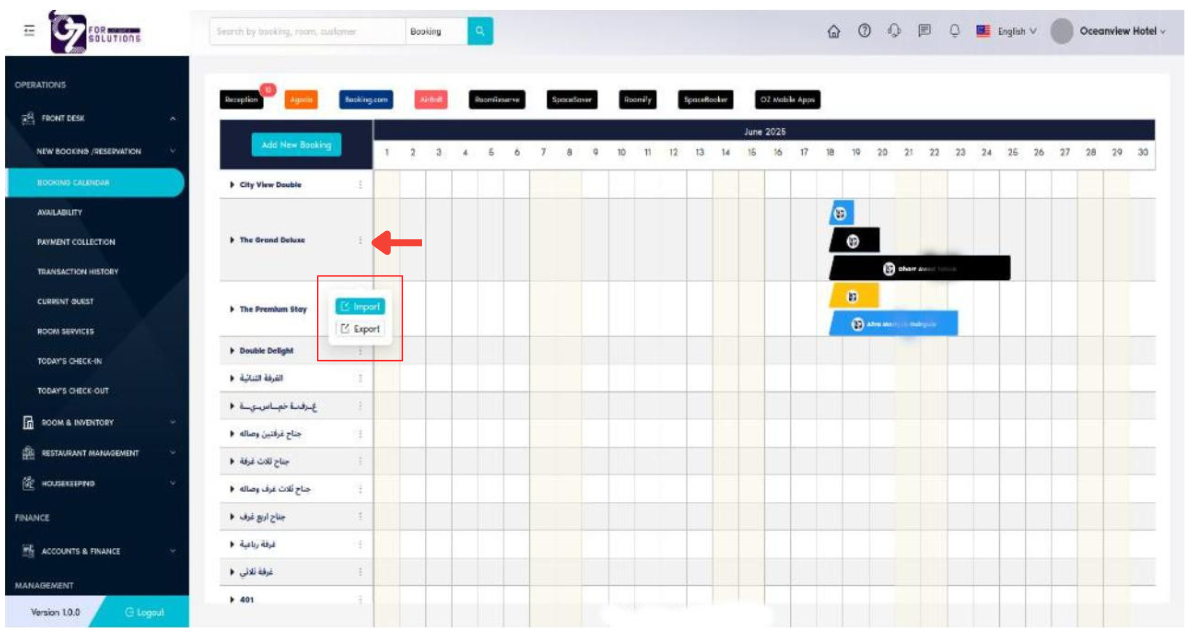
- Use the Import/Export button (top-right) to:
-
View Inividual Room wise reservation
- Click on any room to view room wise reservation
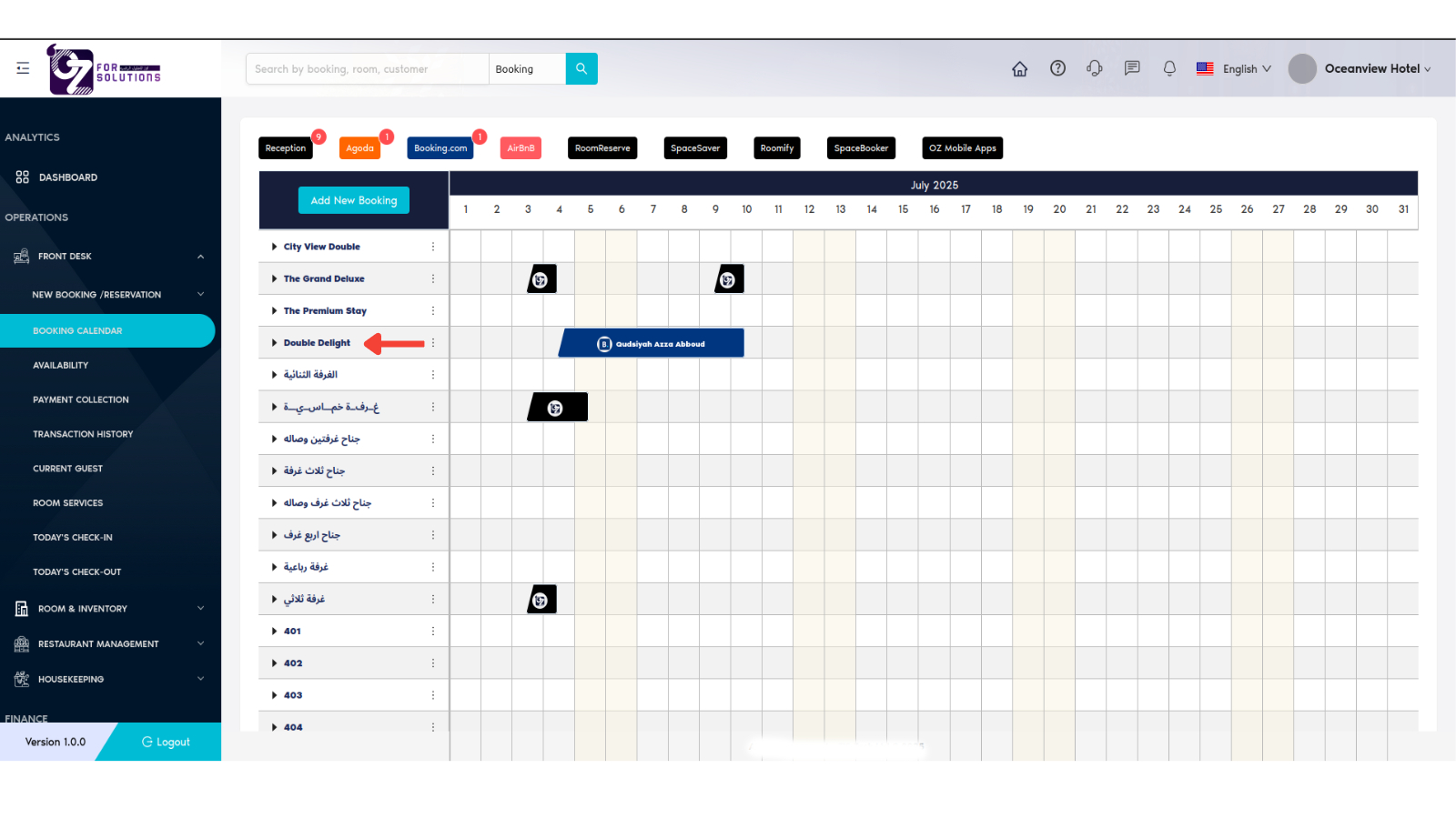
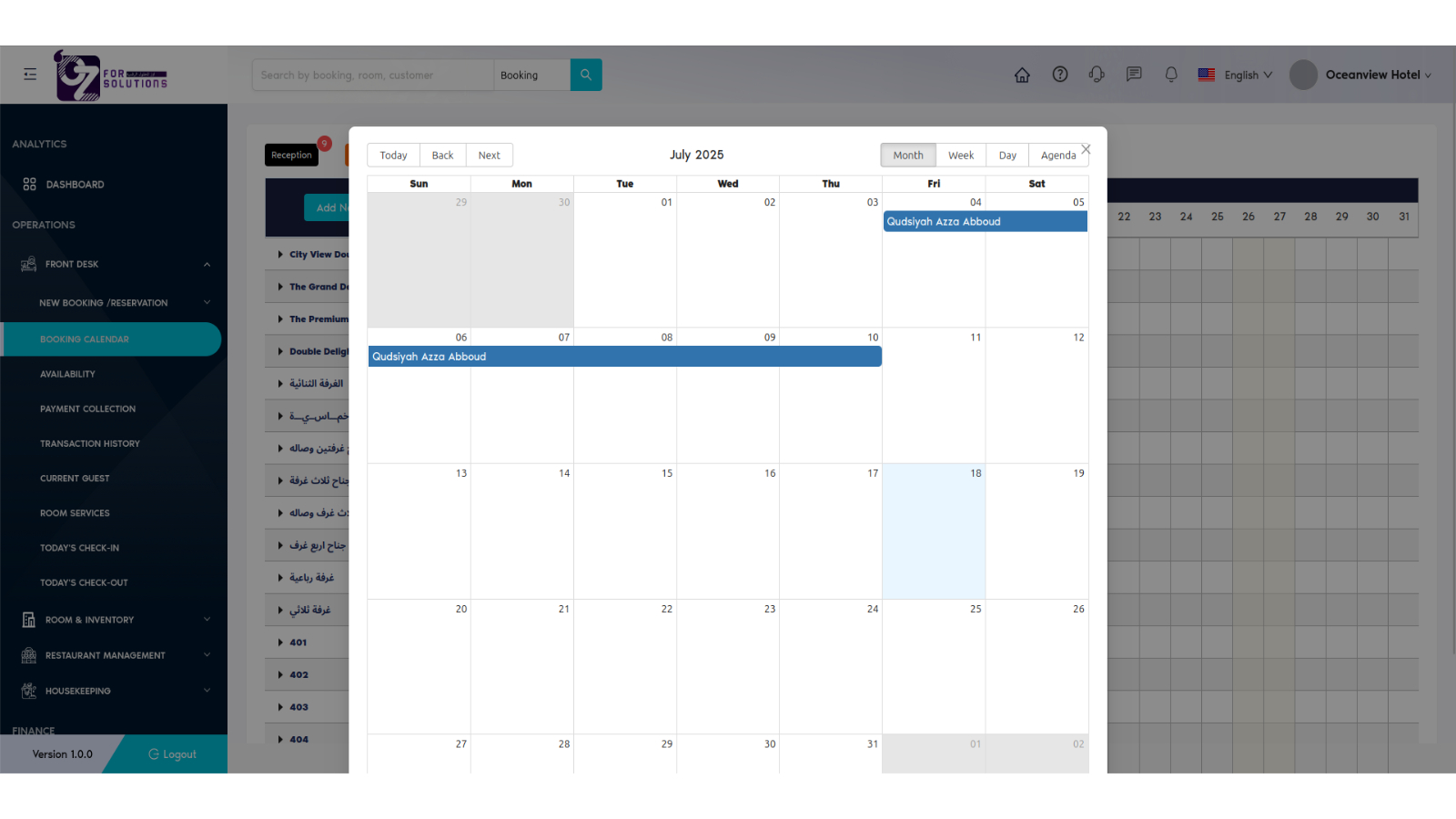
- Click on any room to view room wise reservation
-
Go to Add Reservation
- Click on Add New Booking button to to go to Add Reservation page
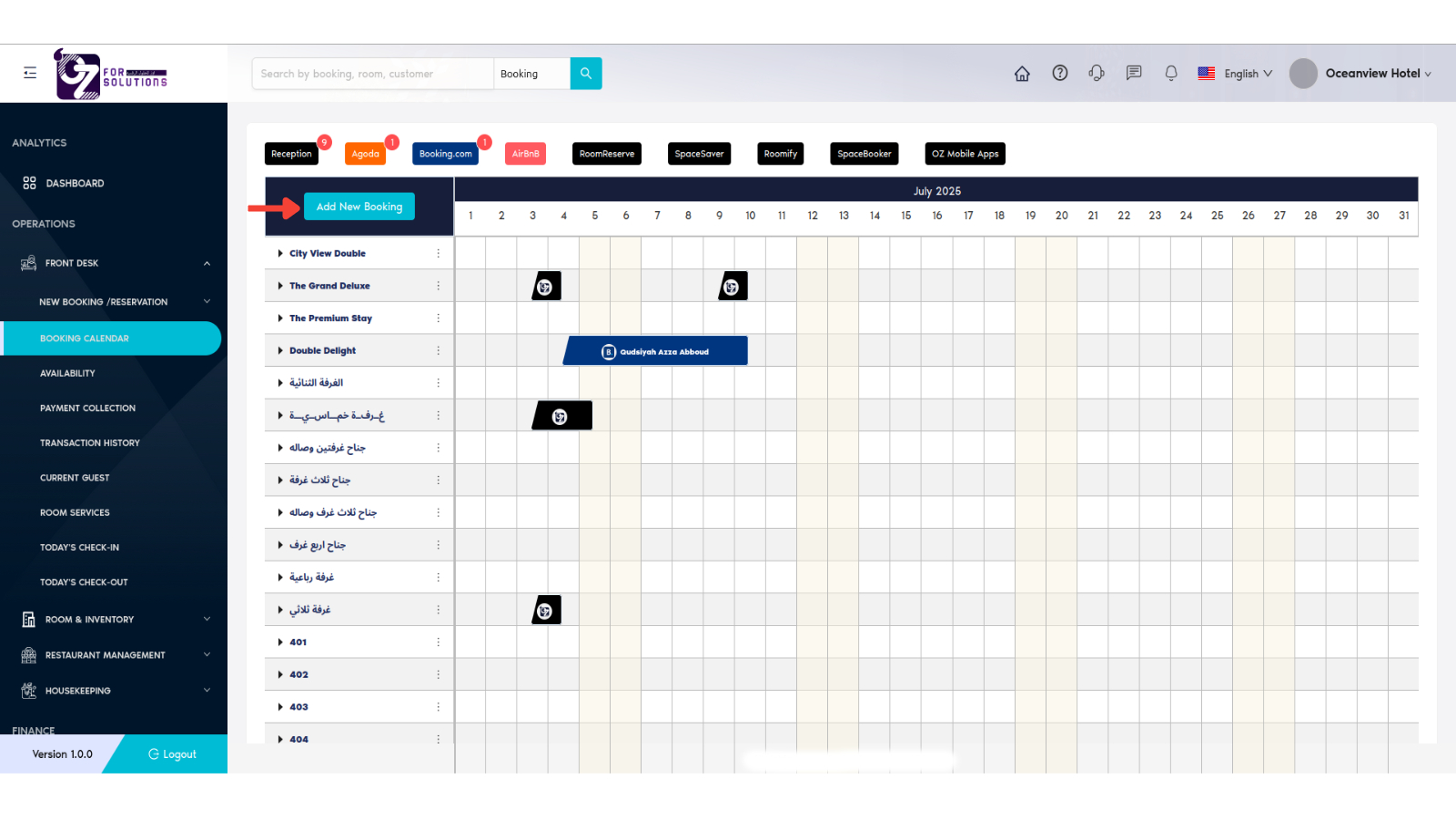
- Click on Add New Booking button to to go to Add Reservation page
❗ Troubleshooting
| Issue | Solution |
|---|---|
| Booking block not showing | Ensure reservation dates are valid and not expired |
| Overlapping reservations | Use availability module to avoid room overbooking |
| Filter not working | Reset filters or reload the calendar |
🔗 Related Pages
📞 Support
For help with calendar display or booking conflict resolution:
- Contact your front desk manager
- Or email: hello@cistechltd.com
Visualize and manage your hotel’s occupancy with the intuitive and flexible booking calendar view.