🏨 Add Reservation – Front Desk
Module: Front Desk
Section: Add Reservation
Location: Operations > Front Desk > Add Reservation
Version: 1.0.0
Last Updated: June 2025
🧭 Overview
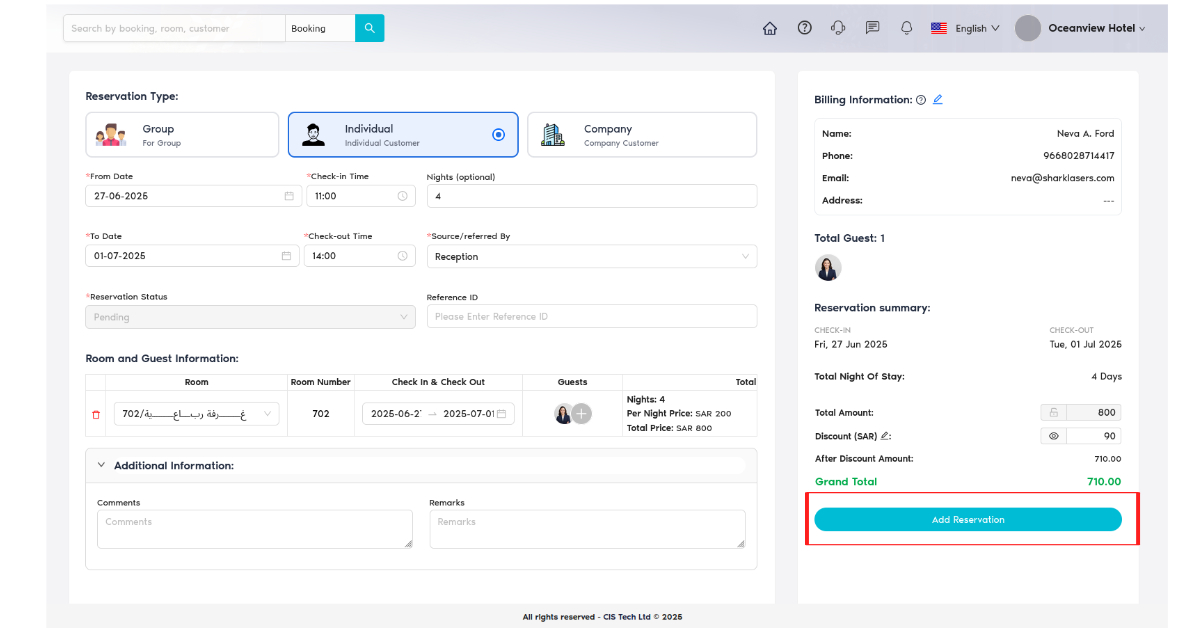
The Add Reservation page allows front desk users to create new bookings for individual, group, or company customers. It includes fields for selecting dates, time, source, room, and guest details. The reservation summary and billing panel update in real-time as the form is filled out.
🖼️ Interface Preview
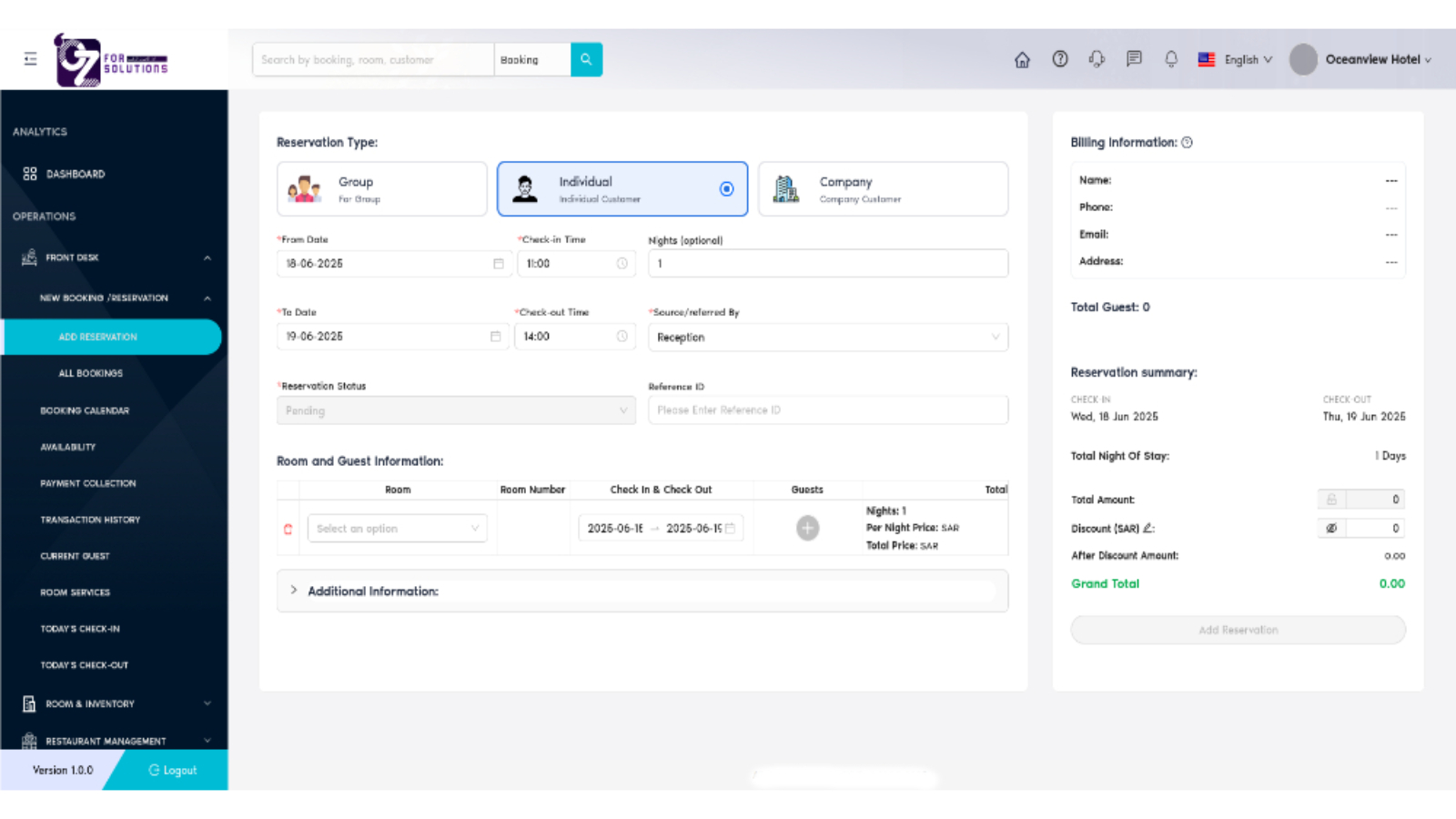
Image: Booking interface with fields for customer type, dates, times, guest info, and billing summary.
👤 Who Can Access
| Role | Access Level |
|---|---|
| Admin | Full access |
| Manager | Full access |
| Receptionist | Add/Edit |
| Staff | No access (default) |
📌 Key Features
- 👥 Reservation Type: Supports Individual, Group, and Company bookings.
- 📅 Date & Time Selection: Choose check-in/out dates and times.
- 🏨 Source/Referred By: Track how the guest came to book.
- 🔢 Room and Guest Info: Add room number, stay duration, and number of guests.
- 📃 Billing Information: Automatically calculates nights, total cost, discount, and grand total.
- ✏️ Editable Discount: Allows manual input of a discount amount.
- 🔄 Auto Calculation: Updates totals and billing data dynamically.
🧾 Form Sections
1. Reservation Details
| Field | Required | Notes |
|---|---|---|
| Reservation Type | ✅ | Choose between Group, Individual, or Company |
| From Date | ✅ | Start date of stay |
| To Date | ✅ | End date of stay |
| Check-in Time | ✅ | Time of arrival |
| Check-out Time | ✅ | Time of departure |
| Nights | ⬜ Optional | Auto-calculated if date range provided |
| Source | ✅ | e.g., Reception, Website, Phone |
| Reference ID | ⬜ Optional | Custom reference (if needed) |
2. Room and Guest Information
- Add multiple rooms with corresponding check-in/out dates.
- Select room type/number from dropdown.
- Enter number of guests per room.
3. Billing Information Panel
| Label | Description |
|---|---|
| Name, Phone, Email | Pulled from guest profile once selected/added |
| Total Night of Stay | Auto-calculated from dates |
| Total Amount | Sum of room prices × nights |
| Discount | Optional SAR amount that reduces the total |
| Grand Total | Final amount after applying discount |
✅ How to reserve a room – Step by Step
-
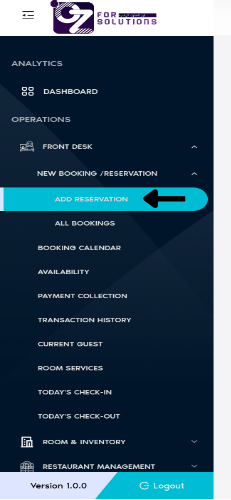
Navigate to the Reservation Page
- Go to
Front Desk > Add Reservationfrom the left sidebar.
- Go to
-
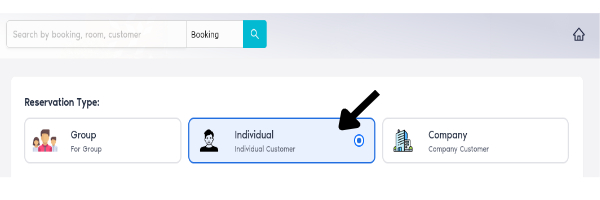
Choose Reservation Type
- Select from:
- Individual
- Group
- Company
- Select from:
-
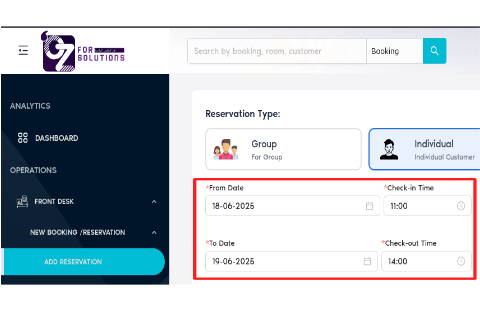
Select Date and Time
- Pick
From DateandTo Date. - Choose
Check-in TimeandCheck-out Time.
- Pick
-
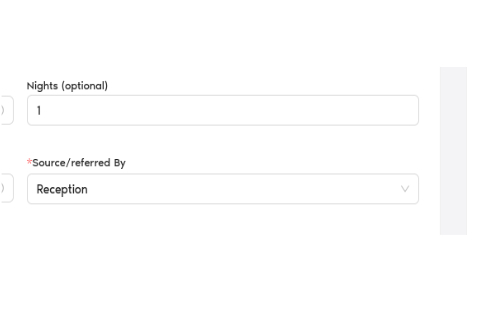
Specify Booking Source and Night Limit
- Select how the reservation was received (e.g., Reception, Agoda, Booking.com).
- Increase or decrease night limit, it will also update From Date and To Date automatically.
-
Assign Room and Guests
-
Select
Room,Room NumberandCheck In & Check Outdate will automatically generate.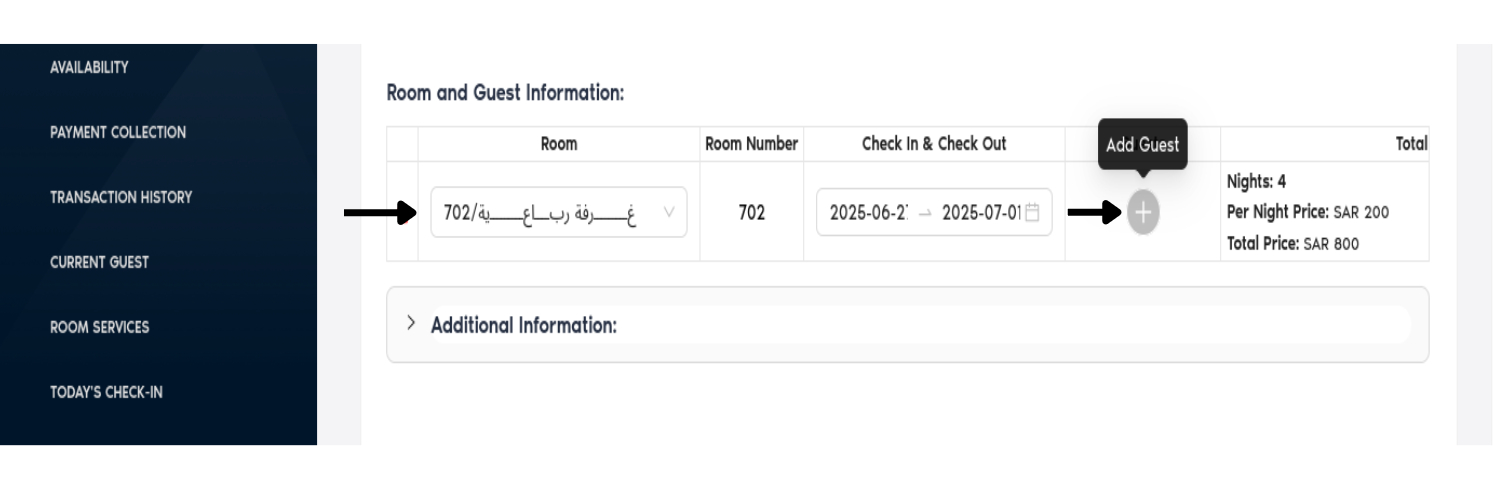
-
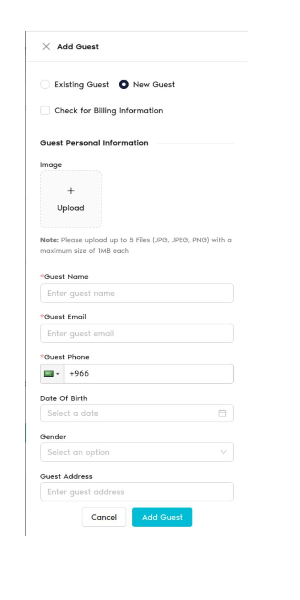
Click + Add Guest , select New Guest, click on check box(Check for Billing Information) and fill in:
- Full Name
- Phone Number (with country code)
- Email Address
- ID Type and Number
- Nationality etc.
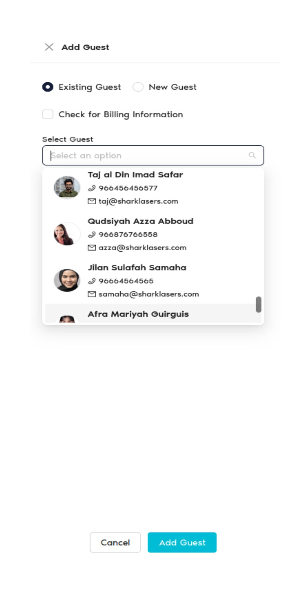
There is another option:
- Select
Existing Guest, click on check box(Check for Billing Information), select any Existing Guest fromSelect Guestdropdown field.
-
-
Enter Optional Information
- Add a
Reference ID(if applicable). - Apply any
Extra Discount (%). This discount ammount have view discount and hide option (This will automatically appear to invoice after create any reservation)

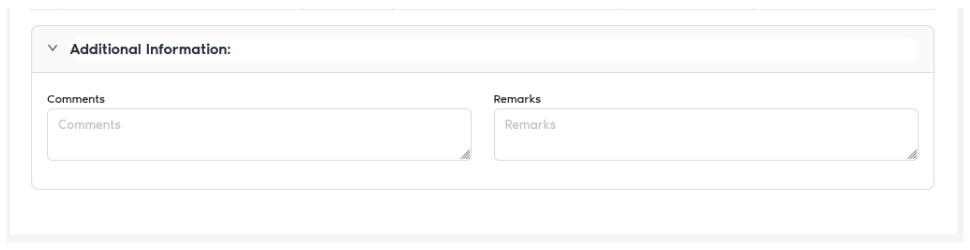
- Leave notes or internal comments.
- Add a
-
Review Billing Summary
-
Verify:
- Subtotal
- Discount
- VAT (Tax)
- Grand Total
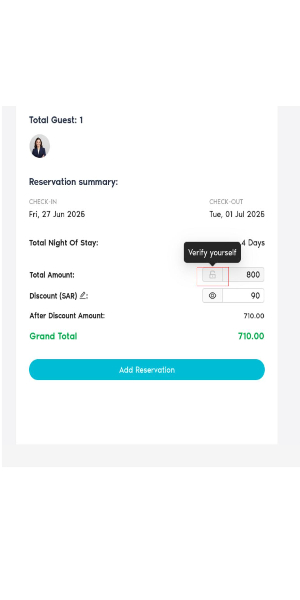
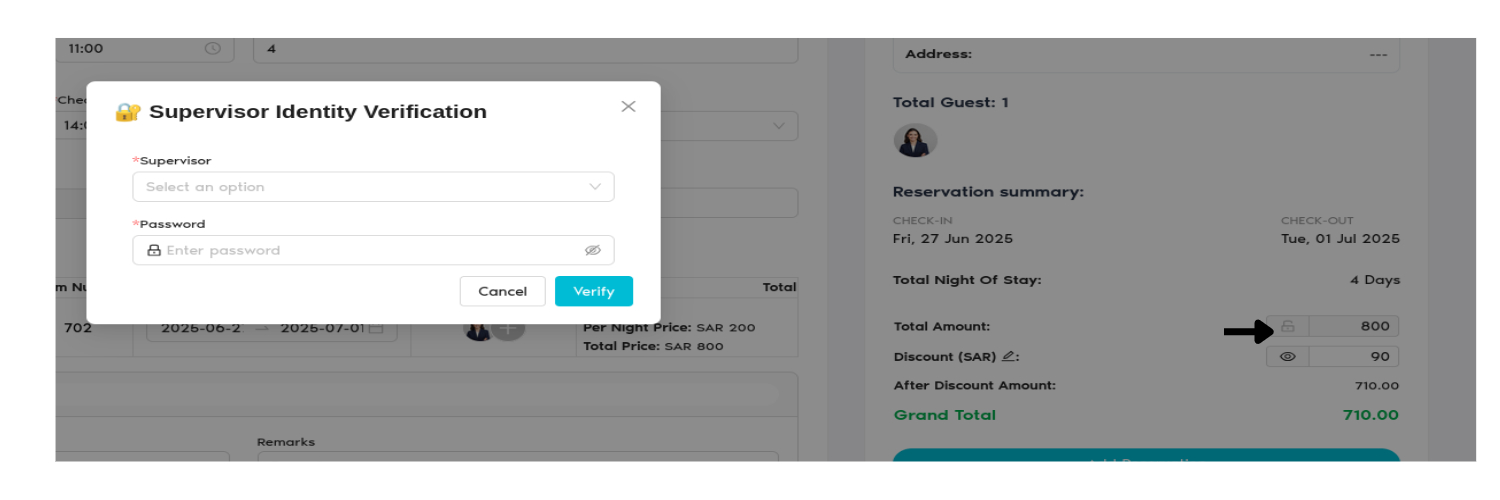
- Total Amount could be additable with admin permission.
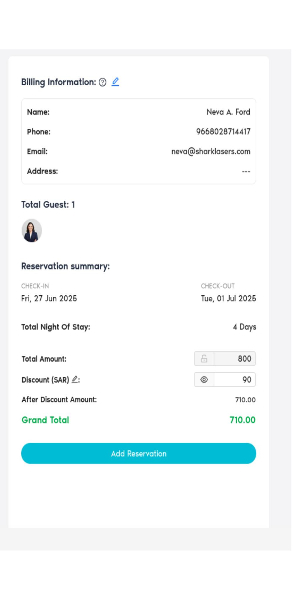
- Also confirm stay duration, number of guests, and room details.
-
-
Finalize the Reservation
-
Click the Add Reservation button to submit the booking.
-
-
Post-Submission
-
The new reservation will appear in the
All Bookingslist with the assigned status (Confirmed, Pending, etc.).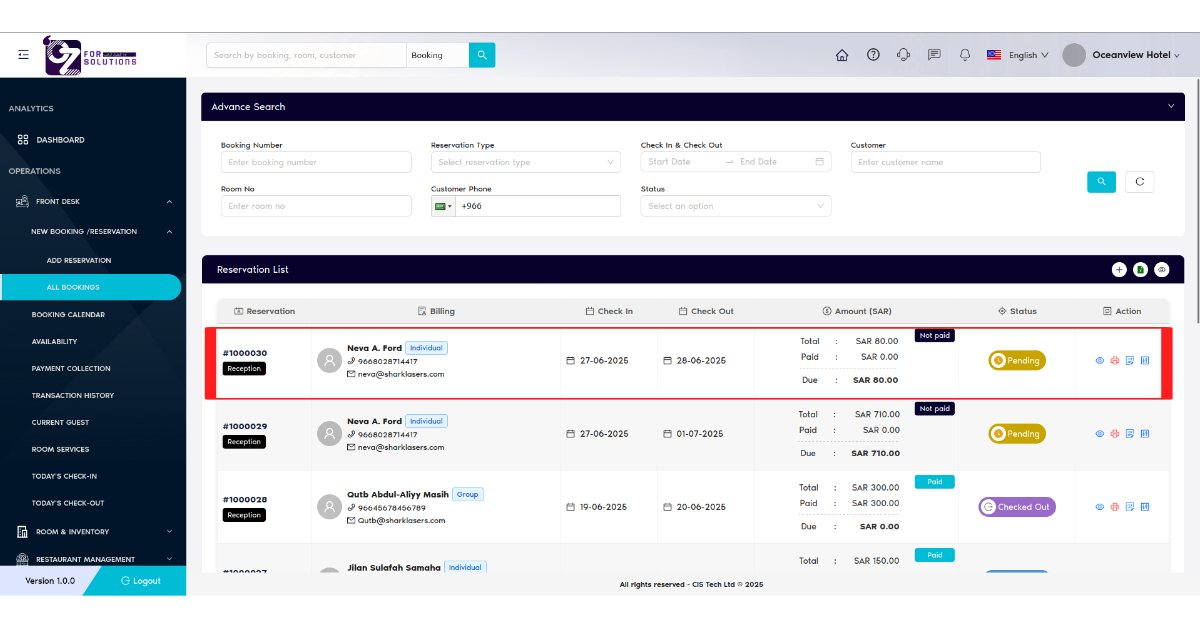
-
❗ Troubleshooting
| Issue | Solution |
|---|---|
| Room dropdown is empty | Make sure rooms are added in inventory |
| Guest count not updating | Click the + button to assign guests |
| Discount not applied | Ensure proper SAR value and format used |
| Add button is disabled | Required fields may be missing |
🔗 Related Pages
📞 Support
Need help adding reservations or encountering errors?
- Contact your front desk supervisor
- Or email: hello@cistechltd.com
Efficiently manage guest stays and maximize property occupancy with accurate reservation handling.